What’s New? Install Windows Server 2025 on Beelink EQ12 PC


In this article, we shall discuss “What’s New? Install Windows Server 2025 on Beelink EQ12 PC and enable RDP”. Elevate your business operations to unprecedented levels of efficiency and innovation with the Windows Server 2025. Please see how to Migrate RDS CALs, how to Install Proxmox VE on a Beelink EQ12 Mini PC, how to resolve “no pg_hba.conf entry for host on PostgreSQL, and how to configure Azure Container Registry for a secure connection with Azure Container Apps.
As announced during Ignite and documented on Microsoft Techcommunity, the vNEXT is the optimal solution for running mission-critical workloads. This cutting-edge platform empowers IT professionals and developers to seamlessly modernize their applications, fostering a dynamic environment that facilitates hybrid use cases.
Windows Server Insider builds are in PREVIEW. This information relates to a prerelease product that may be substantially modified before it’s released. Microsoft makes no warranties, expressed or implied, with respect to the information provided here.
What’s new in Windows Server Insiders Preview
Since only preview versions are available at the moment, I will be testing with it. Let’s discuss the new features in Windows Server Insiders Preview.
Windows Server Insiders Preview is built on the strong foundation of Windows Server 2022 and brings many innovations.
Please see Unable to bind to LDAP or AD in Pleasant Password Server, How to create a dual-boot setup on Windows 11, and LDAP: What is Lightweight Directory Access Protocol.
Active Directory Domain Services
Below are some new capabilities included for Active Directory Domain Services (AD DS) and Active Directory Lightweight Domain Services (AD LDS). It will interest you to know that there have not been significant improvements to these areas since Windows Server 2016 – Windows Server 2022.
Forest and Domain Functional Level
The new feature level is required for general support and the new 32K database page size feature. The new functional level is mapped to the values and for unattended installations. Microsoft has no plans to upgrade the feature layers for Windows Server 2019 and Windows Server 2022.
AD has been using an Extensible Storage Engine (ESE) database since its introduction in Windows 2000, which uses an 8k database page size. The architectural decision to use 8k has led to limitations in AD, which are documented in Maximum Scalability of AD.
An example of this limitation is that an AD object with a single record cannot be larger than 8k bytes. Moving to a 32k database page format provides a huge improvement in areas affected by outdated limitations. For example, multivalued attributes can now contain up to ~3200 values, an increase of 2.6 times.
Note: New DCs can be installed with a 32k database page that uses 64-bit LIDs (Long Value IDs) and runs in an “8k page mode” to ensure compatibility with previous versions. An updated DC will continue to use its current database format and 8k pages.
The transition to 32k database pages is done for the entire forest and requires that all DCs in the forest have a 32k page-capable database.
To perform an unattended promotion and downgrade of a domain controller (DC). Please see how to demote and remove a Domain Controller on Windows Servers, and how to setup a Domain Controller.
Microsoft recommends you to start planning your AD and AD LDS servers upgrade to Windows Server 2022 in order to prepare for the Windows Server 2025!
AD Schema Updates
Windows Server 2025 comes with two new Log Database Files (LDFs) Active Directory thereby extending the AD schema, and . the corresponding AD LDS schema.
NUMA Support
Active Directory Domain Services now leverages the advantage of NUMA-enabled non-uniform memory access (NUMA) hardware by using CPUs in all processor groups. In the past, AD could only utilize CPU in Group Zero.
Now this can be extended way beyond 64 cores.
Active Directory Replication Priority Order
In the past, the AD calculates the priority for data replication between different DCs. Now, administrators have the possibility to increase the system-calculated replication priority with a specific replication partner for a specific naming context. This feature allows for more flexibility in configuring the replication order to handle specific scenarios.
LDAP Standard Encryption
All communication from LDAP clients after a Simple Authentication and Security Layer (SASL) binding uses LDAP sealing by default. LDAP support for TLS 1.3 uses the latest SCHANNEL implementation and supports TLS 1.3 for LDAP over TLS connections.
TLS 1.3 does away with outdated cryptography algorithms, increases security over older versions, and aims to encrypt as much of the handshake as possible. See how to enable LDAP over SSL with a third-party Certificate such as DigiCert.
Other Enhancements
New event IDs (3074 and 3075) were introduced and can be enabled for LDAP channel binding.
These changes are not only available for vNEXt (Windows Server 2025) but also Windows Server 2022 as it was made available. LDAP channel binding and LDAP signing provide ways to increase the security for communications between LDAP clients and Active Directory domain controllers.
A set of unsafe default configurations for LDAP channel binding and LDAP signing exist on Active Directory domain controllers that let LDAP clients communicate with them without enforcing LDAP channel binding and LDAP signing. This can open Active Directory domain controllers to an elevation of privilege vulnerability.e available with the cumulative update for
Also, support for LDAP over TLS 1.3. This is because Windows Server 2025 uses the latest SCHANNEL Implementation. Performance counters are now available for DC Locator, LSA Lookups, and LDAP client.
Performance counter is also available for LDAP client in Windows Server 2022 via the KB 5029250 update. Kerberos now support stronger encryption and signing mechanisms by adding SHA-256 and SHA-384.
Azure Arc
The Azure Arc service loads by default and is located in the taskbar. Azure Arc extends the capabilities of the Azure platform, enabling the creation of applications and services that can run in different environments. This includes data centres, edge and multi-cloud environments, and greater flexibility
This list is endless. Therefore, I would recommend taking a look at the Microsft learn documentation for features not covered in this article.Delegated Managed Service Account
This new account type allows you to migrate from a service account to a delegated managed service account (dMSA). This account type contains managed and fully randomized keys that ensure minimal application changes while disabling the original passwords of the service account.
Wireless
It’s now easier to enable wireless features because the Wireless LAN Service feature is now installed by default. The wireless startup service is set to manual and can be enabled by running in the Command Prompt, Windows Terminal, or PowerShell command below.
net start wlansvcServer Message Block
Windows Server Preview provides support for SMB over Quick UDP Internet Connections (QUIC). SMB over QUIC adds the benefits of QUIC, which offers low latency, encrypted connections over the Internet
Note: When a share was created, the SMB firewall rules were automatically configured to enable the File and Printer Sharing group for the relevant firewall profiles.
Creating an SMB share in Windows now automatically configures the new File and Printer Share (Restrictive) group, which no longer allows incoming NetBIOS ports 137-139.
Starting with build 25997, an update will be made to enforce SMB encryption for all outbound SMB client connections. With this update, administrators can set a mandate that all target servers support SMB 3.x and encryption. If a server lacks these features, the client will not be able to connect.
Download the Preview Build
Navigate to the following Windows Insider Preview Download Page. If you are valiant enough like me and would like to install Windows Server 2025, please follow along.
I would recommend you join the Windows Server Insider Program to be able to test out new Windows Desktop and Server releases. This way, you will be conversant with What’s New and how to Install Windows Server 2025 on Beelink EQ12 PC or any other hardware.
New builds are released approximately every two weeks with many new features already in. As noted, many features are still not implemented yet, and when implemented, you will be notified via the Windows Insider Program
Note: the latest Windows Server Insider Build (v.26040) comes with flighting and downloadable in-place upgrades. That means you no longer need an ISO and a manual upgrade. It’s your choice to upgrade using Setup as before, or to use Windows Update for the same.”
SRC: Microsoft software engineer Artem Pronichkin.
As announced by Jeff Woolsey. The Windows server 202S is driven by community feedback with the desire to embrace a hybrid and adaptive cloud environment. He noted that significant investment was made for Windows Server 2025 in the following areas below as well.
- Windows Server Hotpatching
- Mission Critical Data & Storage, and
- Hyper-V & AI and much more… Want to learn more about some hidden gems with this release, please see the comment section.
Create a bootable USB using Rufus on Windows
We will utilize RuFus to format and create a bootable USB drive. Please see how to Create a Windows 10 or 11 bootable USB with UEFI support. Please see How to create Windows 11 Bootable USB drive with the Media Creation Tool, how to format a USB on macOS, and how to Create a Windows 10 or 11 bootable USB with UEFI support. See Create a Bootable USB Drive Using dd Command on Linux
Also, see how to create a Multiboot with Multiple OS ISOs. Search and download Rufus via the link above.

Download and run the latest version as shown below. These steps are similar to the steps discussed here: How to install ESXi on a Beelink EQ12 Mini PC, and how to install Proxmox VE on a Beelink EQ12 Mini PC.

Run the Rufus.exe file to launch the tool. Under the “Device” section, select the USB flash drive.

Under “Boot Selection” select Disk or ISO image. Click the SELECT button on the right to open a folder location and select the Windows Server 2025 Insider Preview file to use.

Customize your Windows Installation based on your need and click OK.

Click Start and at the prompt, click on Ok to accept the warning information.

Copy in progress!

When complete, click close.

Install Windows Server 2025
Since I am installing on a Beelink Mini PC, I will insert the USB and click on F7 to boot into the EQ12 Mini PC. On other devices such as DELL, you would have to use the F12 button.
You will need the appropriate hardware and drivers handy. Regardless of the Windows Server Edition you are installing, below are the steps to achieve all workflow. For product keys, known issues and the latest additions, see this announcing Windows Server Preview Build page.
It will boot into the Windows Server 2025. You will be asked to select the Microsoft server languages, including the language, and time and currency format.

Select your keyboard settings.

On the “Select Setup Option”, choose “Install Windows Server” as this is the goal of this guide. You could also choose to “Repair your PC or launch the legacy experience”.
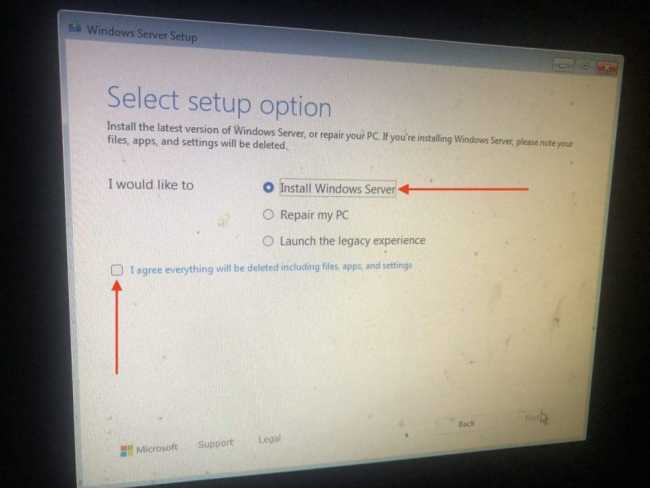
Install Windows Server selected and selected the checkmark to delete everything on the PC. Click Next to proceed.

Product Key for Windows Server 2025
Enter the product key from the link shared above.

Select Next to proceed.

Based on the product key, the installer will display the options for Windows Server Standard edition or Windows Server Datacenter. Select your desired server edition and click next.

Accept the applicable notices and license terms.

Searching for disks

You can select the location to install Windows Server. You can format partitions, delete partitions here etc.

Ready to install Microsoft Windows Server. Click the Install button.

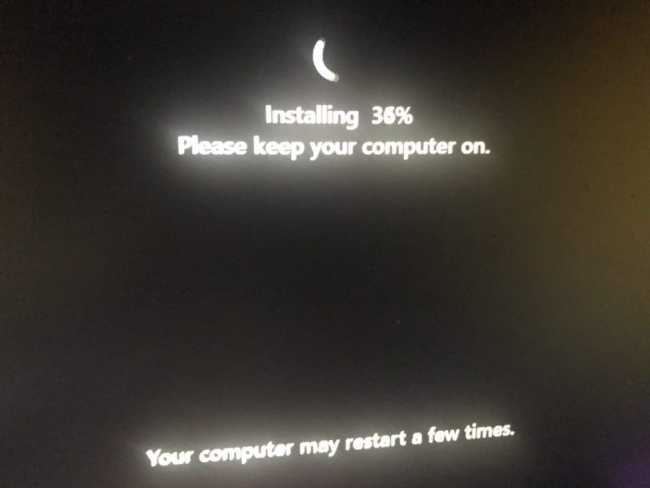
Below is the Windows Server installation screen

This is just showing the installation progress below. The server will boot after the installation.
Set the password for the Administrator account.

Press CTRL+ALT+DEL to to unlock and login.

Enter your password and hit the Enter button.

When you log in for the first time, the desktop shell environment matches the style and appearance of Windows 11.
Note: The Server Manager will pop up by default and this is one of the quick ways to differentiate it from Windows 11.

Enable RDP (Remote Desktop Protocol) for Windows Server 2025
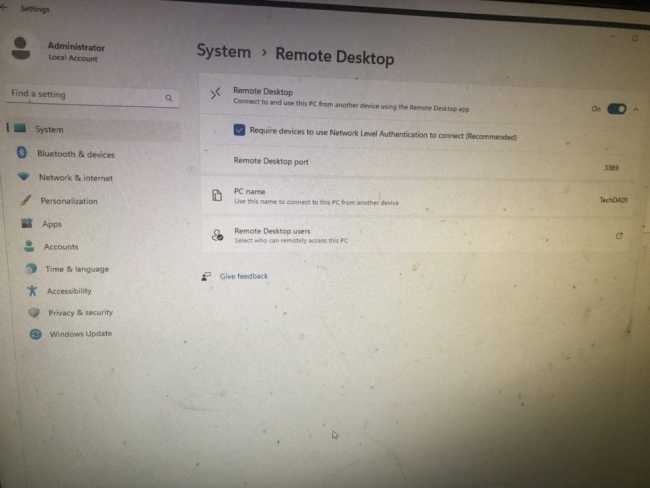
To be able to connect to this server remotely, we have to enable a Remote Desktop connection.
See how to fix Can’t connect via RDP upon installing Norton 360. Also, see “is RDP enabled? Enable and disable Remote Desktop in Windows 10 for all users or selected users“.
To do this, click on Settings, and select Remote Desktop. Just toggle the button on and ensure require the device to use Network Level Authentication is selected.
I hope you found this article useful on “What’s New? Install Windows Server 2025 on Beelink EQ12 PC and enable RDP”. Please feel free to leave a comment below.