Skip to content

TechDirectArchive

Hands-on IT, Cloud, Security & DevOps Insights

  • Home
  • About
  • Advertise With US
  • Reviews
  • Contact
  • Toggle search form
Home » Windows » How to remove third-party cookies from Microsoft Edge

How to remove third-party cookies from Microsoft Edge

Posted on 17/08/202218/09/2024 Temitope Odemo By Temitope Odemo No Comments on How to remove third-party cookies from Microsoft Edge
cookies9

What exactly are cookies? These are text files that store every web information on your system. They are used for a better browsing experience. The reason why you get to see many of these cookies stored on a Microsoft Edge. Even though Cookies are meant to provide a better browsing experience. But there are times that there could be privacy abuse from bad actors. In this article, I will be showing you how to remove third-party cookies from Microsoft Edge. Please see how to enable LDAP over SSL with a third-party Certificate such as DigiCert, and How to Clear Cache in Windows 11 .

Cookies can be used by companies to track every movement you make on the internet as all the website pages you surf and they will use this to supply you with some targeted adverts and also some vital info they think you may need.

Below is a YouTube video showing how to remove third-party cookies from Microsoft Edge.

You can stop advertisers from tracking and targeting you by blocking all third-party cookies or blocking all cookies. But there are times that aside from removing all cookies or third-party cookies you may just want to clear the cookies for a specific site only.

If you want to read more on cookies and browsers you can check these articles: macOS: How to clear cookies, history, and cache in Safari, No sound on Google Chrome: How to fix sound not working on Google Chrome, Microsoft Edge: All available Policies for the latest version of Microsoft Edge.

Remove third-party cookies from Microsoft Edge

Follow the below steps one after the other to remove third-party cookies from Microsoft Edge. If you wish to block ad trackers, please take a look at this guide under VPN “how to download and install Norton 360 Advanced Anti-Virus on your Mac device“.

1: To kick-start click on the three dots at the top-right corner and select Settings. The Settings page will open.
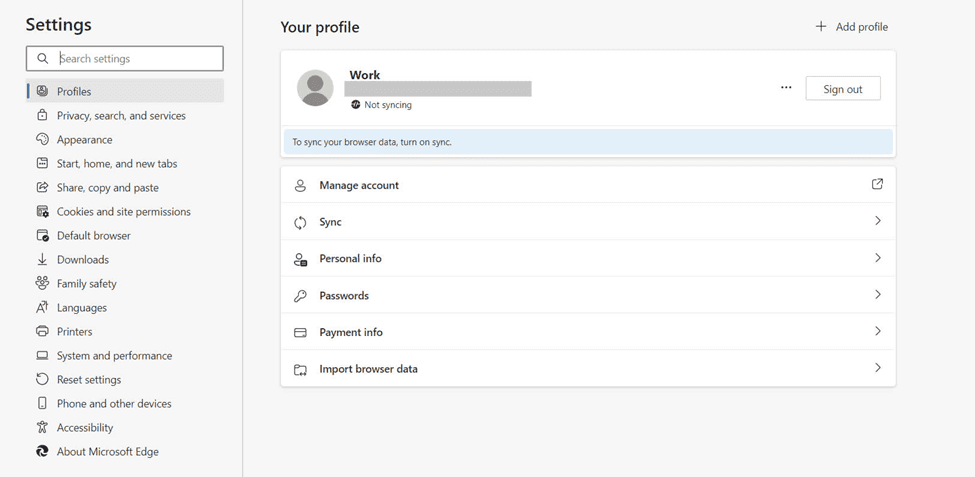
image-7
Settings Page

2. On the Settings page, click on Cookies and site permissions on the left pane.Se
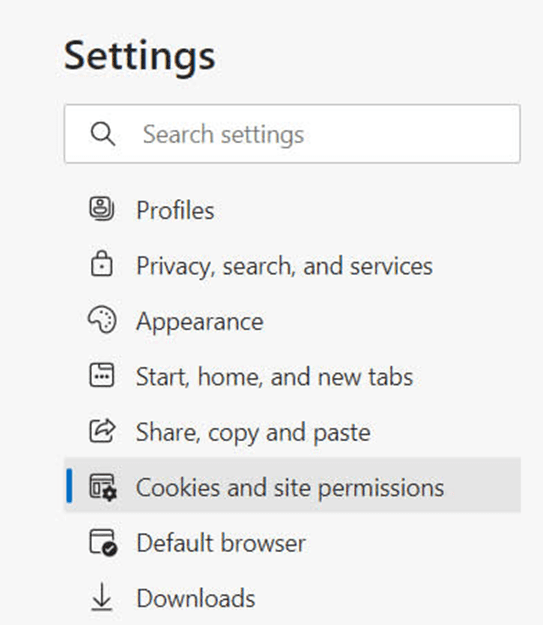
image-8
Cookies and site permissions

3. On the right-hand side check for Cookies and data stored section and click on Manage and delete cookies and site data.
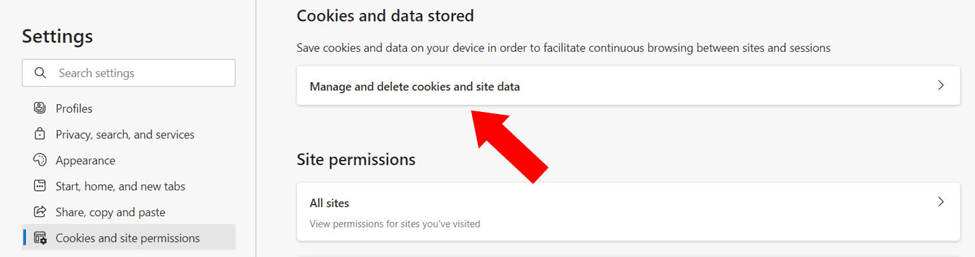
image-9
Cookies and data stored

4. If you want to block all third-party cookies just toggle the button to OFF and with this setting no third-party cookies will work on your system. Now to remove all cookies click on See all cookies and site data.
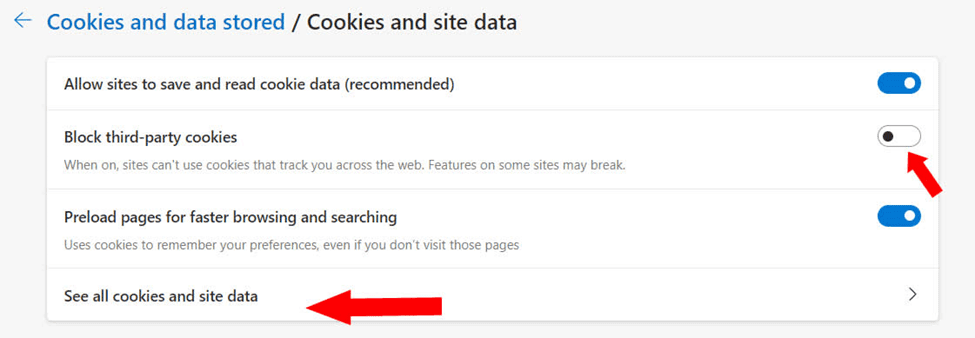
image-10
Cookies and site data

5. The next page will show you the full list of all the stored cookies in your browser. You can search or scroll down to find the site you want to remove the cookies.
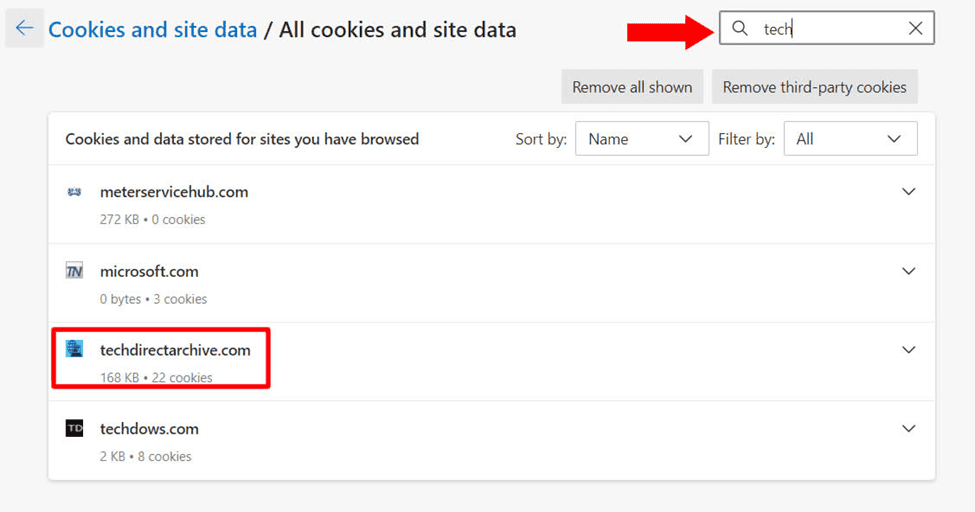
image-11
All cookies and site data

6. After searching the websites you want to delete the cookies, click the dropdown beside it and click the Delete icon next to the cookies you want to remove.
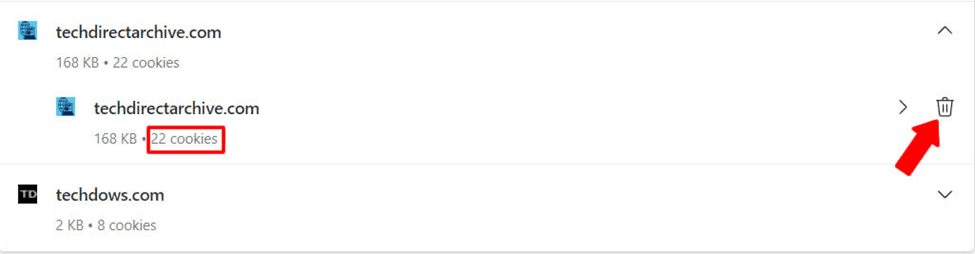
image-12
Cookies

Once the Delete icon is clicked the specific cookies is removed
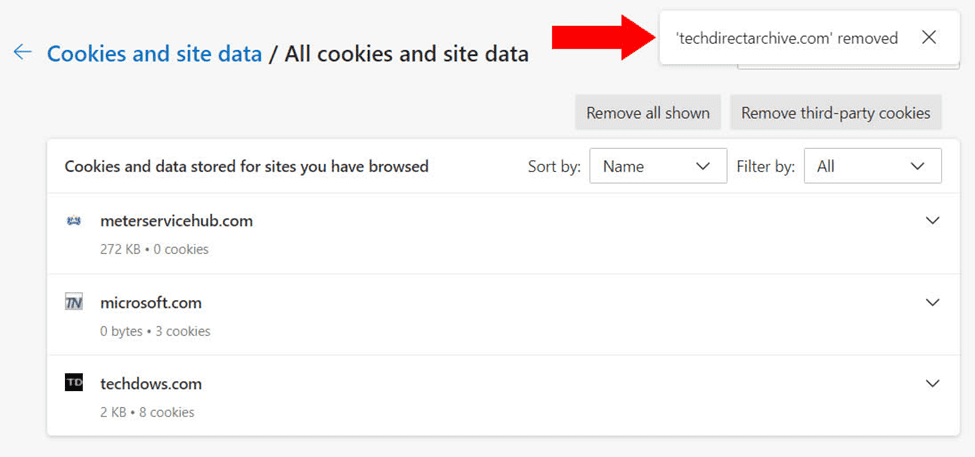
image-13
Cookies Removed

Remove all Cookies shown

7. You can also click the Remove all shown button to remove all the cookies that exist on your computer.

image-14
Clearing site data

8. You can also click the Remove third-party cookies button to remove all the cookies that belong to a third-party. You will need to agree to this removal.
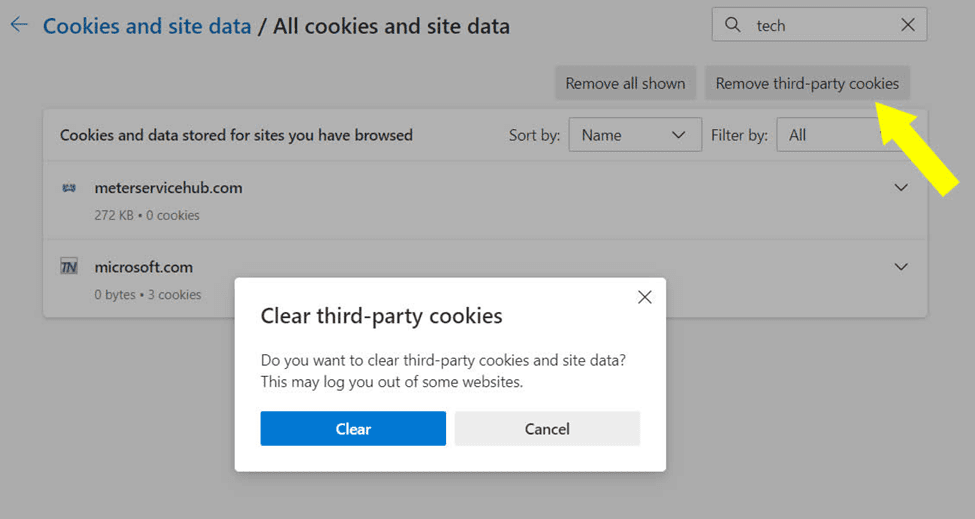
image-15
Clearing third party cookies

Also, see how to Add or Remove Sites from the Favorites List in Microsoft Edge, How to make Cortana use your default web browser such as Google Chrome, Install Microsoft Edge on Ubuntu: How to install and remove Microsoft Edge Browser on Linux, and Set Google Chrome as default: How to set a browser as default on macOS.

Clear browsing data in Edge

9. Under the Privacy, Search and Services. On the right side bar scroll to the Clear browsing data section and click to choose what to delete or clear from your system.

cookies11
Privacy and services

10. Part of what you can clear is the Cookies. Confirm that Cookies and other site data is toggled to ON. This will always Clear the Cookies on closing the browser and you can also add the Sites you do not want the cookies to be cleared.

COOKIES12
Cookies and site data

I hope you found this blog post on Remove all cookies: How to remove third-party cookies from Microsoft Edge interesting and helpful. In case you have any questions do not hesitate to ask in the comment section.

5/5 - (1 vote)

Thank you for reading this post. Kindly share it with others.

  • Share on X (Opens in new window) X
  • Share on Reddit (Opens in new window) Reddit
  • Share on LinkedIn (Opens in new window) LinkedIn
  • Share on Facebook (Opens in new window) Facebook
  • Share on Pinterest (Opens in new window) Pinterest
  • Share on Tumblr (Opens in new window) Tumblr
  • Share on Telegram (Opens in new window) Telegram
  • Share on WhatsApp (Opens in new window) WhatsApp
  • Share on Mastodon (Opens in new window) Mastodon
  • Share on Bluesky (Opens in new window) Bluesky
  • Share on Threads (Opens in new window) Threads
  • Share on Nextdoor (Opens in new window) Nextdoor
Windows Tags:Edge, Edge Browser, Microsoft Edge, Web-browser, Windows 10, Windows 11

Post navigation

Previous Post: Reveal Windows WiFi password of Network you are connected to
Next Post: Attack Surface Reduction Configuration with Microsoft Defender

Related Posts

  • screenshot 2020 03 01 at 21.19.07
    Various ways to hide Windows Taskbar Windows
  • Featured image
    How to use the voice input instead of typing on Windows Windows
  • Synergy software kvm
    Why Software KVMs such as Synergy is replacing Hardware KVMs Linux
  • change keyboard layout windows 10 thumb800
    Prevent on-screen keyboard from starting automatically and from appearing at login Windows
  • windows workstations inactivity
    Configure Windows Device Inactivity Limit Locally and Domain Wide Windows
  • image 64
    How to install Fax Server on a Windows Server Windows

More Related Articles

screenshot 2020 03 01 at 21.19.07 Various ways to hide Windows Taskbar Windows
Featured image How to use the voice input instead of typing on Windows Windows
Synergy software kvm Why Software KVMs such as Synergy is replacing Hardware KVMs Linux
change keyboard layout windows 10 thumb800 Prevent on-screen keyboard from starting automatically and from appearing at login Windows
windows workstations inactivity Configure Windows Device Inactivity Limit Locally and Domain Wide Windows
image 64 How to install Fax Server on a Windows Server Windows

Leave a Reply Cancel reply

You must be logged in to post a comment.

Microsoft MVP

VEEAMLEGEND

vexpert-badge-stars-5

Virtual Background

GoogleNews

Categories

veeaam100

Veeam Vanguard

  • DNS FEATURE
    Domain Name System: All you need to know about DNS Linux
  • How to install and configure a Standalone DNS Server
    How to Install and Configure a Standalone DNS Server Windows Server
  • zoom feature
    How to install Zoom video conference software on Linux System Linux
  • Screenshot 2021 02 14 at 00.35.50
    How to manage automatic login on Ubuntu Linux Linux
  • fix IP addressed blocked Synology
    IP Address blocked on Synology NAS due to forgotten Password Storage
  • Zit Error
    How to fix Domain Join Error during Windows Deployment Windows Server
  • How to Block IP Addresses Using Group Policy (GPO) in Active Directory
    Block IP Addresses Using Group Policy (GPO) in Active Directory Network | Monitoring
  • images 1
    WARNING: The provided hosts list is empty only the localhost is available and note that the implicit localhost does not match all Configuration Management Tool

Subscribe to Blog via Email

Enter your email address to subscribe to this blog and receive notifications of new posts by email.

Join 1,811 other subscribers
  • RSS - Posts
  • RSS - Comments
  • About
  • Authors
  • Write for us
  • Advertise with us
  • General Terms and Conditions
  • Privacy policy
  • Feedly
  • Telegram
  • Youtube
  • Facebook
  • Instagram
  • LinkedIn
  • Tumblr
  • Pinterest
  • Twitter
  • mastodon

Tags

Active Directory Azure Bitlocker Microsoft Windows PowerShell WDS Windows 10 Windows 11 Windows Deployment Services Windows Server 2016

Copyright © 2025 TechDirectArchive


Loading Comments...
 

You must be logged in to post a comment.