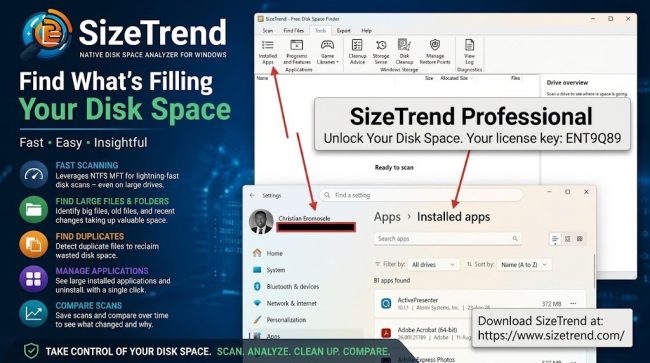
When a Windows server or workstation suddenly consumes system storage, system administrators immediately face the challenge of isolating the cause. Standard built-in Windows diagnostic utilities show high-level storage categories, but they often fail to pinpoint the exact directories, application logs, or recent file system changes responsible for rapid disk growth. In this guide we shall discuss “SizeTrend: A Fast Windows Disk Space Analyzer for Storage Analysis”. Please see Veeam ONE 13.1.0.7034 Upgrade: Complete Pre-flight and Step-by-Step Guide.
Disclosure: SizeTrend provided a complimentary 10-machine Professional license to support this technical evaluation. The analysis below reflects an independent evaluation of the utility’s setup, feature set, and operational value for enterprise environments.
Traditional utilities like TreeSize, WinDirStat, and WizTree solve part of this problem by enumerating current file sizes. However, SizeTrend Professional introduces historical disk scan comparison to address a more critical administrative question: “What changed on the file system?
Also, see Upgrading Veeam Backup Enterprise Manager to v13.1 and Applying System Updates, how to In-place upgrade of Veeam Recovery Orchestrator to version 13.1, and how to build and deploy a Docker Image with Kubernetes Cluster
SizeTrend vs. Traditional Disk Space Tools
Many Windows administrators already have their preferred disk analysis tool. The most familiar names include the below and each has its own strengths:
- WinDirStat: WinDirStat is well known for its visual treemap representation and open-source approach.
- WizTree: WizTree is particularly well known for very fast scanning of NTFS volumes.
- TreeSize: TreeSize provides extensive disk analysis capabilities and has both free and professional editions. Its professional edition also includes features such as scheduled scans and report comparison.
- SizeTrend: SizeTrend takes a slightly different approach by putting significant emphasis on what changed, alongside conventional disk analysis.
While tools like WinDirStat and WizTree etc., provide quick file system snapshots, SizeTrend Professional delivers deeper forensic tracking through saved scan comparisons. The table below provides a technical comparison between SizeTrend and other alternatives.
| Feature | SizeTrend | WinDirStat | WizTree | TreeSize |
|---|---|---|---|---|
| Windows disk analysis | ✓ | ✓ | ✓ | ✓ |
| Fast NTFS scanning | ✓ | — | ✓ | ✓ |
| Large file detection | ✓ | ✓ | ✓ | ✓ |
| File search | ✓ | Limited | ✓ | ✓ |
| Duplicate detection | ✓ | — | — | Professional |
| Scan comparison | ✓ | — | — | Professional |
| Recent file analysis | ✓ | — | ✓ | ✓ |
| File-content search | ✓ | — | — | Professional |
| Cleanup guidance | ✓ | Limited | Limited | ✓ |
| Windows application links | ✓ | — | — | — |
Feature availability can vary by product edition and version, so this table should be treated as a high-level comparison rather than a licensing matrix.
Please see Fix INACCESSIBLE_BOOT_DEVICE in Windows and Windows Server, Restoring a Physical Ubuntu Server to VMware using Veeam Agent and Export as Virtual Disks, and Action required: Update Devolutions Remote Desktop Manager Before July 21.
SizeTrend Installation and License Activation
Search for SizeTrend on google or any browser of your choice.

Or navigate to the official SizeTrend site as shown below. When you scroll down this page, you will be able to find an offical matrix as well comparing it with other popular products discussed above.

The download section offers options including a standalone portable executable, a Microsoft Store package, and a standard MSI setup package. Select the MSI setup package (SizeTrendSetup.zip) for standard administrative deployment on Windows 11. Each option serves a different purpose:
- Microsoft Store package: Useful for users who prefer Store-based application management.
- Standalone executable: Useful for quick troubleshooting and portable support work.
- MSI package: Useful for repeatable installation and enterprise deployment.

Extract the downloaded ZIP archive

Open the extracted directory and run SizeTrend.msi to launch the SizeTrend Setup Wizard. Click Next to initiate configuration.

Please see How to Back Up and Restore Microsoft Entra ID with Veeam Backup & Replication v13, Azure Virtual Desktop: How to set Up Azure Virtual Desktop Insights Monitoring [Part 03], and Disaster Recovery Test Checklist: What to Capture Before You Start.
Accepting Terms and Selecting Destination
Review the End-User License Agreement, check I accept the terms in the License Agreement, and click Next.

Specify the target installation directory. I am fine with the default.

Click Install to deploy the binaries to your system.

Once the progress bar completes, click Finish to close the setup wizard.

Please see PCI Driver Error: Connection to Deployment Share could not be made, how to fix Failed to Upgrade VIHR Component: Failed to open deployer Service Management Port, and how to Repair a Corrupt SQL Server Database Without Data Loss.
Activating the Professional License
Launch SizeTrend. Navigate to the Help tab on the top ribbon and click Register. Enter your 10-machine license key into the prompt and click OK to unlock full Professional edition features.

Please see Azure Application Gateway: Practical Configuration Guide, and Azure Managing Subscriptions with PowerShell: From Login-AzAccount to Resource Control and Private Endpoint Verification for Azure File Share”.
Core Capabilities and UI Walkthrough
Fast Scanning & Main Interface Overview
SizeTrend utilizes direct Master File Table (MFT) parsing on NTFS volumes. This bypasses typical Win32 API recursion overhead, returning drive analysis in seconds even across millions of objects as shown in the table below.

The main interface opens to the Scan tab:
- Action Ribbon: Triggers drive scans, compression tasks, temporary file cleanup, and elevated administrative restarts.
- Filtering Controls: Provides rapid filtering by date modified (
Modified in past...), file name wildcards, and hidden object visibility. - Drive Overview Panel: Displays real-time breakdown statistics, reclaimable space highlights, and growth alerts.
Advanced Search and Duplicate Detection
Switching to the Find Files tab reveals powerful search capabilities built for storage cleanup as shown in the table below:
- Targeted Search Filters: Search matching criteria across filenames, file sizes, creation/modification dates, or specific text/binary contents within files.
- Duplicate Detection: Click Find duplicates to run a targeted hash/size analysis across selected directories to uncover identical files eating up storage.
- File Type Breakdown: Inspect File Type Sizes to visualize which extensions (e.g.,
.log,.vhdx,.iso,.zip) account for consumed disk space.

Integration with System Diagnostics & Windows Tools
Under the Tools tab, SizeTrend bridges standalone storage analysis with native Windows administration features:
- Installed Apps Integration: Click Installed Apps to instantly map consumed space back to installed applications. SizeTrend directly interfaces with the native Windows Installed apps settings panel so administrators can cleanly remove bloatware or heavy applications.
- Storage Maintenance: Launch Windows Storage Sense, Disk Cleanup, Restore Point managers, or Event Log Viewers directly from the top ribbon.

Exporting and Reporting Data
The Export tab allows system administrators to extract actionable reports for compliance, change control, or auditing. You can generate HTML, CSV, or XML reports covering:
- File Trees & Largest Files
- Newest/Modified Files
- Duplicate File Inventories

Finding large files is standard practice for modern disk utilities. However, identifying why space disappeared over time requires historical comparison. SizeTrend Professional combines high-speed MFT scanning, duplicate detection, and direct OS integrations with point-in-time scan comparisons, thereby making it an excellent addition to any IT administrator’s troubleshooting toolkit.
I hope you found this blogpost on “SizeTrend: A Fast Windows Disk Space Analyzer for Storage Analysis” very useful. Please feel free to leave a comment below.