Oracle RMAN backups using the Veeam Plug-in for Oracle RMAN involve multiple components working together. When something goes wrong, the problem is not always immediately visible from the Veeam console. In this article, I want to share a real troubleshooting case where Veeam Backup & Replication reported the backup session as Success, while RMAN was reporting errors during the backup. Please see strategic breakdown and step by step guide to upgrading to VBR 13.1, and SizeTrend: A Fast Windows Disk Space Analyzer for Storage Analysis.
At the same time, files were being created on the backup repository, but according to the DBA validation, the data was not being written correctly.
During the investigation, the behavior changed after upgrading the plugin: the backup started but remained running for more than 24 hours and would not finish, even after restarting Veeam services.
The issue was eventually resolved after a controlled cleanup of the Veeam Plug-in for Oracle RMAN, followed by a clean installation and reconfiguration.
The environment
The environment involved in this incident had:
- RHEL 7.9
- Oracle Database 12.2
- Veeam Plug-in for Oracle RMAN
- Veeam Backup & Replication
- Oracle RMAN backups using SBT
- A daily full backup routine
One important detail about this environment is that the Oracle database is used 24/7. Because of this, restarting the database was not a practical option during troubleshooting. Any action had to be carefully evaluated to avoid impacting database availability.

Plase see Veeam ONE 13.1.0.7034 Upgrade: Complete Pre-flight and Step-by-Step Guide, Upgrading Veeam Backup Enterprise Manager to v13.1 and Applying System Updates, and In-place upgrade of Veeam Recovery Orchestrator to version 13.1
The first sign of a problem
The problem was identified during the daily monitoring of the environment. While checking the Oracle RMAN backup routine, I noticed that something was not behaving as expected.
In the Veeam console, the backup session was reported as Success.


However, when I checked the execution directly through the RMAN script, errors were being reported. This created a false positive.
From the Veeam console perspective, the session had completed successfully. However, RMAN itself was reporting failures during the operation.
There was another important symptom: files were being created on the backup repository during the backup attempts, but according to the DBA validation, the files were not being populated with the expected data.

This was concerning because a successful-looking backup session does not necessarily mean that the resulting backup can actually be used for recovery.
Fortunately, the issue was identified during daily monitoring, before the backup would potentially be needed during a real restore.
At this point, I started working with the DBA responsible for the Oracle environment to better understand what was happening on the database side.
I asked for the RMAN script logs so I could compare what was being reported by Veeam with what was actually happening during the backup.
Looking at the RMAN logs
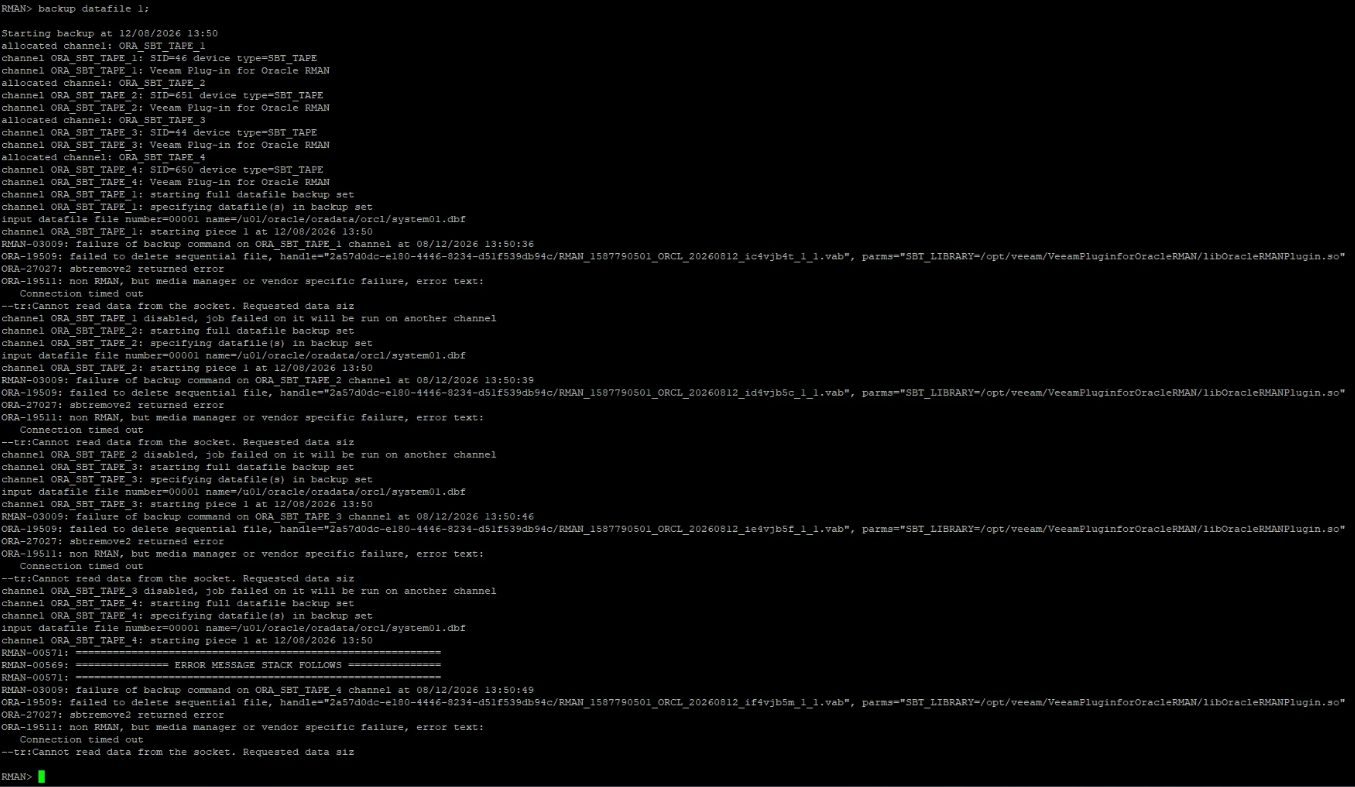
The RMAN logs showed several errors related to the media manager and communication between the components.
Some of the main messages included:
ORA-19511: non RMAN, but media manager or vendor specific failureConnection timed outCannot read data from the socket. Requested data size: [...]ORA-27207: sbtremovev2 returned errorfailed to delete sequential file
There were also errors while processing the Control File Autobackup:
Broken pipeCannot write data to the socket. Data size: [...]Failed to write data into throttled device
Another message that caught my attention was:
Failed to asynchronously execute command[plugin.findPrimaryJobRMANAutobackupsForSbtInfo]on backup server [192.168.X.X:XXXX]
The Connection timed out, Cannot read data from the socket and Broken pipe messages were particularly interesting because they indicated communication problems between components involved in the backup operation.
At this point, however, there was still no way to say exactly which component was responsible.
Because several components participate in the operation, looking only at the final Veeam job status was not enough. I needed to correlate the RMAN logs, plugin behavior and Veeam components involved in the data transfer.

Please see Fix INACCESSIBLE_BOOT_DEVICE in Windows and Windows Server, how to fix Windows Boot Error 0xc0000098 (winload.efi), and Fix Veeam Proxmox VE Backup Error: Failed to prepare disk for backup.
Testing a single datafile
As part of the investigation, the DBA tried to run a backup of only a single datafile. Even with this much simpler test, the backup failed.
This was an important test because it helped rule out the possibility that the problem was specific only to the complete full backup routine.
If the problem had been related only to the full backup script or the number of datafiles being processed, a single-datafile backup could potentially have worked.
It did not.
This reinforced the need to investigate the communication between RMAN, the SBT interface and the Veeam Plug-in for Oracle RMAN.
Upgrading the Veeam RMAN Plug-in
During the investigation, there was also a pending upgrade of the Veeam Plug-in for Oracle RMAN on this server. Since the upgrade was already pending, I decided to perform it before taking more invasive actions.
The upgrade completed successfully. The next step was to start the backup again and verify whether the updated component resolved the problem.
However, instead of returning immediately to normal behavior, the backup presented another issue.
When the backup would not stop
After the plugin upgrade, the backup started, but it remained running for more than 24 hours. The job was not making the expected progress and would not finish. I tried restarting the Veeam services and also restarted the services related to the plugin directly on the Oracle Server.
Even after these actions, the operation remained stuck. At this point, the situation became particularly challenging because the Oracle database was being used 24/7.
Restarting the database simply to try to clear the backup process was not an option. I therefore needed to identify which process was actually keeping the operation alive.

Finding the stuck RMANPluginManager
The next step was to investigate the processes associated with the Veeam Plug-in for Oracle RMAN. I checked the plugin installation directory:
ls -la /opt/veeam/VeeamPluginforOracleRMAN
During this analysis, I identified the RMANPluginManager process associated with the stuck operation.

To release the process, I used:
killall -i RMANPluginManager
This stopped the process that was stuck and allowed me to continue with the troubleshooting. This was a specific action taken during this incident to terminate the process that was no longer responding as expected.
It should not be interpreted as a general recommendation to terminate plugin processes without first evaluating the active RMAN and Veeam sessions.
Looking deeper into the plugin installation
After stopping the stuck process, I decided that simply starting the backup again would not be enough. I wanted to investigate the plugin installation itself.
During the analysis, I also noticed that the plugin package and RMANPluginManager were reporting different versions. The versions observed were:
Veeam: 12.3.2.4854RMANPluginManager: 12.3.1.1139
This was another relevant indicator, especially considering the communication errors and the behavior of the RMANPluginManager.
However, I could not confirm that the version difference alone was the root cause. At this point, I decided to perform a controlled cleanup of the Veeam Plug-in for Oracle RMAN and reinstall the component using the latest approved version for the environment.
Performing a clean removal
The objective was not to remove all Veeam components from the Oracle Server. The goal was specifically to remove the Veeam Plug-in for Oracle RMAN while preserving the relevant configuration and evidence from the previous installation.
The shared Veeam components were intentionally left untouched:
veeamveeamtransportveeam-libsveeamsnap
Logs and other relevant evidence were also preserved. For this procedure, I used a controlled cleanup script that performed pre-checks before making changes and created a protected quarantine area under /var/tmp.
The procedure checked for active RMAN processes, Veeam workers and processes using the SBT library before allowing the removal.
It also preserved a copy of the existing plugin directory before removing the package. The package removal itself followed the official RPM procedure:
rpm -e VeeamPluginforOracleRMAN
The cleanup was intentionally limited to the Oracle RMAN plugin and its specific residual files. Shared Veeam packages, shared logs and shared lock directories were not removed.
This was important because the server could contain other Veeam components that were unrelated to the Oracle RMAN plugin.
Reinstalling and configuring the plugin
After the cleanup was completed, the Veeam Plug-in for Oracle RMAN was installed again using the latest approved version for the environment.
The plugin configuration was then performed again using OracleRMANConfigTool:
OracleRMANConfigTool --wizard
The configuration was performed using the appropriate Oracle operating system account and credentials were entered interactively. At this point, the environment had a clean plugin installation and a fresh configuration.
The result
After the complete cleanup, reinstallation and reconfiguration of the Veeam Plug-in for Oracle RMAN, the backup started working normally again.
The behavior observed previously no longer occurred. The backups were processed correctly and the data started being written to the repository as expected.
The new backup executions were monitored from both Veeam and the RMAN side. The difference was clear. Before the fix:
VBR = Success
+
RMAN = Errors
+
Files being created on the repository
+
RMANPluginManager stuck for more than 24 hours
After the clean reinstall:
VBR = Success
+
RMAN = Normal execution
+
Data written correctly
+
Normal plugin processing


What was the root cause?
This is probably the most difficult part to determine with certainty. The exact root cause was not confirmed. During the investigation, we found several important indicators:
- communication errors between the components;
- Connection timed out;
- Cannot read data from the socket;
- Broken pipe;
- SBT-related failures;
- RMANPluginManager stuck for more than 24 hours;
- different versions reported for the plugin package and RMANPluginManager.
However, none of these findings, individually, allowed us to confirm the root cause. The problem stopped occurring after the complete cleanup, reinstallation and reconfiguration of the Veeam Plug-in for Oracle RMAN.
Therefore, the clean reinstall was the effective solution for this incident, but it would not be technically correct to state that the issue was definitively caused by a Veeam bug or exclusively by the version difference between the components.
There may have been an inconsistent state within the plugin or in the communication between its components, but this remained a hypothesis.
Final thoughts
What made this incident particularly interesting was that the problem was not immediately visible in the Veeam console.
The backup appeared as Success. Files were being created on the repository. However, RMAN was reporting errors during the operation and the data was not being written as expected.
Daily monitoring allowed me to identify the problem before that backup could potentially be needed during a real restore situation.
The investigation also showed that the problem could not necessarily be isolated to the RMAN script itself. The SBT errors, socket timeouts and Broken pipe messages, followed by the stuck RMANPluginManager, showed that it was necessary to investigate the entire chain involved in the operation.
In the end, the solution was to perform a controlled cleanup of the Veeam Plug-in for Oracle RMAN, preserve the relevant evidence, reinstall an updated version of the component and configure it again.
After that, the backup returned to normal. For me, one of the most important points from this incident was the difference between the status reported by Veeam and what was actually happening inside Oracle.
A Success status in Veeam is important, but it should not always be the only indicator used to consider an Oracle RMAN backup healthy.
When working with Oracle RMAN, especially when using plugins and SBT, it is worth checking the RMAN logs as well and validating that the data is actually being processed and written to the expected destination.
At the end of the day, the goal of a backup is not simply to have a green session in the console. The goal is to have data that can actually be used when we need it.