Skip to content

TechDirectArchive

Hands-on IT, Cloud, Security & DevOps Insights

  • Home
  • About
  • Advertise With US
  • Reviews
  • Contact
  • Toggle search form
Home » Configuration Management Tool » How to Install and Setup WordPress into a cPanel and Configure Your First WordPress Theme
  • Prevent OS Reinstallation When Switching from Legacy BIOS to UEFI
    Prevent OS Reinstallation: Change from legacy BIOS to UEFI Windows
  • image 9
    Fix Error 853: The remote access connection completed, but authentication failed because the certificate that authenticates the client to the server is not valid Network | Monitoring
  • You are currently signed in as
    How to fix “You are currently signed in as: Use a different account-this account is managed by your organisation” Microsoft Exchange/Office/365
  • Driver Automation Tool
    Windows Driver Management: Upgrade Driver Automation Tool Windows
  • nextcloudfeature 1
    How To Install Nextcloud on a Linux system Backup
  • servicechannels3 1
    Long Term Servicing Branch vs Semi-Annual Channel Windows
  • Featured image externaldis
    How to fix the external display not working on Windows 11 Windows
  • Cloud Cost
    How to Control Cloud Cost Using Azure VM AWS/Azure/OpenShift

How to Install and Setup WordPress into a cPanel and Configure Your First WordPress Theme


Posted on 08/10/202123/03/2024 Temitope Odemo By Temitope Odemo No Comments on How to Install and Setup WordPress into a cPanel and Configure Your First WordPress Theme
WordPress installation guide

cPanel is a Linux-based GUI that is used to control, manage, organize and improve WordPress, Joomla, and any other type of website. With cPanel you can publish your website, manage your domains, and hosting and organizing the entire data on your website and many other features are available. cPanel is one of the most popular if not the most popular control panel in the world. In this article, we will discuss how to Install and Setup WordPress into a cPanel and Configure Your First WordPress Theme. Please see How to Deploy GitHub Repositories to cPanel using GitHub Actions.

A WordPress theme is one of the most popular Content Management Systems (CMS) that is used by millions of bloggers and website developers in the world, it is a website template that comprises a group of files like the graphics, stylesheets, colors, and many others. A WordPress theme controls the general outlook, layout, and even hyperlinks on your website.

If you like deployment of your website to either Azure or AWS kindly refer to these related guides: How to deploy your Angular App to Azure from Visual Studio Code, how to deploy an Angular App to AWS S3, how to Deploy Dynamic Website to AWS EC2, How to host Static Website and Versioning on AWS S3.

Prerequisite to Installing WordPress into a cPanel

You need to have the below Prerequisites before you can install and setup:

  1. A domain name
  2. Web hosting account that supports cPanel, PHP and MySQL. e.g qservers web hosting
  3. A cPanel username and password.

Also, see WordPress site on Azure: How to create a website hosted in Azure, How to Backup and Restore your WordPress Files and Database, and how to fix “There has been a critical error on this website please check your site admin email inbox for instructions“.

Setup WordPress on cPanel

Downloading of WordPress CMS. Log in to cPanel and uploading WordPress files. Creating a Database, DB User and adding the User to Database, and Installing WordPress

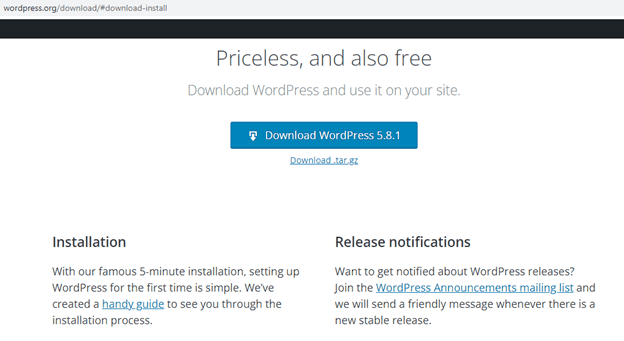
Follow the below steps as we begin the journey of installing and setting up WordPress inside cPanel. Go to the WordPress website to download WordPress.
cPanel WordPress setup
WordPress Download Page

2. Log in to your cPanel Account

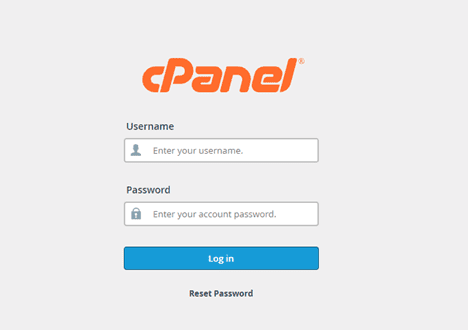
After getting all the prerequisites you can now login into your cPanel account by typing URL/cpanel.

In this guide we are assuming xyzwebsite.com is our domain name with active hosting on it. Enter the username and password that was given to you by your hosting provider. The Cpanel login page looks like the below:
First WordPress theme configuration
cPanel Login Page

3. Upload your WordPress Files

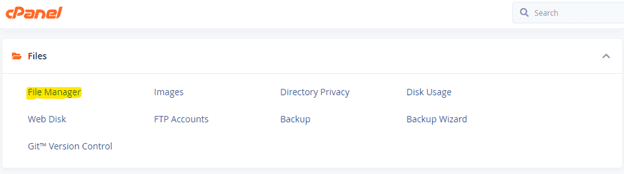
After downloading WordPress and login into cPanel the next step is to upload the downloaded WordPress files. Go to the Files section and click on File Manager
Setting up WordPress on cPanel
File Manager

On the next page click on public_html. After it opens then click on the upload button at the top.
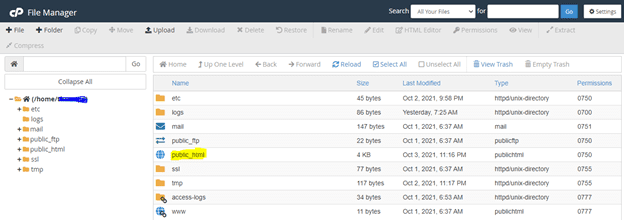
image-47
File Manager Screen

locate the WordPress zip file you downloaded to your system and upload the zip file.
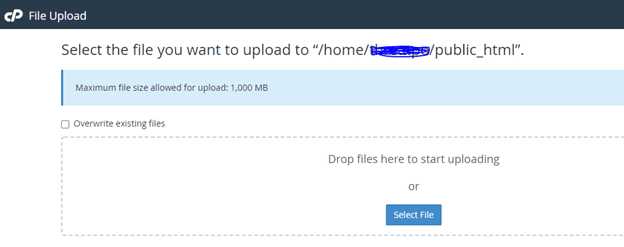
image-48
Uploading File

You need to extract the zip file into public_html
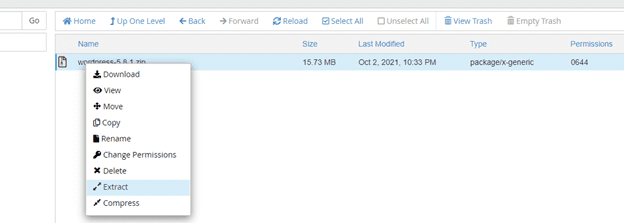
image-49
WordPress File Extraction

Install and Setup WordPress into a cPanel

After extracting it you need to cut all the files out from the parent folder and paste them directly into the public_html folder. You can now delete the WordPress zip file. All the files will look like the below image.
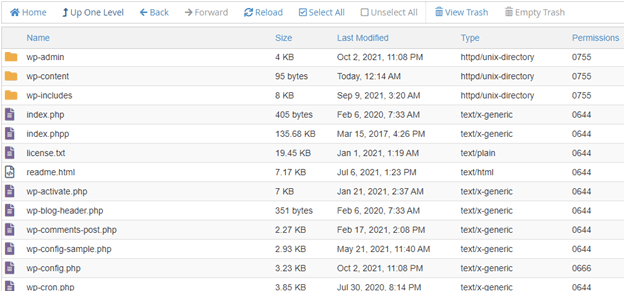
image-50
WordPress Files

4. Creating a Database, DB User and adding the User to Database

Now it is time to create a database and database user. Scroll down to the Databases section and click on MySQL Database.
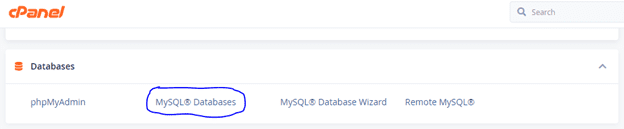
image-52
Database Creation

Enter the name you want to use for the database and click on Create Database
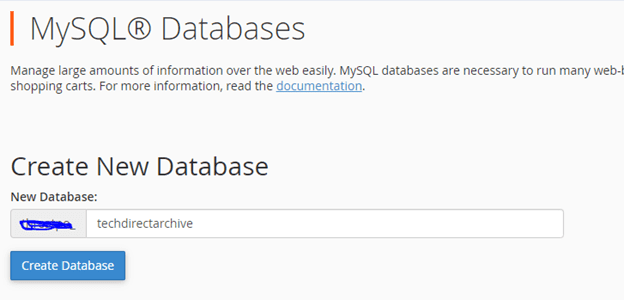
image-53
Database Creation

Then you need to create the DB User for the Database created.
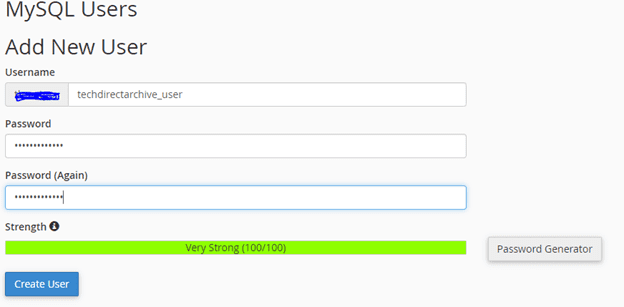
image-54
Database User Creation

After creating the DB User then you need to add the user created to the Database by selecting the user and the database and click the Add button. On the next page, you can give it ALL PRIVILEGES and click on the Make Changes button.
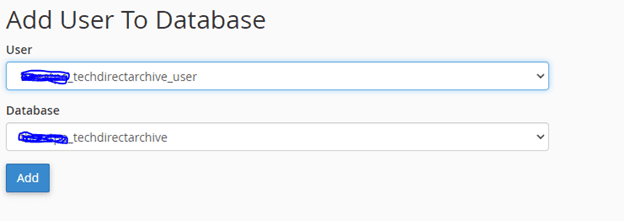
image-55
Connecting User to Database

5. Installing WordPress

After the creation of the Database and the DB User the next step is to install the WordPress. write the domain name into the browser and hit the enter key, the below image will display. Make sure you select English as the language and click on Continue.
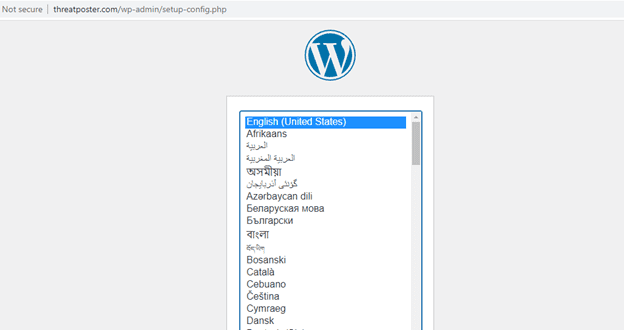
image-56
Installing WordPress

Click on Let’s go!

image-57
Installing WordPress

Database Configuration: Entering Previously Created Database Name and User

On the next page, you need to enter the Database Name and User name you created earlier and submit
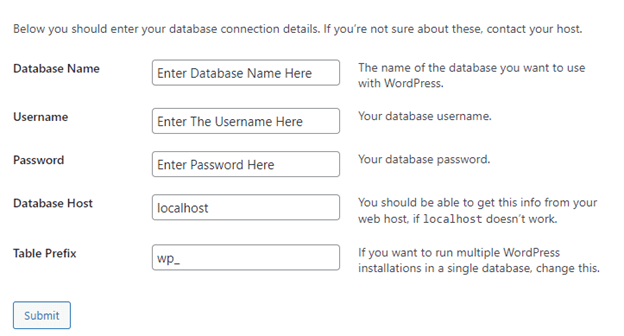
image-58
Installing WordPress

If all the details you submitted are right, then you can go ahead and run the installation.
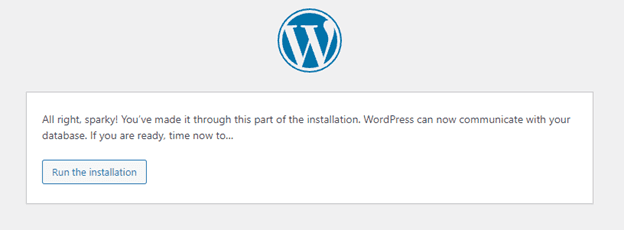
image-59
WordPress Installation

Then you see a welcome page where you will supply some information that is needed before WordPress installation can begin.
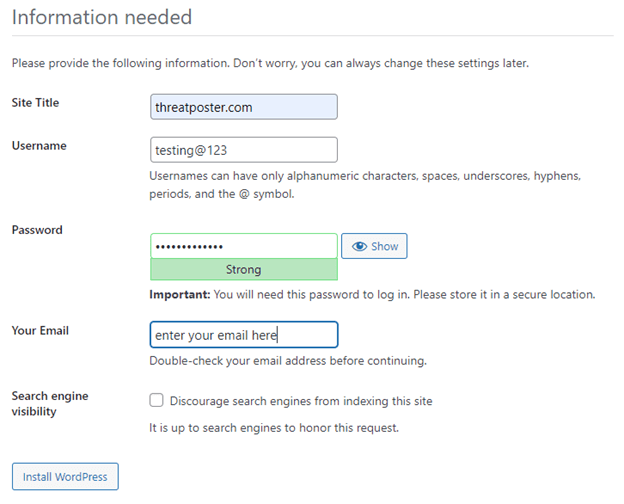
image-60
WordPress Installation

If all the information is supplied and everything goes well then you will receive a success! message
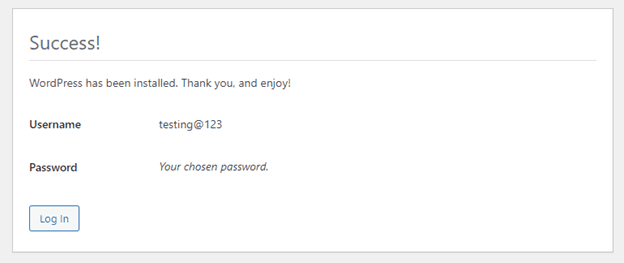
image-61
Installation Successful

You can now go ahead and log in to WordPress.
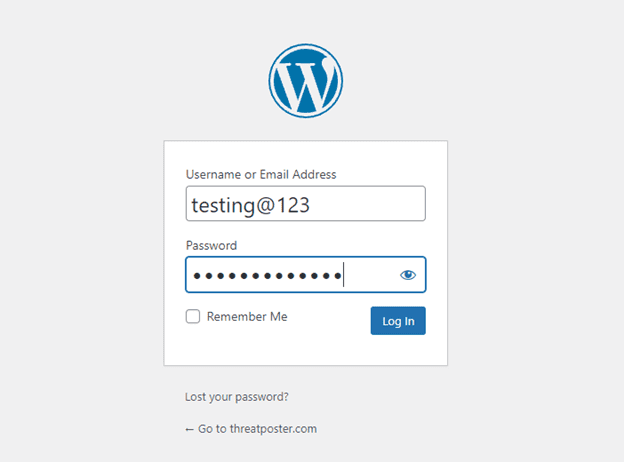
image-62
WordPress Login

Successfully logged in to WordPress Dashboard.
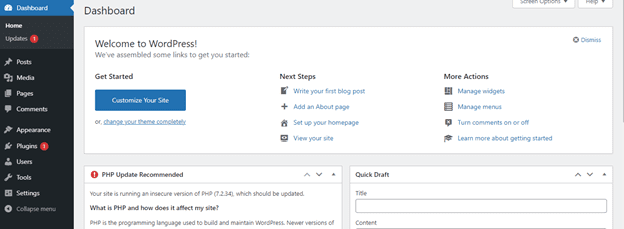
image-63
WordPress Dashboard

You can start using default themes or adding your preferred themes. Go to Appearance on the menu and select Themes. You can use the Add New or the Add New Theme button to add themes.
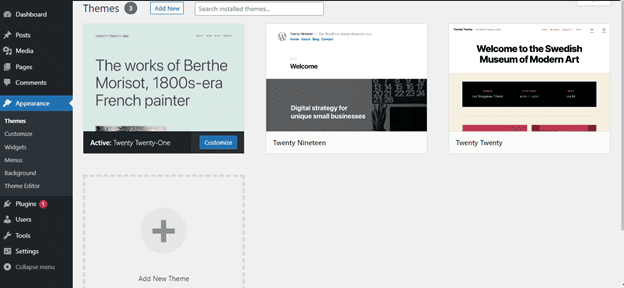
image-64
WordPress Themes

I hope you found this blog post on how to Install and Setup WordPress into a cPanel and Configure Your First Theme very interesting and helpful. In case you have any questions do not hesitate to ask in the comment section.

Rate this post

Thank you for reading this post. Kindly share it with others.

  • Share on X (Opens in new window) X
  • Share on Reddit (Opens in new window) Reddit
  • Share on LinkedIn (Opens in new window) LinkedIn
  • Share on Facebook (Opens in new window) Facebook
  • Share on Pinterest (Opens in new window) Pinterest
  • Share on Tumblr (Opens in new window) Tumblr
  • Share on Telegram (Opens in new window) Telegram
  • Share on WhatsApp (Opens in new window) WhatsApp
  • Share on Mastodon (Opens in new window) Mastodon
  • Share on Bluesky (Opens in new window) Bluesky
  • Share on Threads (Opens in new window) Threads
  • Share on Nextdoor (Opens in new window) Nextdoor
Configuration Management Tool Tags:Website

Post navigation

Previous Post: How to change or add another keyboard language in Windows Server
Next Post: Set up OpenShift Cluster using Red Hat CodeReady Containers

Related Posts

  • opsworks for automate blog
    How to setup Chef Automate on AWS Configuration Management Tool
  • CI With GitLab 1
    Build Docker Images with GitLab CI Automation
  • Installing Jenkins
    How to Install and Configure Jenkins on Windows 11 Configuration Management Tool
  • images 1
    WARNING: The provided hosts list is empty only the localhost is available and note that the implicit localhost does not match all Configuration Management Tool
  • 1 kajkbmlyehn0inifwrh 8w 1
    What to note when settings up Ansible to work with Kerberos Configuration Management Tool
  • jmeterimage
    Apache JMeter Load Testing: Test Mobile Apps on Windows Configuration Management Tool

More Related Articles

opsworks for automate blog How to setup Chef Automate on AWS Configuration Management Tool
CI With GitLab 1 Build Docker Images with GitLab CI Automation
Installing Jenkins How to Install and Configure Jenkins on Windows 11 Configuration Management Tool
images 1 WARNING: The provided hosts list is empty only the localhost is available and note that the implicit localhost does not match all Configuration Management Tool
1 kajkbmlyehn0inifwrh 8w 1 What to note when settings up Ansible to work with Kerberos Configuration Management Tool
jmeterimage Apache JMeter Load Testing: Test Mobile Apps on Windows Configuration Management Tool

Leave a Reply Cancel reply

You must be logged in to post a comment.

Microsoft MVP

VEEAMLEGEND

vexpert-badge-stars-5

Virtual Background

GoogleNews

Categories

veeaam100

sysadmin top30a

  • Prevent OS Reinstallation When Switching from Legacy BIOS to UEFI
    Prevent OS Reinstallation: Change from legacy BIOS to UEFI Windows
  • image 9
    Fix Error 853: The remote access connection completed, but authentication failed because the certificate that authenticates the client to the server is not valid Network | Monitoring
  • You are currently signed in as
    How to fix “You are currently signed in as: Use a different account-this account is managed by your organisation” Microsoft Exchange/Office/365
  • Driver Automation Tool
    Windows Driver Management: Upgrade Driver Automation Tool Windows
  • nextcloudfeature 1
    How To Install Nextcloud on a Linux system Backup
  • servicechannels3 1
    Long Term Servicing Branch vs Semi-Annual Channel Windows
  • Featured image externaldis
    How to fix the external display not working on Windows 11 Windows
  • Cloud Cost
    How to Control Cloud Cost Using Azure VM AWS/Azure/OpenShift

Subscribe to Blog via Email

Enter your email address to subscribe to this blog and receive notifications of new posts by email.

Join 1,825 other subscribers
  • RSS - Posts
  • RSS - Comments
  • About
  • Authors
  • Write for us
  • Advertise with us
  • General Terms and Conditions
  • Privacy policy
  • Feedly
  • Telegram
  • Youtube
  • Facebook
  • Instagram
  • LinkedIn
  • Tumblr
  • Pinterest
  • Twitter
  • mastodon

Tags

AWS Azure Bitlocker Microsoft Windows PowerShell WDS Windows 10 Windows 11 Windows Deployment Services Windows Server 2016

Copyright © 2025 TechDirectArchive


Loading Comments...
 

You must be logged in to post a comment.