Skip to content

TechDirectArchive

Hands-on IT, Cloud, Security & DevOps Insights

  • Home
  • About
  • Advertise With US
  • Reviews
  • Contact
  • Toggle search form
Home » AWS/Azure/OpenShift » How to deploy a .NET application to AWS Elastic Beanstalk using AWS Tool Kit
  • maxresdefault 12
    How to check Windows activation status and change your product key Windows
  • Install and report or install or shutdown with BitLocker
    BitLocker Windows Update Shutdown or Reboot option behavior Windows
  • VeeamIgnite2022
    Veeam at Microsoft Ignite 2022 from 12-14 October Backup
  • How to Install Windows Admin Center on Windows 10 11​
    Install Windows Admin Center on Windows 10 and Windows 11 Windows
  • screenshot 2020 05 11 at 20.03.56
    How to remove printers from HP Utility Mac
  • drivelock
    How to perform DriveLock quick setup Security | Vulnerability Scans and Assessment
  • Screenshot 2020 12 29 at 04.08.43
    Enable or disable BitLocker Drive Encryption on Windows Security | Vulnerability Scans and Assessment
  • linuxnethero
    Adding a subnetwork interface to an existing network interface Linux

How to deploy a .NET application to AWS Elastic Beanstalk using AWS Tool Kit

Posted on 19/10/202123/03/2024 Temitope Odemo By Temitope Odemo No Comments on How to deploy a .NET application to AWS Elastic Beanstalk using AWS Tool Kit
Deploy a .NET application to AWS Elastic Beanstalk using AWS Tool Kit

An AWS Elastic Beanstalk helps you to instantly deploy and manage any applications on the AWS platform without learning about the infrastructure that runs the applications. It helps to manage the complexity that comes with application deployment and also gives you complete control of the processes. Please see Hosting Static Website and Versioning on AWS S3, How to deploy an Angular App to AWS S3, How to manage cost with AWS Budgets, and Creating IAM Users, Adding MFA and Policies on AWS.

All that is required by you is just to upload your application and Elastic Beanstalk does other tasks like capacity provisioning, load balancing, scaling, and monitoring of the application health.

After you deploy your applications developed in the language supported by Elastic Beanstalk, it will help you build the application and also provide the computing services needed to run the application like Amazon ECE instances. There is a console and AWS CLI that you can use to interact with Elastic Beanstalk.

In this blog post we will cover How to deploy a .NET application to AWS Elastic Beanstalk using AWS Tool Kit. For related guides on AWS Deployments read How to Deploy MVC Application to AWS EC2 Using RDP Connection and Web Deploy, and How to Deploy Dynamic Website to AWS EC2.

Let’s now create our environment

To make the setup faster you can use the Create New Application wizard in the Elastic Beanstalk console to create your environment. Choose .NET as the platform

Access the Elastic Beanstalk. Thus, enter the application name, if you wish, you can enter tags. After that, you can leave the default environment information.

Creating a Web app
Creating a Web app

Therefore, in the Platform drop-down select the platform and platform branch that matches the language you used to develop your application.
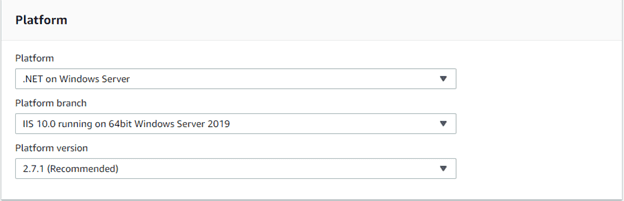
Selecting your platform
Selecting your Platform

Meanwhile, you can upload your code from your repository. But in this guide we will be using a Sample application for our demonstration. Then, choose Review and launch it.
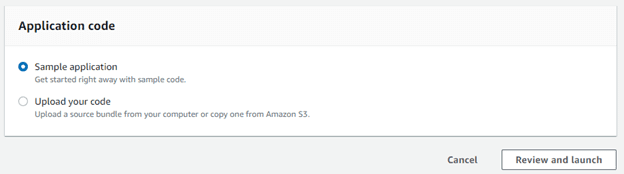
upload you code
Application code

So review all the options, and you can decide to edit or choose the available option you want to use. After this, you can then go ahead to Create app.
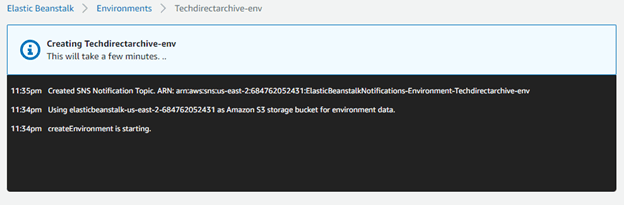
create your Elastic Beanstalk Environment
Creating your Environment

Now, let’s go to the environment we just created with the sample .Net code
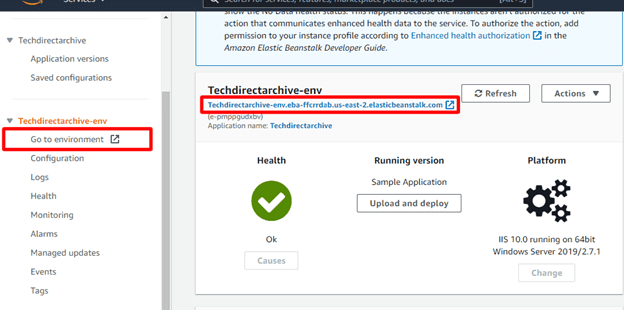
Environmnet Overview
Environment Overview

Hence, if you receive the below Congratulations page it means your environment is set.
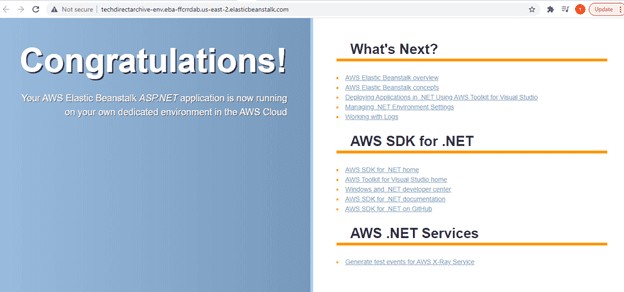
Your AWS Elastic Beanstalk ASP.Net application is now running
AWS Elastic Beanstalk

Let’s Publish to Elastic Beanstalk through AWS Toolkit

Make sure you install the extension AWS Toolkit from Visual Studio Market place inside your Visual Studio so that you will be able to publish your application to Elastic Beanstalk.
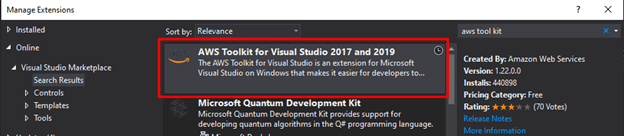
Search for AWS Toolkit in Visual Studio
Managing your Extensions

Afterward, close Visual Studio and allow the installation to begin…..
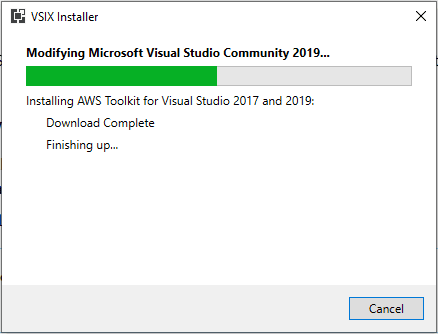
Install AWS Toolkit for Visual Studio
Installing the extension

Then, confirm the Health status is Ok, which will confirm that the environment launched successfully.
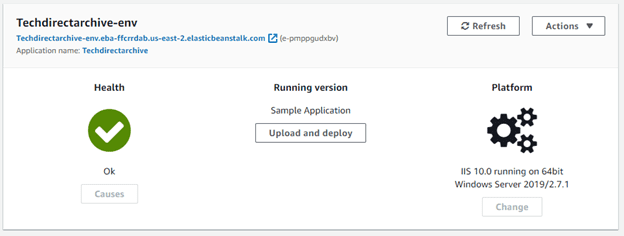
Confirm Health is Okay and Application is running
Application Running

In Visual Studio, open your application. Meanwhile, in this guide I will open the sample application TechdirectarchivedotNetSample.sln.
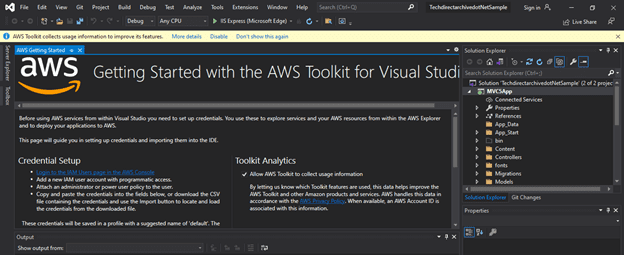
AWS Toolkit for Visual Studio
  • From the Solution Explorer expand â€˜TechdirectarchivedotNetSample.sln’ and build it to confirm there is no bugs.
  • Right-click MVC5App. Furthermore, from the context-menu select Publish to AWS Elastic Beanstalk.

Note before you Publish to AWS Elastic Beanstalk you need to Create Profiles for your AWS Access Credentials for AWS Toolkit in Visual Studio

Select "Publish to AWS Beanstalk"
Selecting Publish to AWS Elastic Beanstalk

On the Publish to AWS Elastic Beanstalk page enter your account profile details. Then, under the Deployment Target section select Redeploy to an existing environment and choose your application.

Deploying your application from local system to AWS Elastic Beanstalk

Click Next and when everything goes right you will get the below image
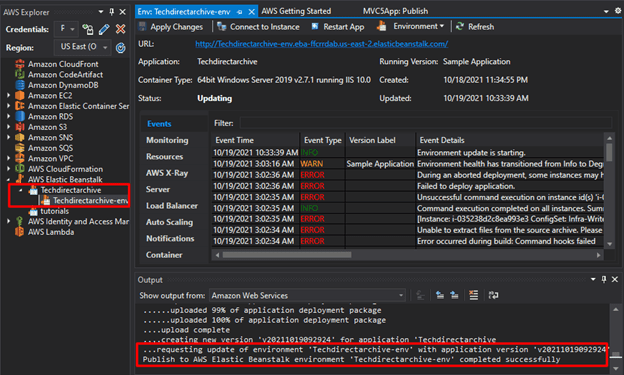
Deploying your application from local system to AWS Elastic Beanstalk

Now, let’s launch the URL

Successfully deployed the application to AWS Elastic Beanstalk via AWS Tool Kit

I hope you found this blog post on How to deploy a .NET application to AWS Elastic Beanstalk using AWS Tool Kit very interesting and helpful. In case you have any questions do not hesitate to ask in the comment section.

Rate this post

Thank you for reading this post. Kindly share it with others.

  • Click to share on X (Opens in new window) X
  • Click to share on Reddit (Opens in new window) Reddit
  • Click to share on LinkedIn (Opens in new window) LinkedIn
  • Click to share on Facebook (Opens in new window) Facebook
  • Click to share on Pinterest (Opens in new window) Pinterest
  • Click to share on Tumblr (Opens in new window) Tumblr
  • Click to share on Telegram (Opens in new window) Telegram
  • Click to share on WhatsApp (Opens in new window) WhatsApp
  • Click to share on Pocket (Opens in new window) Pocket
  • Click to share on Mastodon (Opens in new window) Mastodon
  • Click to share on Bluesky (Opens in new window) Bluesky
  • Click to share on Threads (Opens in new window) Threads
  • Click to share on Nextdoor (Opens in new window) Nextdoor
AWS/Azure/OpenShift Tags:AWS

Post navigation

Previous Post: How to locate directory file context and restore it with SELinux
Next Post: Creating Profiles for your AWS Access Credentials for AWS Toolkit in Visual Studio

Related Posts

  • EC2 Public IP
    How to Allocate, Associate, Disassociate and Release Elastic IP Address from an EC2 Instance AWS/Azure/OpenShift
  • images 2 1
    How to create an AMI using AWS console AWS/Azure/OpenShift
  • veeam backup for aws Processing postgres rds failed
    Veeam backup for aws Processing postgres rds failed: No valid combination of the network settings was found for the worker configuration AWS/Azure/OpenShift
  • aks 1
    Azure Storage: How to create Blob Storage and upload files AWS/Azure/OpenShift
  • image 190
    Creating Profiles for your AWS Access Credentials for AWS Toolkit in Visual Studio AWS/Azure/OpenShift
  • s3
    How to Copy from a server to s3 and vice versa AWS/Azure/OpenShift

More Related Articles

EC2 Public IP How to Allocate, Associate, Disassociate and Release Elastic IP Address from an EC2 Instance AWS/Azure/OpenShift
images 2 1 How to create an AMI using AWS console AWS/Azure/OpenShift
veeam backup for aws Processing postgres rds failed Veeam backup for aws Processing postgres rds failed: No valid combination of the network settings was found for the worker configuration AWS/Azure/OpenShift
aks 1 Azure Storage: How to create Blob Storage and upload files AWS/Azure/OpenShift
image 190 Creating Profiles for your AWS Access Credentials for AWS Toolkit in Visual Studio AWS/Azure/OpenShift
s3 How to Copy from a server to s3 and vice versa AWS/Azure/OpenShift

Leave a Reply Cancel reply

You must be logged in to post a comment.

Microsoft MVP

VEEAMLEGEND

vexpert-badge-stars-5

Virtual Background

GoogleNews

Categories

veeaam100

sysadmin top30a

  • maxresdefault 12
    How to check Windows activation status and change your product key Windows
  • Install and report or install or shutdown with BitLocker
    BitLocker Windows Update Shutdown or Reboot option behavior Windows
  • VeeamIgnite2022
    Veeam at Microsoft Ignite 2022 from 12-14 October Backup
  • How to Install Windows Admin Center on Windows 10 11​
    Install Windows Admin Center on Windows 10 and Windows 11 Windows
  • screenshot 2020 05 11 at 20.03.56
    How to remove printers from HP Utility Mac
  • drivelock
    How to perform DriveLock quick setup Security | Vulnerability Scans and Assessment
  • Screenshot 2020 12 29 at 04.08.43
    Enable or disable BitLocker Drive Encryption on Windows Security | Vulnerability Scans and Assessment
  • linuxnethero
    Adding a subnetwork interface to an existing network interface Linux

Subscribe to Blog via Email

Enter your email address to subscribe to this blog and receive notifications of new posts by email.

Join 1,839 other subscribers
  • RSS - Posts
  • RSS - Comments
  • About
  • Authors
  • Write for us
  • Advertise with us
  • General Terms and Conditions
  • Privacy policy
  • Feedly
  • Telegram
  • Youtube
  • Facebook
  • Instagram
  • LinkedIn
  • Tumblr
  • Pinterest
  • Twitter
  • mastodon

Tags

AWS Azure Bitlocker Microsoft Windows PowerShell WDS Windows 10 Windows 11 Windows Deployment Services Windows Server 2016

Copyright © 2025 TechDirectArchive


Loading Comments...
 

You must be logged in to post a comment.