Skip to content

TechDirectArchive

  • Home
  • About
  • Advertise With US
  • Reviews
  • Contact
  • Toggle search form
Home » AWS/Azure/OpenShift » Create, list, lock, deploy, and delete Azure Resource Group via Azure CLI
  • wsus logo e1653651564255
    How to configure Windows server update services Windows Server
  • dns error
    Domain Name System Protocol: Client Registration Issue Windows Server
  • drivelock
    How to perform DriveLock quick setup Security | Vulnerability Scans and Assessment
  • Feature image Wakeonlan
    How to download and use the NirSorf WakeonLan tool Network | Monitoring
  • chrome feature image light blue
    Set Chrome as default: How to set a browser as default on macOS Mac
  • windows store icon
    Application User Model ID: How to find the AUMID of an installed UWP App Windows
  • Screenshot 2021 04 03 at 18.30.29
    Setup Windows server backup and create backup jobs with Bare metal backup Backup
  • images copy
    How to clean packages lying around in Linux Linux

Create, list, lock, deploy, and delete Azure Resource Group via Azure CLI

Posted on 06/11/202104/05/2024 Dickson Victor By Dickson Victor No Comments on Create, list, lock, deploy, and delete Azure Resource Group via Azure CLI
Webp.net-resizeimage-4

Azure Resource Manager is the deployment and management service for Azure. It provides a management layer that enables you to create, update, and delete resources in your Azure account. You use management features, like access control, locks, and tags, to secure and organize your resources after deployment. This guide discusses how to create, list, lock, deploy, and delete Azure Resource Group via Azure CLI. Also here are some of my related guides: How to manage azure resource manager resource groups by using Azure CLI, how to configure azure resources with tools, and how to install and configure Ansible on Ubuntu.

In this article, you will learn the following listed below. Please see How to disable Lock Screen on Windows 10, how to disable Lock Screen on Windows 10, and How to solve VMware workstation .lck error.

  • What is a resource group?
  • Create resource groups using CLI.
  • List resource groups using CLI.
  • Lock resource groups CLI.
  • Deploy resources CLI.
  • Delete resource groups CLI.

What is a resource group?

A resource group is a container that holds related resources for an Azure solution. The resource group can include all the resources for the solution or only those resources that you want to manage as a group.

Here are some exciting articles: how to install Ansible on Windows with Cygwin, how to automate infrastructure deployments in the cloud with ansible and azure pipelines, how to install Kerberos packages in Windows via Cygwin, how to configure a remote server (windows) to Support Ansible, and how to deploy Azure VMware solution private cloud.

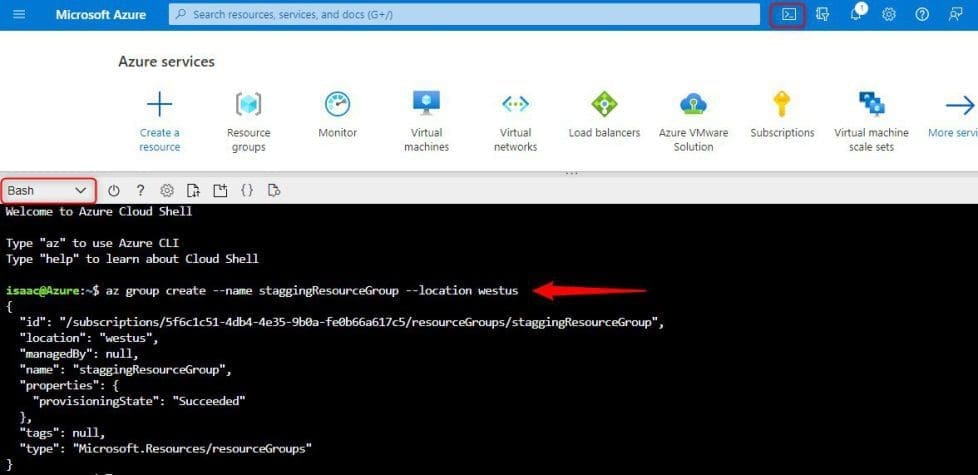
Create resource groups using CLI

  • Go to the Azure Portal
  • At the top bar, click on the cloud shell
  • Select to open the bash terminal
  • Type the following below to create a resource group
az group create --name staggingResourceGroup --location westus
Capture-8

Please see how to fix AWS CLI Error: All commands return Unknown output type [None], How to disable automatic screen lock in Ubuntu Linux, and How to uninstall AWS CLI in Windows.

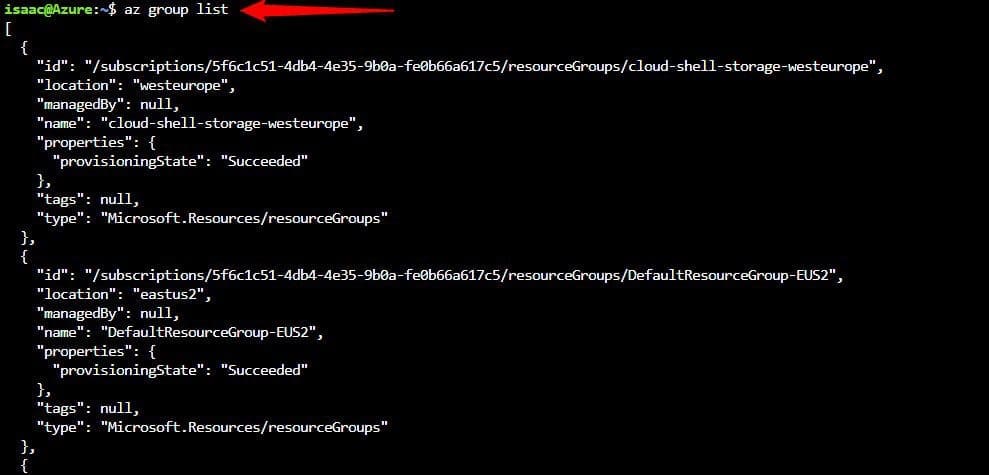
List resource groups using CLI

  • Go to the Azure Portal
  • At the top bar, click on the cloud shell
  • Select to open the bash terminal
  • Type the following below to create a resource group
az group list
Capture-9

Lock resource groups using CLI

Locking prevents other users in your organization from accidentally deleting or modifying critical resources.

  • Go to the Azure Portal
  • At the top bar, click on the cloud shell
  • Select to open the bash terminal
  • Type the following below to create a resource group
az lock create --name LockGroup --lock-type CanNotDelete --resource-group staggingResourceGroup

Capture-10

How to get the locks for a resource group

az lock list --resource-group staggingResourceGroup

Capture-11

How to delete a lock for a resource group

az lock delete --name LockGroup --resource-group staggingResourceGroup

Capture-12

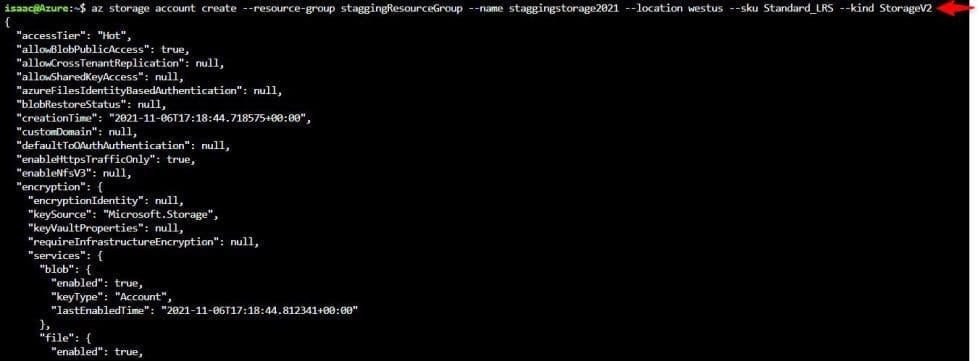
Deploy resources using CLI

Go to the Azure Portal. At the top bar, click on the cloud shell, select to open the bash terminal

Type the following below to create a resource group

az storage account create --resource-group staggingResourceGroup --name staggingstorage2021 --location westus --sku Standard_LRS --kind StorageV2
Capture-13

Deploy resources using CLI

Go to the Azure Portal. At the top bar, click on the cloud shell, and Select to open the bash terminal

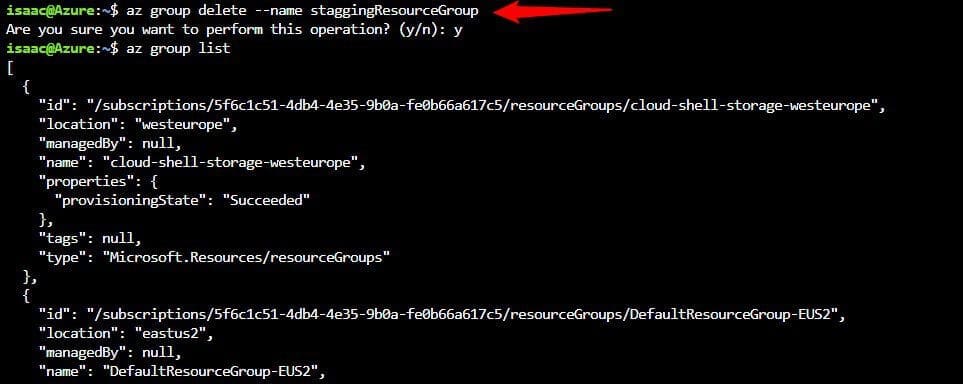
Type the following below to create a resource group

az group delete --name staggingResourceGroup
Capture-14

This article provided a step-by-step overview of the steps on how to create, list, lock, deploy, and delete Azure Resource Group via Azure CLI.

Rate this post

Thank you for reading this post. Kindly share it with others.

  • Click to share on X (Opens in new window) X
  • Click to share on Reddit (Opens in new window) Reddit
  • Click to share on LinkedIn (Opens in new window) LinkedIn
  • Click to share on Facebook (Opens in new window) Facebook
  • Click to share on Pinterest (Opens in new window) Pinterest
  • Click to share on Tumblr (Opens in new window) Tumblr
  • Click to share on Telegram (Opens in new window) Telegram
  • Click to share on WhatsApp (Opens in new window) WhatsApp
  • Click to share on Pocket (Opens in new window) Pocket
  • Click to share on Mastodon (Opens in new window) Mastodon
  • Click to share on Bluesky (Opens in new window) Bluesky
  • Click to share on Threads (Opens in new window) Threads
  • Click to share on Nextdoor (Opens in new window) Nextdoor
AWS/Azure/OpenShift Tags:Azure, Azure CLI, Azure resources, Microsoft Azure, Resource Group

Post navigation

Previous Post: How to use the Azure Cloud Shell or Azure CLI and Azure PowerShell
Next Post: Upgrading from Windows 10 with Unsupported CPU and TPM 1.0

Related Posts

  • New OpenShift Featured Image
    OpenShift common Commands AWS/Azure/OpenShift
  • DeleteAzureVM
    Remove Azure VM: How to delete a Virtual Machine via the Azure Portal AWS/Azure/OpenShift
  • a Multiple SPF Records  Issues and Examples@2x
    How to setup SPF and TXT Records in AWS AWS/Azure/OpenShift
  • TLS1.2
    Unable to install Azure AD Connect, TLS 1.2 is required: How to enable or disable TLS 1.2 on a Windows Server via the Registry and PowerShell AWS/Azure/OpenShift
  • Cloud Cost
    How to Control Cloud Cost Using Azure VM AWS/Azure/OpenShift
  • AWS Budgets
    How to create AWS Budget AWS/Azure/OpenShift

More Related Articles

New OpenShift Featured Image OpenShift common Commands AWS/Azure/OpenShift
DeleteAzureVM Remove Azure VM: How to delete a Virtual Machine via the Azure Portal AWS/Azure/OpenShift
a Multiple SPF Records  Issues and Examples@2x How to setup SPF and TXT Records in AWS AWS/Azure/OpenShift
TLS1.2 Unable to install Azure AD Connect, TLS 1.2 is required: How to enable or disable TLS 1.2 on a Windows Server via the Registry and PowerShell AWS/Azure/OpenShift
Cloud Cost How to Control Cloud Cost Using Azure VM AWS/Azure/OpenShift
AWS Budgets How to create AWS Budget AWS/Azure/OpenShift

Leave a Reply Cancel reply

You must be logged in to post a comment.

VEEAMLEGEND

vexpert-badge-stars-5

Virtual Background

GoogleNews

Categories

veeaam100

Microsoft MVP

  • wsus logo e1653651564255
    How to configure Windows server update services Windows Server
  • dns error
    Domain Name System Protocol: Client Registration Issue Windows Server
  • drivelock
    How to perform DriveLock quick setup Security | Vulnerability Scans and Assessment
  • Feature image Wakeonlan
    How to download and use the NirSorf WakeonLan tool Network | Monitoring
  • chrome feature image light blue
    Set Chrome as default: How to set a browser as default on macOS Mac
  • windows store icon
    Application User Model ID: How to find the AUMID of an installed UWP App Windows
  • Screenshot 2021 04 03 at 18.30.29
    Setup Windows server backup and create backup jobs with Bare metal backup Backup
  • images copy
    How to clean packages lying around in Linux Linux

Subscribe to Blog via Email

Enter your email address to subscribe to this blog and receive notifications of new posts by email.

Join 1,843 other subscribers
  • RSS - Posts
  • RSS - Comments
  • About
  • Authors
  • Write for us
  • Advertise with us
  • General Terms and Conditions
  • Privacy policy
  • Feedly
  • Telegram
  • Youtube
  • Facebook
  • Instagram
  • LinkedIn
  • Tumblr
  • Pinterest
  • Twitter
  • mastodon

Tags

AWS Azure Bitlocker Microsoft Windows PowerShell WDS Windows 10 Windows 11 Windows Deployment Services Windows Server 2016

Copyright © 2025 TechDirectArchive


Loading Comments...
 

You must be logged in to post a comment.