Skip to content

TechDirectArchive

Hands-on IT, Cloud, Security & DevOps Insights

  • Home
  • About
  • Advertise With US
  • Reviews
  • Contact
  • Toggle search form
Home » AWS/Azure/OpenShift » Azure Storage: How to create Blob Storage and upload files
  • Data drive is locked by BitLocker and not OS drive Fastboot Option
    Fast Boot Options: Fix specific Drive issue with BitLocker [MBAM] Windows
  • How do I disable credentials from Remote Desktop
    Disable credential Prompts for Remote Desktop Connections Windows
  • Screenshot 2020 05 19 at 02.50.47
    Fix Administrative templates retrieved from the local computer does not show up Network | Monitoring
  • sandboxx
    Use Windows Sandbox as a security feature Virtualization
  • windows 10 bjw3 1280x720 1
    How to Find the Pathname of a Mapped Network Drive Windows
  • smart
    Application in bin: You can not open this application Mac
  • Featured Image new
    Add Registry Keys via DISM in Windows Windows
  • iCloud for Windows
    Use iCloud for Windows: How to install and uninstall iCloud for Windows Mac

Azure Storage: How to create Blob Storage and upload files

Posted on 24/11/202116/10/2025 Dickson Victor By Dickson Victor No Comments on Azure Storage: How to create Blob Storage and upload files
aks-1

The Azure storage account contains all of your Azure Storage data objects which include: blobs, files, queues, and tables. In this guide, you will learn about Azure Storage: How to create Blob Storage and upload files. Please see how to install Kerberos packages in Windows via Cygwin, how to configure a remote server (windows) to Support Ansible, and how to deploy Azure VMware solution private cloud, how to create a Traffic Manager profile in Azure, and how to improve website response using Traffic Manager.

The storage account provides a unique namespace for your Azure Storage data that is accessible from anywhere in the world over HTTP or HTTPS.

Also here are some of my related guides: How to manage azure resource manager resource groups by using Azure CLI, and how to configure Azure resources with tools, how to install and configure Ansible on Ubuntu.

Create a storage account

A storage account provides access to Azure Storage services. The storage account constitutes the highest level of the name-space for accessing every of the Azure Storage service components like Azure Blob, Queue, etc. To create a storage account, you should be either the service administrator or a co-administrator for the associated subscription.

Go to the Azure Portal. In the search bar, type and then select Storage account. In the virtual network, click the + Create button then create a Storage account. Type the following below

- Choose your subscription. 
- Create a new Resource Group name (rg-cdn).

Instant details 
- Storage account name – Enter a name for the account using (storagecdn2)
- Region – East US
- Performance – Standard
- Redundancy- Locally-redundant storage (LRS)

Click Next : Advance >

Advance tab
Security – Secure transfer required and blob public access select enabled.

Select Review + create
Capture-72

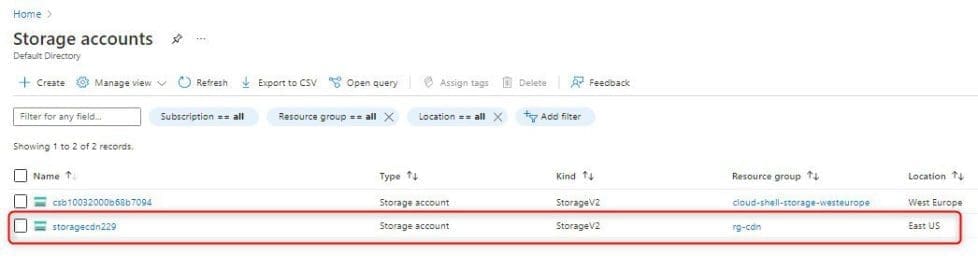
Storage account successfully created.

Capture-73

Please see how to install Ansible on Windows with Cygwin, and how to automate infrastructure deployments in the cloud with ansible and azure pipelines.

How to create a blob container

Click on the new created storage account, under data storage select containers and then click on + Container. And do the following below

New container wizard 

- Enter a container name (containercdn)
- Public access level – container (anonymous read access for containers and blob)
- Click create.
Capture-74

The container was successfully created.
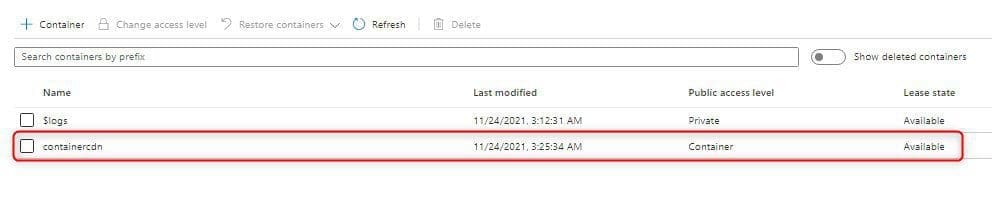
Capture-75

Here are some exciting guides: How to Install a Windows Server Container Host, and how to Upload Batch Files to Azure Storage Account Using Azure CLI. Also, see how to determine What is taking up by Synology NAS Volume Space.

Upload Images to Container

Click on the newly created containdercdn inside the storage account, choose the Upload tab, and then click on the folder icon next to the file, to select a file from your local computer.

Go to Advanced Under upload to folder type a folder name (images) and then click upload.

Capture-76

Below is the file and folder you just created. Click on the folder and select the file name, then click on the URL to copy the link of the file, paste it on the web browser to preview the file

Capture-77

Below is the preview link of the file uploaded on the web browser

Capture-78

The above articles show how to create Azure storage, blob storage & Upload Files. Please see Running PowerShell remotely on Azure VMs, Running PowerShell remotely on Azure VMs, Hosting Static Website and Versioning on AWS S3, and how to Change the default Save and Download Location in Windows.

I hope you found this article useful on Azure Storage: How to create Blob Storage and upload files. Please let me know in the comment section if you have any questions.

5/5 - (1 vote)

Thank you for reading this post. Kindly share it with others.

  • Click to share on X (Opens in new window) X
  • Click to share on Reddit (Opens in new window) Reddit
  • Click to share on LinkedIn (Opens in new window) LinkedIn
  • Click to share on Facebook (Opens in new window) Facebook
  • Click to share on Pinterest (Opens in new window) Pinterest
  • Click to share on Tumblr (Opens in new window) Tumblr
  • Click to share on Telegram (Opens in new window) Telegram
  • Click to share on WhatsApp (Opens in new window) WhatsApp
  • Click to share on Pocket (Opens in new window) Pocket
  • Click to share on Mastodon (Opens in new window) Mastodon
  • Click to share on Bluesky (Opens in new window) Bluesky
  • Click to share on Threads (Opens in new window) Threads
  • Click to share on Nextdoor (Opens in new window) Nextdoor
AWS/Azure/OpenShift Tags:Azure

Post navigation

Previous Post: Linux Boot Process Explained Step by Step for Beginners
Next Post: How to install NFS Server on Windows Server

Related Posts

  • banner2 1
    How to use GitHub as Source Provider for AWS CodePipeline AWS/Azure/OpenShift
  • kubernetes
    Create and monitor Apps using the Azure Kubernetes Service manifest AWS/Azure/OpenShift
  • AzureAD
    Azure Active Directory integration with on-premise AD using PTA AWS/Azure/OpenShift
  • azure file share feature image
    Deploy Legacy App to Azure Fileshare AWS/Azure/OpenShift
  • Create S3 Bucket with Terraform
    Create an S3 Bucket with Terraform AWS/Azure/OpenShift
  • Azure AD Logo 1
    How to sync on-premises AD with Azure AD via Azure AD Connect AWS/Azure/OpenShift

More Related Articles

banner2 1 How to use GitHub as Source Provider for AWS CodePipeline AWS/Azure/OpenShift
kubernetes Create and monitor Apps using the Azure Kubernetes Service manifest AWS/Azure/OpenShift
AzureAD Azure Active Directory integration with on-premise AD using PTA AWS/Azure/OpenShift
azure file share feature image Deploy Legacy App to Azure Fileshare AWS/Azure/OpenShift
Create S3 Bucket with Terraform Create an S3 Bucket with Terraform AWS/Azure/OpenShift
Azure AD Logo 1 How to sync on-premises AD with Azure AD via Azure AD Connect AWS/Azure/OpenShift

Leave a Reply Cancel reply

You must be logged in to post a comment.

Microsoft MVP

VEEAMLEGEND

vexpert-badge-stars-5

Virtual Background

GoogleNews

Categories

veeaam100

sysadmin top30a
 
  • Data drive is locked by BitLocker and not OS drive Fastboot Option
    Fast Boot Options: Fix specific Drive issue with BitLocker [MBAM] Windows
  • How do I disable credentials from Remote Desktop
    Disable credential Prompts for Remote Desktop Connections Windows
  • Screenshot 2020 05 19 at 02.50.47
    Fix Administrative templates retrieved from the local computer does not show up Network | Monitoring
  • sandboxx
    Use Windows Sandbox as a security feature Virtualization
  • windows 10 bjw3 1280x720 1
    How to Find the Pathname of a Mapped Network Drive Windows
  • smart
    Application in bin: You can not open this application Mac
  • Featured Image new
    Add Registry Keys via DISM in Windows Windows
  • iCloud for Windows
    Use iCloud for Windows: How to install and uninstall iCloud for Windows Mac

Subscribe to Blog via Email

Enter your email address to subscribe to this blog and receive notifications of new posts by email.

Join 1,841 other subscribers
  • RSS - Posts
  • RSS - Comments
  • About
  • Authors
  • Write for us
  • Advertise with us
  • General Terms and Conditions
  • Privacy policy
  • Feedly
  • Telegram
  • Youtube
  • Facebook
  • Instagram
  • LinkedIn
  • Tumblr
  • Pinterest
  • Twitter
  • mastodon

Tags

AWS Azure Bitlocker Microsoft Windows PowerShell WDS Windows 10 Windows 11 Windows Deployment Services Windows Server 2016

Copyright © 2025 TechDirectArchive


Loading Comments...
 

You must be logged in to post a comment.