Skip to content

TechDirectArchive

Hands-on IT, Cloud, Security & DevOps Insights

  • Home
  • About
  • Advertise With US
  • Reviews
  • Contact
  • Toggle search form
Home » AWS/Azure/OpenShift » How to manage and use Amazon S3 access points using the AWS Management Console
  • The Port used for the Virtualhost is not an Apache Listen Port
    Fix the Port used for the Virtualhost is not an Apache Listen Port Web Server
  • Featured image
    Domain Naming System: Enabling DNS over TLS in Windows 11 Network | Monitoring
  • posfix as an smtp server
    How to Install and Configure Postfix as a Send-Only SMTP Server Linux
  • Feature image msert tool
    How to remove malware using Microsoft Safety Scanner on Windows 10 and 11 Security | Vulnerability Scans and Assessment
  • Featured image Microsoft diagnostic feedback disabled
    Prevent your PC from sending Diagnostics Feedback off via Windows Settings and Group Policy Windows
  • fix Client Certificate Mapping Authentication error
    How to fix Client Certificate Mapping Authentication error Backup
  • fast user switching in windows 10 2
    To enable or disable fast User Switching in Windows 10 Windows
  • requestedlogon
    Error 1385: The user has not been granted the requested logon type at this time Network | Monitoring

How to manage and use Amazon S3 access points using the AWS Management Console

Posted on 24/12/202126/08/2023 Temitope Odemo By Temitope Odemo No Comments on How to manage and use Amazon S3 access points using the AWS Management Console
Amazon S3

The benefit of Amazon S3 Access Points is the ability to simplify the managing of data access at scale for shared datasets in S3. Access points are just network endpoints that are attached to your S3 buckets that you can use to perform S3 object operations. We also have the Access Point alias which provides the same functionality as an Access Point ARN and can be substituted for an S3 bucket name anywhere it is used for data access.

Another benefit of S3 Access Points is that you can easily create hundreds of access points per bucket, each with a designated name and permissions that is specially customized for the application. By default, you are free to create up to 1,000 access points per region for each of your AWS accounts but if you need more than that access points for a single account in a single Region then it is recommended that you request a service quota increase from AWS.

Exploring a Variety of AWS Service Guides

Nonetheless, For more guides on AWS services you can read these: How to enable Amazon S3 default bucket encryption using S3 Console, How to deploy a .NET application to AWS Elastic Beanstalk using AWS Tool Kit, How to Deploy MVC Application to AWS EC2 Using RDP Connection and Web Deploy, How to Deploy Dynamic Website to AWS EC2, Hosting Static Website and Versioning on AWS S3, how to create IAM Users, Adding MFA and Policies on AWS, and How to manage cost with AWS Budgets, How to deploy an Angular App to AWS S3

Consequently, We are going first to create an access point using the S3 console

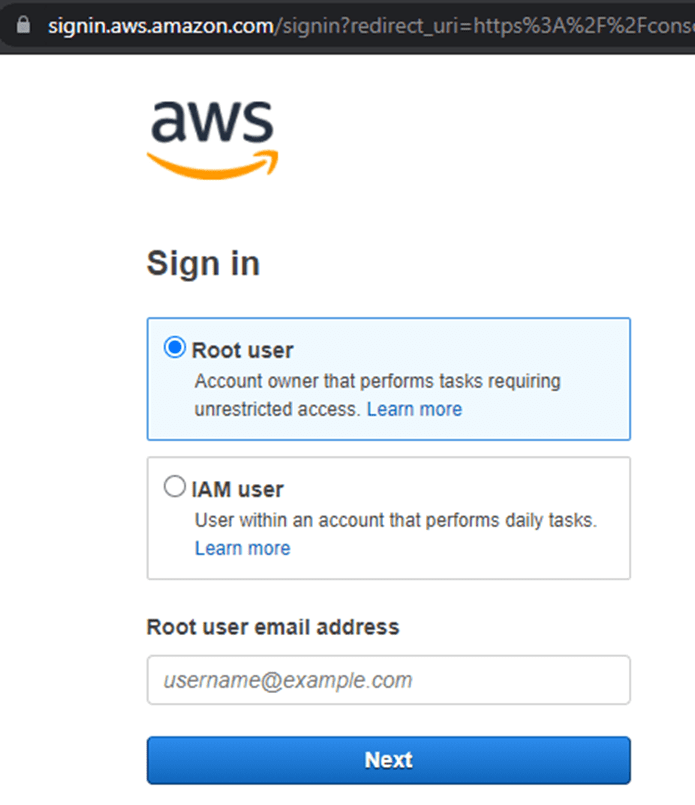
  • Log in to the AWS Management Console and open the Amazon S3 console using https://console.aws.amazon.com/s3/
access points
Login Screen
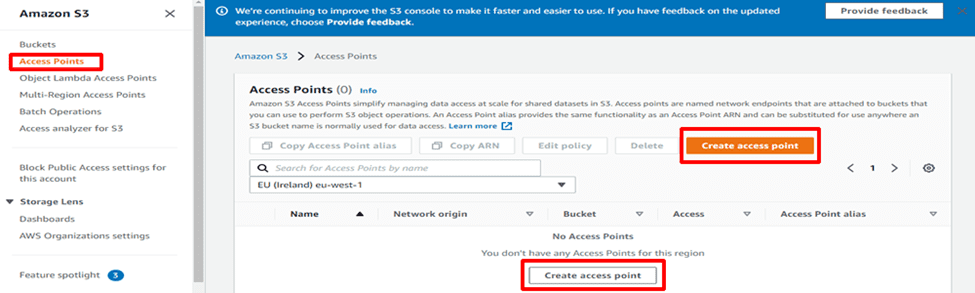
  • On the left side of the console’s navigation pane, click Access Points.
  • Similarly, On the Access Points page, Click on Create access point.
AWS Management Console
Access Points
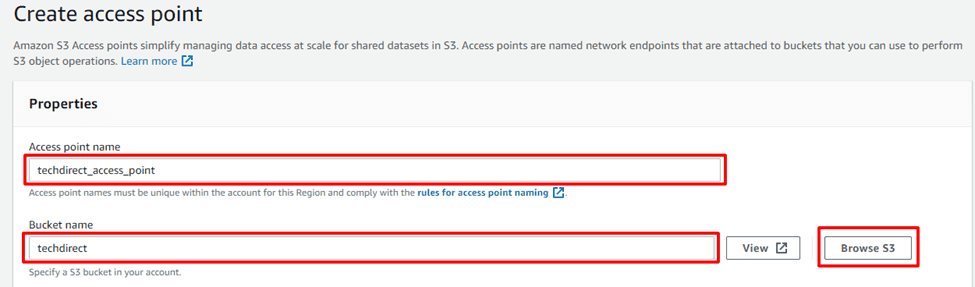
  • Nevertheless, Enter your desired Access point name and also enter or browse the name of a bucket in your account to which you want to attach the access point.
manage and use
Creating Access Points
  • Browsing the bucket and clicking on Choose path
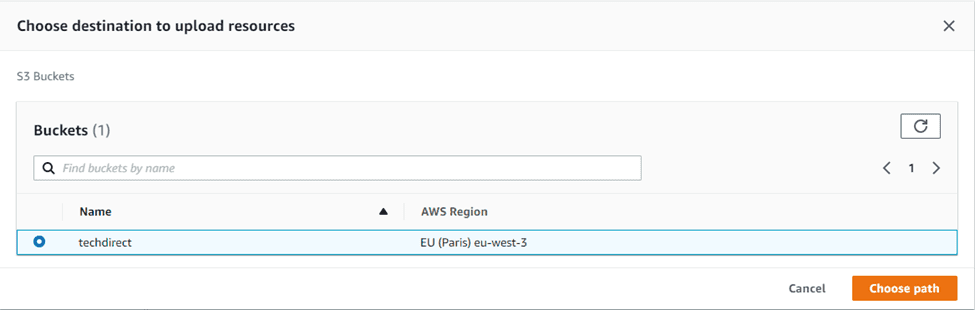
Amazon S3
Choosing Bucket Path

Choosing Network Origin for Access Point Configuration

Therefore, In the Network Origin section, select Virtual Private Cloud (VPC) and enter the VPC ID. Additionally, you want to use the access point, but in this guide, we will select the Internet option.

Furthermore, Under the Block Public Access settings for this Access Point section, the recommendation is to leave it enabled as the default setting unless you have a strong reason to disable it. However, note that Amazon S3 does not support changing an access point block public access settings after creating the access point.
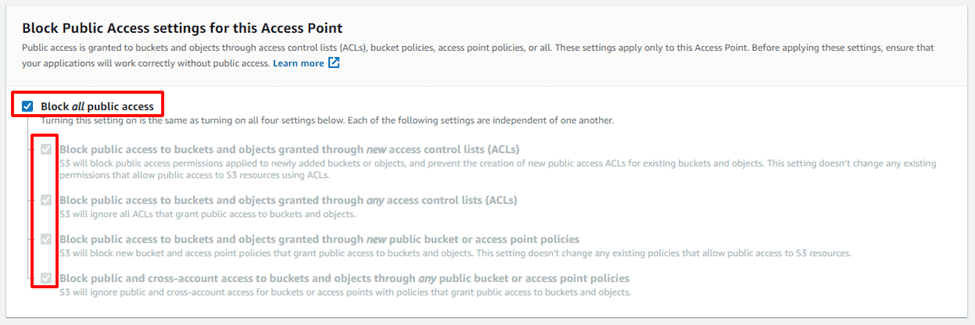
access points
Block Public Access Settings
  • Click on Create access point.
manage and use
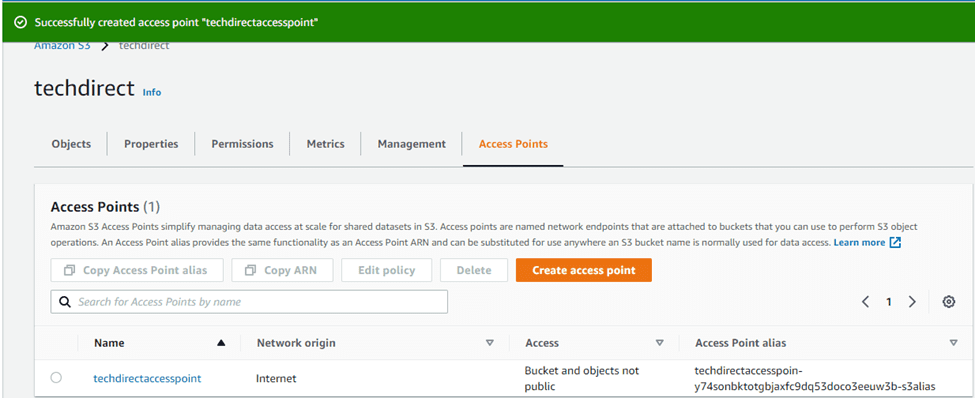
Access Point Successfully Created
  • You can open the access point and upload your objects
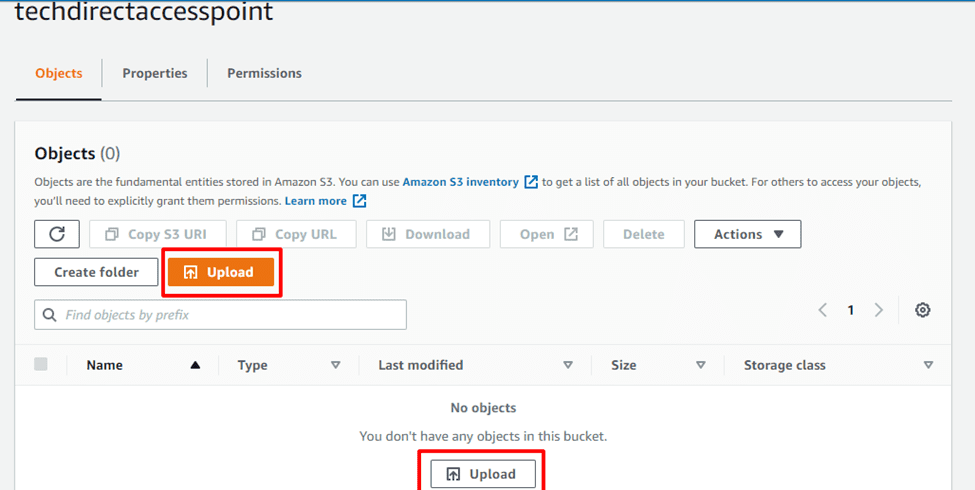
AWS Management Console
Uploading Objects
  • Moreover, This redirects to where your files or folders are located, and you can start uploading.
Amazon S3
Uploading files

Upload succeeded

image-64
Upload succeeded

Access Point Permissions and Object Operations

In addition, Note that while using the access point, you are only allowed to perform the object operations as stated in the access point permissions.

Note: Nonetheless, Once again, as a reminder, you cannot change the Block Public Access settings for an access point after the access point is created.

Below is our current Block Public Access settings
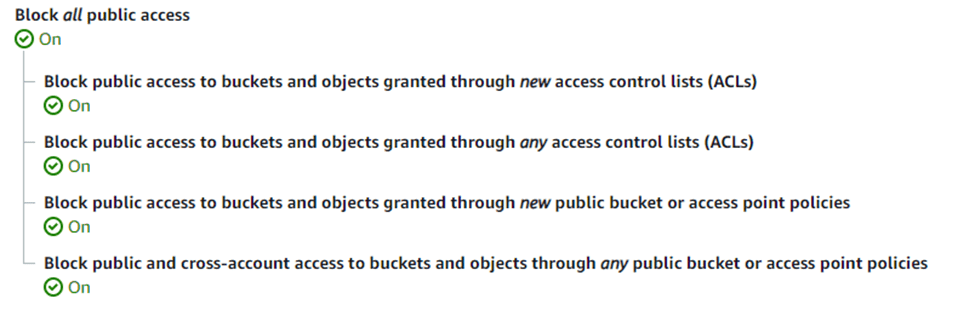
image-65
Block all Public Access

Consequently, Our current public access is OFF. Similarly, The only way we can have access is via the Access Point policy which is written in JSON and can provide access to the objects stored in the bucket from this Access Point.

But note that Access Point policies does not apply to objects owned by other accounts.

Let’s edit the access point policy

  • Let us Navigate to the access point whose policy we want to edit.
  • Select the Permissions tab.
  • Under access point policy section, click Edit.

image-66
Access Point Policy
  • Enter the access point policy in the text field below. Furthermore, The console automatically shows the Amazon Resource Name (ARN) for the access point, which you can use in the policy or you can edit it to suite your own policy.
image-67
Access Point Policy
  • If you want to delete an access point, its just a matter of selecting the access point and clicking on the Delete button.
image-68
Deleting an Access Point

Using an Alias instead of a bucket name for data access

During the process of creating an access point, Amazon S3 automatically generates an Alias that you can use instead of using a bucket name. However, This Alias can be used instead of an Amazon Resource Name (ARN) for any access point operations

Moreover, The following is an example ARN and access point alias for an access point named techdirectaccesspoint.

  • ARN – arn:aws:s3:eu-west-3:963016309182:accesspoint/techdirectaccesspoint
  • Access Point Alias – techdirectaccesspoin-y74sonbktotgbjaxfc9dq53doco3eeuw3b-s3alias

Please note that an access point Alias name is created automatically within the same namespace as an Amazon S3 bucket and cannot be changed. It meets the same requirements of a valid Amazon S3 bucket name and consists of the following parts:

[Access point prefix]-[Metadata]-s3alias

Uploading an object through an access point alias using AWS CLI

image-69
Uploading

Deleting an object through an access point alias using AWS CLI

image-70
Deleting

Listing objects through an access point alias using AWS CLI

image-71
Listing

Grant access permissions through an access point using an ACL

image-72
Granting

I hope you found this blog post on How to manage and use Amazon S3 access points using the AWS Management Console exciting and helpful. In addition, If you have any questions do not hesitate to ask in the comment section.

Rate this post

Thank you for reading this post. Kindly share it with others.

  • Click to share on X (Opens in new window) X
  • Click to share on Reddit (Opens in new window) Reddit
  • Click to share on LinkedIn (Opens in new window) LinkedIn
  • Click to share on Facebook (Opens in new window) Facebook
  • Click to share on Pinterest (Opens in new window) Pinterest
  • Click to share on Tumblr (Opens in new window) Tumblr
  • Click to share on Telegram (Opens in new window) Telegram
  • Click to share on WhatsApp (Opens in new window) WhatsApp
  • Click to share on Pocket (Opens in new window) Pocket
  • Click to share on Mastodon (Opens in new window) Mastodon
  • Click to share on Bluesky (Opens in new window) Bluesky
  • Click to share on Threads (Opens in new window) Threads
  • Click to share on Nextdoor (Opens in new window) Nextdoor
AWS/Azure/OpenShift Tags:AWS, AWS CLI, AWS s3

Post navigation

Previous Post: How to install MariaDB on Ubuntu
Next Post: Install Let’s Encrypt Wildcard SSL Certificate in cPanel using Certify The Web

Related Posts

  • Route53AWS
    Set up and configure Route 53 for your Domain in AWS AWS/Azure/OpenShift
  • AzureCloudShell
    Provisioning Azure Resources using Azure Az PowerShell Cmdlet from Cloud Shell AWS/Azure/OpenShift
  • AWS flow log
    AWS Flow Logs IAM Role Setup AWS/Azure/OpenShift
  • s3versioning
    Hosting Static Website and Versioning on AWS S3 AWS/Azure/OpenShift
  • Veeam Backup for Microsoft Azure
    Set up Veeam Backup for Microsoft Azure AWS/Azure/OpenShift
  • Azure CI CD Pipeline
    CI/CD Pipeline: Your First in Azure DevOps with ASP.Net Core AWS/Azure/OpenShift

More Related Articles

Route53AWS Set up and configure Route 53 for your Domain in AWS AWS/Azure/OpenShift
AzureCloudShell Provisioning Azure Resources using Azure Az PowerShell Cmdlet from Cloud Shell AWS/Azure/OpenShift
AWS flow log AWS Flow Logs IAM Role Setup AWS/Azure/OpenShift
s3versioning Hosting Static Website and Versioning on AWS S3 AWS/Azure/OpenShift
Veeam Backup for Microsoft Azure Set up Veeam Backup for Microsoft Azure AWS/Azure/OpenShift
Azure CI CD Pipeline CI/CD Pipeline: Your First in Azure DevOps with ASP.Net Core AWS/Azure/OpenShift

Leave a Reply Cancel reply

You must be logged in to post a comment.

Microsoft MVP

VEEAMLEGEND

vexpert-badge-stars-5

Virtual Background

GoogleNews

Categories

veeaam100

sysadmin top30a
 
  • The Port used for the Virtualhost is not an Apache Listen Port
    Fix the Port used for the Virtualhost is not an Apache Listen Port Web Server
  • Featured image
    Domain Naming System: Enabling DNS over TLS in Windows 11 Network | Monitoring
  • posfix as an smtp server
    How to Install and Configure Postfix as a Send-Only SMTP Server Linux
  • Feature image msert tool
    How to remove malware using Microsoft Safety Scanner on Windows 10 and 11 Security | Vulnerability Scans and Assessment
  • Featured image Microsoft diagnostic feedback disabled
    Prevent your PC from sending Diagnostics Feedback off via Windows Settings and Group Policy Windows
  • fix Client Certificate Mapping Authentication error
    How to fix Client Certificate Mapping Authentication error Backup
  • fast user switching in windows 10 2
    To enable or disable fast User Switching in Windows 10 Windows
  • requestedlogon
    Error 1385: The user has not been granted the requested logon type at this time Network | Monitoring

Subscribe to Blog via Email

Enter your email address to subscribe to this blog and receive notifications of new posts by email.

Join 1,841 other subscribers
  • RSS - Posts
  • RSS - Comments
  • About
  • Authors
  • Write for us
  • Advertise with us
  • General Terms and Conditions
  • Privacy policy
  • Feedly
  • Telegram
  • Youtube
  • Facebook
  • Instagram
  • LinkedIn
  • Tumblr
  • Pinterest
  • Twitter
  • mastodon

Tags

AWS Azure Bitlocker Microsoft Windows PowerShell WDS Windows 10 Windows 11 Windows Deployment Services Windows Server 2016

Copyright © 2025 TechDirectArchive


Loading Comments...
 

You must be logged in to post a comment.