Skip to content

TechDirectArchive

Hands-on IT, Cloud, Security & DevOps Insights

  • Home
  • About
  • Advertise With US
  • Reviews
  • Contact
  • Toggle search form
Home » Configuration Management Tool » Install Let’s Encrypt Wildcard SSL Certificate in cPanel using Certify The Web

Install Let’s Encrypt Wildcard SSL Certificate in cPanel using Certify The Web

Posted on 27/12/202105/07/2024 Temitope Odemo By Temitope Odemo No Comments on Install Let’s Encrypt Wildcard SSL Certificate in cPanel using Certify The Web
Let's Encrypt

In this guide I will be showing you how to install Let’s Encrypt Wildcard SSL Certificate in cPanel using Certify The Web. With Certify The Web you can easily install and auto-renew free SSL/TLS certificates from letsencrypt.org and other ACME Certificate Authorities for your IIS/Windows servers or cPanel. Please see How to use the DigiCert certificate utility for Windows to create a CSR, Generate a self-signed SSL certificate: How to enable LDAP over SSL with a self-signed certificate.

Certify The Web is one good tool you can use to manage, install, and renew free SSL certificates for your Windows and other servers, it is also a Let’s Encrypt-powered Professional Certificate Management tool for Windows.

For further similar guide on SSL certificate you can check these: How to enable LDAP over SSL with a third-party Certificate such as DigiCert, How to generate your trial SSL Certificate using DigiCert PKI platform, and How to import SSL Certificate to Windows Server using DigiCert Utility. To download this tool go here https://certifytheweb.com/

Navigate to the Settings tab and click on the Certificate Authorities. Furthermore, Make sure the Preferred Certificate Authority is on Let’s Encrypt. Click on New Account

Wildcard SSL Certificate
Creating New Account

Type your email address, agree and click on Register Contact

cPanel
Registering your Email Account

Securing Subdomains: Generating a Wildcard SSL Certificate

However, After registering, click on New Certificate and type *.yourdomain.com in the domain input field where the * means secure all subdomains under the primary domain and click on the plus sign.

Certify The Web
Creating New Certificate

Added a wildcard domain

Let's Encrypt
Pop up message


If you prefer to add a non-wildcard version, you can click on Yes or No

Wildcard SSL Certificate
Pop up message

Nonetheless, Now click on the Authorization section on the right side and select dns-01 in the Challenge Type drop-down. In the DNS Update Method drop-down select (Update DNS Manually)

cPanel
Authorization Section

Moreover, Now Click on the Test button to test the domain status if everything appears ok

Let's Encrypt
Authorization Section

However, To move forward you need to create a DNS (TXT) record in your DNS settings, and you will receive a message like the one below in the email account that you configured earlier.

image-81
Email Message

Open the DNS Settings and create your TXT Record.

image-94
DNS Zone

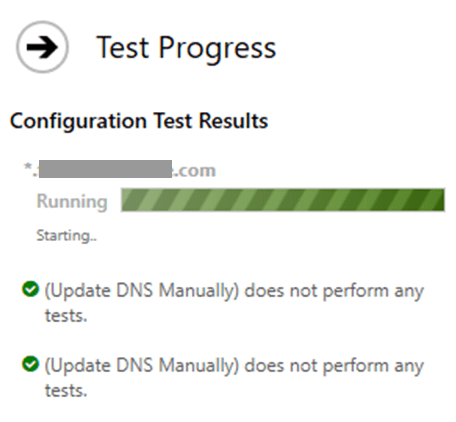
Test in Progress

image-83
Test Progress

Choosing Deployment Mode: Selecting Certificate Store Only After Successful Test

However, Once the test is successful, you can go to the Deployment section, and in the Deployment Mode drop-down, you can select Certificate Store Only.

Moreover, The reason for this selection is that this will store the SSL certificate in your local database. Furthermore, Note that the SSL certificate obtained through the Certify the Web application has a PFX extension that is not compatible with the Apache server by default, so we must convert that file to make it compatible with the Apache server.

After this then Click on Request Certificate.

image-84
Certificate Deployment

The Certificate ordering process.

image-85
Certificate Ordering Process.

SSL Certificate generated successfully
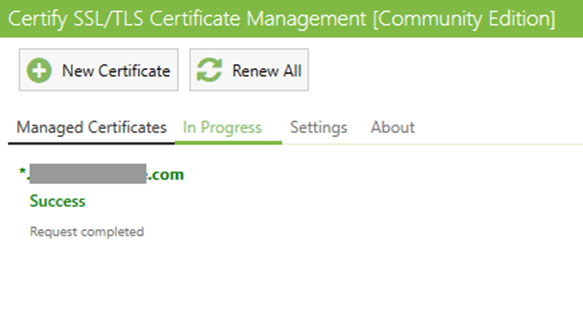
image-86
Success Message

Nonetheless, Now click on the Managed Certificates tab and click on Status to verify the certificate details. However, As mentioned earlier, by default, the certificate is stored in the PFX extension and needs to be converted to be compatible with the Apache server.

So, on your local system create a directory where you will save the certificate and click on Tasks >> (Deployment Tasks) Add >> Deploy to Apache

image-87
Deployment Task

Moreover, Paste your certificate directory path into the first output field and append a back-slash and type “wildcard.crt” or “wildcard.pem”. However, Then in the second output field, paste the directory path and append a back-slash and type “private.key” and in the last output field paste the directory path and type “CA.crt” or “CA.pem”.

image-88
Deployment Task

After clicking on Deploy to Apache,

Note: Before running the deployment task, make sure to save it and run the task

Now open your cPanel to install these certificates.

image-89
Saved Certificate

You can either upload the certificate as a file or as a text.

image-90
Uploading your Generated Certificate

Furthermore, You can now refresh your website check the padlock icon, and see if the site is now secure with Let’s Encrypt

image-91
Secure Connection

I hope you found this blog post on How to install Let’s Encrypt Wildcard SSL Certificate in cPanel using Certify The Web interesting and helpful. However, If you have any questions, do not hesitate to ask in the comment section.

5/5 - (1 vote)

Thank you for reading this post. Kindly share it with others.

  • Share on X (Opens in new window) X
  • Share on Reddit (Opens in new window) Reddit
  • Share on LinkedIn (Opens in new window) LinkedIn
  • Share on Facebook (Opens in new window) Facebook
  • Share on Pinterest (Opens in new window) Pinterest
  • Share on Tumblr (Opens in new window) Tumblr
  • Share on Telegram (Opens in new window) Telegram
  • Share on WhatsApp (Opens in new window) WhatsApp
  • Share on Mastodon (Opens in new window) Mastodon
  • Share on Bluesky (Opens in new window) Bluesky
  • Share on Threads (Opens in new window) Threads
  • Share on Nextdoor (Opens in new window) Nextdoor
Configuration Management Tool Tags:Certificate Authority, Certificate Signing Request, Certificates, SSL, ssl certificate

Post navigation

Previous Post: How to manage and use Amazon S3 access points using the AWS Management Console
Next Post: How to install Apache Tomcat on Ubuntu

Related Posts

  • Groovy
    How to install Groovy on Linux and Windows Configuration Management Tool
  • 1 kajkbmlyehn0inifwrh 8w 1
    How to configure Kerberos for Ansible Authentication Configuration Management Tool
  • images 1
    WARNING: The provided hosts list is empty only the localhost is available and note that the implicit localhost does not match all Configuration Management Tool
  • screenshot 2020 04 18 at 00.01.07
    Different ways to check for Ansible syntax errors Configuration Management Tool
  • Chefconf Poster Desktop Chef 1280x1024 1
    Chef – Node Bootstrapping Configuration Management Tool
  • ansible 1
    How to fix no Python interpreters found for the host Configuration Management Tool

More Related Articles

Groovy How to install Groovy on Linux and Windows Configuration Management Tool
1 kajkbmlyehn0inifwrh 8w 1 How to configure Kerberos for Ansible Authentication Configuration Management Tool
images 1 WARNING: The provided hosts list is empty only the localhost is available and note that the implicit localhost does not match all Configuration Management Tool
screenshot 2020 04 18 at 00.01.07 Different ways to check for Ansible syntax errors Configuration Management Tool
Chefconf Poster Desktop Chef 1280x1024 1 Chef – Node Bootstrapping Configuration Management Tool
ansible 1 How to fix no Python interpreters found for the host Configuration Management Tool

Leave a Reply Cancel reply

You must be logged in to post a comment.

Microsoft MVP

VEEAMLEGEND

vexpert-badge-stars-5

Virtual Background

GoogleNews

Categories

veeaam100

Veeam Vanguard

  • next cloud desktop
    How to install Nextcloud Desktop client on Mac Mac
  • Featured image widgets
    How to use the Widgets feature on Windows 11 Windows
  • Screenshot 2022 04 27 at 00.50.35
    How to create a BitLocker System Partition [Part 2] Windows
  • Cannot Start Proctored Exam
    DbxSvc Process: How to Fix “Cannot Start Proctored Exam” Windows
  • How to Enable Time Limit to Disconnect Remote Desktop After Inactivity
    How to Enable Time Limit to Disconnect Remote Desktop After Inactivity Windows
  • powershell logo
    Cannot find the computer: Fix the following error occurred while using Kerberos authentication Scripts
  • Feature image
    How to search Group Policy for a specific Setting in Windows 10 and 11 Windows
  • wds
    What are the differences between Lite-Touch and Zero-Touch installation? Windows

Subscribe to Blog via Email

Enter your email address to subscribe to this blog and receive notifications of new posts by email.

Join 1,817 other subscribers
  • RSS - Posts
  • RSS - Comments
  • About
  • Authors
  • Write for us
  • Advertise with us
  • General Terms and Conditions
  • Privacy policy
  • Feedly
  • Telegram
  • Youtube
  • Facebook
  • Instagram
  • LinkedIn
  • Tumblr
  • Pinterest
  • Twitter
  • mastodon

Tags

Active Directory Azure Bitlocker Microsoft Windows PowerShell WDS Windows 10 Windows 11 Windows Deployment Services Windows Server 2016

Copyright © 2025 TechDirectArchive


Loading Comments...
 

You must be logged in to post a comment.