Skip to content

TechDirectArchive

Hands-on IT, Cloud, Security & DevOps Insights

  • Home
  • About
  • Advertise With US
  • Reviews
  • Contact
  • Toggle search form
Home » Windows » How to Install a Windows Server Container Host

How to Install a Windows Server Container Host

Posted on 29/12/202125/03/2024 Christian By Christian No Comments on How to Install a Windows Server Container Host
Windows Container

In this article, I’ll be showing you how to install a Windows server container host. Containers are a game-changing technology, especially for teams that have developers who need dynamic environments to work from. Please see how to configure SSL between WSUS upstream and downstream servers, how to setup and configure Windows server update services (WSUS) and how to perform redirection from HTTP to HTTPS.

A developer can launch a container that supports the needs of her application within minutes, and many of the container images are purpose build with the various programming frameworks called out in the title of the container image.

Kindly refer to the following related contents: Event ID 5059: Application pool has been disabled or Changing identity user for IIS Application Pool, and how to install Pleasant Password Server.

Install a windows server container host

Installing Windows containers is simple. After launching your window server, and from the Server Manager, choose Manage → Add Roles and Features.

Capture-92

On the Before You Begin screen, click Next.

Capture-93

On the Select Installation Type screen, click Next.
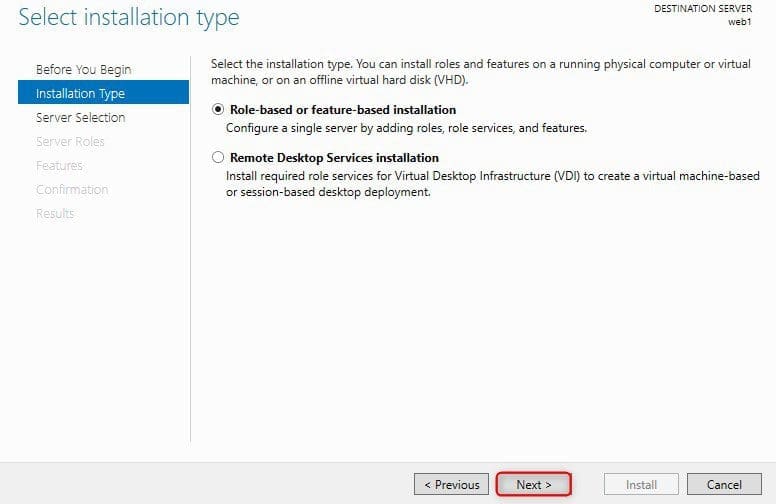
Capture-94

In the Select Destination Server screen, click Next.

Capture-95

In the Select Server Roles screen, click Next.
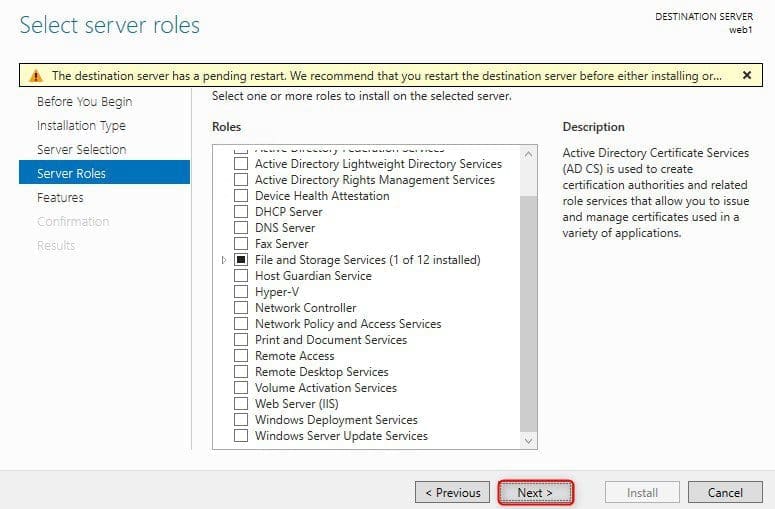
Capture-96

From this window, choose Features screen and click on Containers (shown in the following figure below), and then click Next.
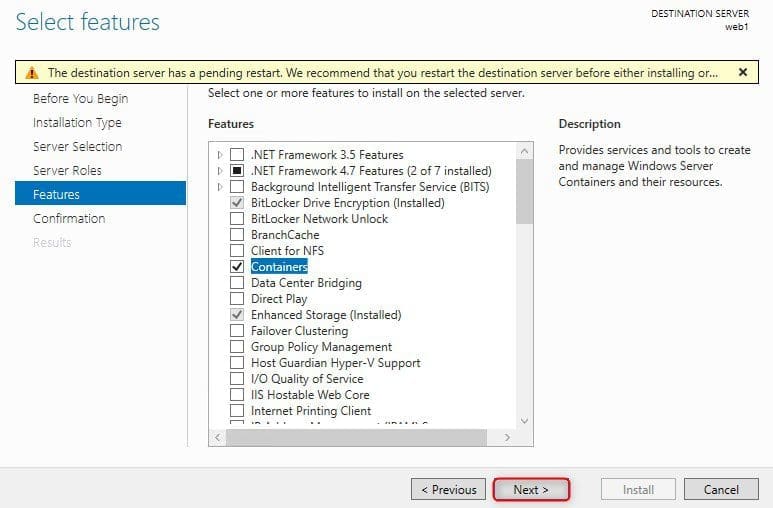
Capture-97

From this page “Confirm Installation Selections” screen, click on Install.
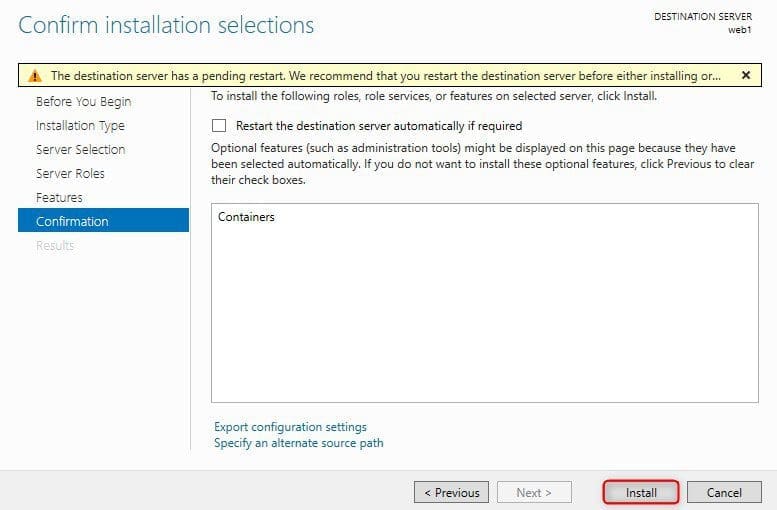
Capture-98

Click Close and restart the server.

Capture-100

To use Windows Containers, you only need to install the Containers feature and then install Docker.

How to install Docker

At this point, you’ve at least got the containers to feature installed. Now you need to install the Docker Engine. This is the piece that really ties all the other pieces together.

You’ll need to open PowerShell to run these commands, as well as the commands that follow under “Test Your Container Installation.” To open PowerShell, right-click on Start and select Windows PowerShell (Admin).

After you’ve opened PowerShell, your first step is to install the Microsoft Package Provider for Docker. This is done with the following command:

Install-Module -Name DockerMsftProvider -Repository PSGallery -Force
Capture-103

Now you can install the latest version of Docker with the following command:

Install-Package -Name docker -ProviderName DockerMsftProvider
Capture-104

After Docker is installed, you need one more restart. You can do this through the graphical user interface (GUI), or you can just type the following into PowerShell:

Restart-Computer -Force
Capture-105

Please see Pull and Deploy Nginx Container Images from Docker Hub, How to stop Docker from automatically starting on Mac, and “Failed to remove network for build: Error during connect in the default daemon configuration on Windows, the Docker client must be run with elevated privileges“.

Test your container installation

After your server is configured and Docker is installed, you’ll want to test to ensure that your container installation is working properly.

There is a simple way to test that your Windows container installation is installed properly: Download and run a container image. One of my favourites is a sample image because it prints out a “Hello world”–style message and then exits.

To run this test, you use the docker run command. Because the container image is not downloaded yet, it will download the container image first, and then run it.

If you want to stage the image so you can play with it later, you can use the docker pull command instead of docker run, and it will only download the container image. Here is the command to see the downloaded image container:

docker images
Capture-106

I hope you found this blog post helpful on how to install a Windows Server Container Host. Please let me know in the comment session if you have any questions.

Rate this post

Thank you for reading this post. Kindly share it with others.

  • Share on X (Opens in new window) X
  • Share on Reddit (Opens in new window) Reddit
  • Share on LinkedIn (Opens in new window) LinkedIn
  • Share on Facebook (Opens in new window) Facebook
  • Share on Pinterest (Opens in new window) Pinterest
  • Share on Tumblr (Opens in new window) Tumblr
  • Share on Telegram (Opens in new window) Telegram
  • Share on WhatsApp (Opens in new window) WhatsApp
  • Share on Mastodon (Opens in new window) Mastodon
  • Share on Bluesky (Opens in new window) Bluesky
  • Share on Threads (Opens in new window) Threads
  • Share on Nextdoor (Opens in new window) Nextdoor
Containers, Windows Tags:container

Post navigation

Previous Post: How to Install Terraform on Linux
Next Post: Bang and Olufsen Bluetooth connection: How to connect and remove Beoplay E8 3rd Generation to Mac

Related Posts

  • update set expire
    Windows 10 and Windows 11 updates will now expire for better performance Windows
  • Create Windows Defender Firewall Rule
    Fix Windows defender blocked incoming connection on Windows Network | Monitoring
  • jhgfx
    How to make Cortana use your default web browser such as Google Chrome Windows
  • windows workstations inactivity
    Configure Windows Device Inactivity Limit Locally and Domain Wide Windows
  • Featured image BSOD
    How to troubleshoot and fix Windows 11 blue screen Windows
  • screenshot 2020 03 18 at 23.03.42
    Enable God Mode via PowerShell or the CLI and GUI Windows

More Related Articles

update set expire Windows 10 and Windows 11 updates will now expire for better performance Windows
Create Windows Defender Firewall Rule Fix Windows defender blocked incoming connection on Windows Network | Monitoring
jhgfx How to make Cortana use your default web browser such as Google Chrome Windows
windows workstations inactivity Configure Windows Device Inactivity Limit Locally and Domain Wide Windows
Featured image BSOD How to troubleshoot and fix Windows 11 blue screen Windows
screenshot 2020 03 18 at 23.03.42 Enable God Mode via PowerShell or the CLI and GUI Windows

Leave a Reply Cancel reply

You must be logged in to post a comment.

Microsoft MVP

VEEAMLEGEND

vexpert-badge-stars-5

Virtual Background

GoogleNews

Categories

veeaam100

Veeam Vanguard

  • Clickable icons Edge Browser
    Remove clickable icons from the Edge browser JIRA|Confluence|Apps
  • Active Directory Setup
    Active Directory: How to Setup a Domain Controller Windows Server
  • Free up filesystem root space
    How to fix the Filesystem root is running low on Disk space Virtualization
  • SASS in VsCode
    How to Install SASS on VsCode Scripts
  • Featured post
    Installing Windows Subsystem for Android (WSA) Windows
  • ETWindows
    An Overview of Event Tracing for Windows Windows
  • chrome feature image light blue
    Set Chrome as default: How to set a browser as default on macOS Mac
  • Windows 11 default Icons
    Windows Desktop Icon: How to Make Default System Icons Visible Windows

Subscribe to Blog via Email

Enter your email address to subscribe to this blog and receive notifications of new posts by email.

Join 1,819 other subscribers
  • RSS - Posts
  • RSS - Comments
  • About
  • Authors
  • Write for us
  • Advertise with us
  • General Terms and Conditions
  • Privacy policy
  • Feedly
  • Telegram
  • Youtube
  • Facebook
  • Instagram
  • LinkedIn
  • Tumblr
  • Pinterest
  • Twitter
  • mastodon

Tags

Active Directory Azure Bitlocker Microsoft Windows PowerShell WDS Windows 10 Windows 11 Windows Deployment Services Windows Server 2016

Copyright © 2025 TechDirectArchive


Loading Comments...
 

You must be logged in to post a comment.