Skip to content

TechDirectArchive

Hands-on IT, Cloud, Security & DevOps Insights

  • Home
  • About
  • Advertise With US
  • Contact
  • Reviews
  • Toggle search form
Home » Windows » How to Generate SSH Keys in Windows 10
  • settings app not working featured 800x400 1
    Disable or Remove Kiosk Mode Via the Local Settings Windows
  • change keyboard layout windows 10 thumb800
    Prevent on-screen keyboard from starting automatically and from appearing at login Windows
  • Convert OST to PST
    How to install and work with Stellar Converter for OST Reviews
  • jmeterlogo 3
    Install and conduct performance testing using Apache JMeter on your Web App Configuration Management Tool
  • screenshot 2020 03 01 at 21.19.07
    Various ways to hide Windows Taskbar Windows
  • Configure Windows Server with Sconfig
    How to Configure Windows Server Core using SConfig Windows
  • checkmk
    Perform System Monitoring with CheckMK Reviews
  • wac
    Fix Windows Admin Center cannot be reached Windows

How to Generate SSH Keys in Windows 10

Posted on 05/01/202225/03/2024 Christian By Christian No Comments on How to Generate SSH Keys in Windows 10
Capture-12

SSH works by authenticating based on a key pair, with a private key being on a remote server and the corresponding public key on a local machine. When the keys match, access is granted to the remote user. The word SSH stands for Secure Shell and is a method used to establish a secure connection between two computers. In this article, you will learn how to generate SSH keys in Windows 10. Please see how to SSH into a VM created using Azure CLI or GUI.

Generate SSH Keys in Windows 10 using PuTTY

Kindly follow the steps below to generate SSH Keys in Windows 10. See this guide on how to generate SHH Keys in Windows 11.

Step 1: Install PuTTY on Windows

Click to download the installer for PuTTY. Double-click the downloaded file and follow the installation wizard to finish the installation.

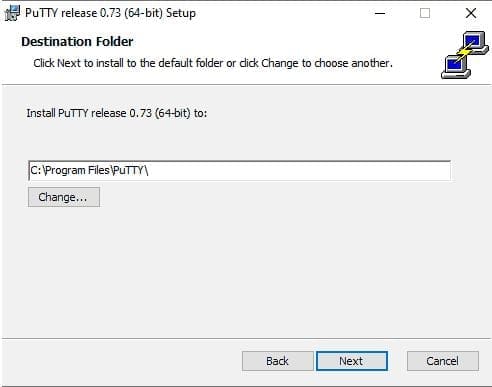
On the initial dialog of the installation wizard, click Next. Select the destination folder. Use the default installation configuration unless you have a specific need to change it. Click Next to move on to the next screen.
Capture

Select PuTTY product features to be installed. Stick to the defaults if you do not have any specific needs. Click Next to move on to the next screen.

Capture-1

Once the process completes, click Finish to exit the installation wizard.

Also, refer to some of the related guides: How to How to install ssh key based authentication in Linux, how to install and configure Ansible on Ubuntu, how to configure a remote server (windows) to Support Ansible, and how to install Kerberos packages in Windows via Cygwin.

Step 2: Run the PuTTY SSH Key Generator

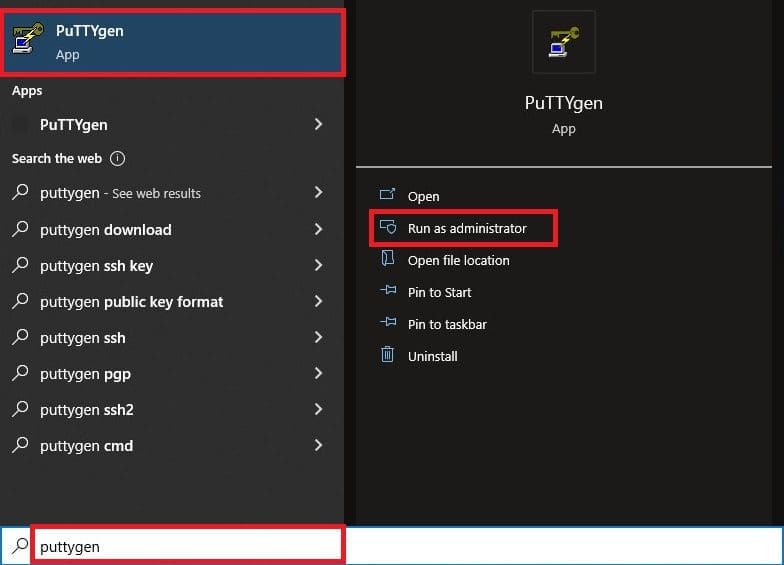
Press the Windows key, and then type puttygen.

Under Best Match, right-click PuTTYgen, and then click Run as administrator. If prompted, click Yes on the Do you want to allow this app to make changes to your device? pop-up.
Capture-2

Step 3: Use PuTTY to Generate a Pair of SSH Keys

The process outlined below will generate RSA keys, which is a classic and widely-used type of encryption algorithm. Whereas the PuTTY keygen tool offers several other algorithms – DSA, ECDSA, Ed25519, and SSH-1 (RSA).

If you require a different encryption algorithm, select the desired option under the Parameters heading before generating the key pair.

  • In the PuTTY Key Generator window, click Generate.
  • Move the cursor around in the gray box to fill up the green bar.
Capture-3

Save the public key:

  • Click the button labeled Save public key.
  • Choose a location to save the key.
  • Give the key a name (e.g., putty_Genkey.pub)
Capture-4

Save the private key:

  • Click the Conversions menu at the top.
  • Click Export OpenSSH key.
  • You’ll be asked if you want to save a key without a passphrase. Click Yes.
  • Choose a location to save the key (usually the same folder as the public key).
  • Give the key a name (e.g., putty_key).
Capture-5

Using Your SSH Keys

To use your SSH keys, copy your public SSH key to the system you want to connect to. Use your private SSH key on your own system. Your private key will match up with the public key, and grant access.

Please see how to Deploy MVC Application to AWS EC2 Using RDP Connection and Web Deploy, how to associate SSH Public key with Azure Linux VM, and how to configure OpenSSH Server.

Generate an SSH key in Windows 10 with OpenSSH Client

Step 1: Verify if OpenSSH Client is Installed

First, check to see if you have the OpenSSH client installed:

  • Open the Settings panel, then click Apps.
  • Under the Apps and Features heading, click Optional Features.
Capture-6

Scroll down the list to see if OpenSSH Client is listed.

  • If it’s not, click the plus-sign next to Add a feature.
  • Scroll through the list to find and select OpenSSH Client.
  • Finally, click Install.
Capture-7

Open Command Prompt

Press the Windows key, and Type cmd. Under Best Match, right-click Command Prompt. Click Run as Administrator.

Capture-8

If prompted, click Yes in the Do you want to allow this app to make changes to your device? pop-up.

Please see how to Generate SSH keys in Windows 11, How to use Azure Command-line Interface, and What is SAML–Security Assertion Markup Language.

Step 2: Use OpenSSH to Generate an SSH Key Pair

In the command prompt, type the following:

ssh-keygen
Capture-9

By default, the system will save the keys to C:\Users\your_username/.ssh/id_rsa. You can use the default name, or you can choose more descriptive names.

This can help distinguish between keys, if you are using multiple key pairs. To stick to the default option, press Enter.

Note: If a file with the same name already exists in the same folder location, you will be asked whether you want to overwrite the file.

You’ll be asked to enter a passphrase. Hit Enter to skip this step. The system will generate the key pair, and display the key fingerprint and a randomart image.

Capture-10

Open your file browser. Navigate to C:\Users\your_username/.ssh.

You should see two files. The identification is saved in the id_rsa file and the public key is labeled id_rsa.pub. This is your SSH key pair.

Capture-11
Note: Normally, the public key is identified with the .pub extension. You can use Notepad to see the contents of both the private and public key.

I hope you found this blog post helpful on how to Generate SSH Keys in Windows 10. Please let me know in the comment session if you have any questions.


Rate this post

Thank you for reading this post. Kindly share it with others.

  • Click to share on X (Opens in new window) X
  • Click to share on Reddit (Opens in new window) Reddit
  • Click to share on LinkedIn (Opens in new window) LinkedIn
  • Click to share on Facebook (Opens in new window) Facebook
  • Click to share on Pinterest (Opens in new window) Pinterest
  • Click to share on Tumblr (Opens in new window) Tumblr
  • Click to share on Telegram (Opens in new window) Telegram
  • Click to share on WhatsApp (Opens in new window) WhatsApp
  • Click to share on Pocket (Opens in new window) Pocket
  • Click to share on Mastodon (Opens in new window) Mastodon
  • Click to share on Bluesky (Opens in new window) Bluesky
  • Click to share on Threads (Opens in new window) Threads
  • Click to share on Nextdoor (Opens in new window) Nextdoor
Windows Tags:Microsoft Windows, SSH, Windows 10, Windows 11, Windows Server 2016

Post navigation

Previous Post: How to Use Postman with the Amazon Pinpoint API
Next Post: How to fix CPU at 100% when nothing is running problem on Windows

Related Posts

  • Screenshot 2022 04 28 at 22.35.11
    Fix “There was a problem starting logilda.dll” in Windows Windows
  • Licensing
    Manage Windows Product key with Software Licensing Manager Windows
  • Featured image GettingWinReady
    Fix “Getting Windows Ready” Don’t turn off your computer stuck on Windows Windows
  • Remote desktop
    Is RDP enabled? Enable and disable Remote Desktop in Windows 10 for all users or selected users Windows
  • gfhj
    Debugging: How to debug a PowerShell script Windows
  • GitLab runner update and upgrade
    How to update Gitlab-runners on Windows Windows

More Related Articles

Screenshot 2022 04 28 at 22.35.11 Fix “There was a problem starting logilda.dll” in Windows Windows
Licensing Manage Windows Product key with Software Licensing Manager Windows
Featured image GettingWinReady Fix “Getting Windows Ready” Don’t turn off your computer stuck on Windows Windows
Remote desktop Is RDP enabled? Enable and disable Remote Desktop in Windows 10 for all users or selected users Windows
gfhj Debugging: How to debug a PowerShell script Windows
GitLab runner update and upgrade How to update Gitlab-runners on Windows Windows

Leave a Reply Cancel reply

You must be logged in to post a comment.

Microsoft MVP

VEEAMLEGEND

vexpert-badge-stars-5

Virtual Background

GoogleNews

Categories

veeaam100

sysadmin top30a

  • settings app not working featured 800x400 1
    Disable or Remove Kiosk Mode Via the Local Settings Windows
  • change keyboard layout windows 10 thumb800
    Prevent on-screen keyboard from starting automatically and from appearing at login Windows
  • Convert OST to PST
    How to install and work with Stellar Converter for OST Reviews
  • jmeterlogo 3
    Install and conduct performance testing using Apache JMeter on your Web App Configuration Management Tool
  • screenshot 2020 03 01 at 21.19.07
    Various ways to hide Windows Taskbar Windows
  • Configure Windows Server with Sconfig
    How to Configure Windows Server Core using SConfig Windows
  • checkmk
    Perform System Monitoring with CheckMK Reviews
  • wac
    Fix Windows Admin Center cannot be reached Windows

Subscribe to Blog via Email

Enter your email address to subscribe to this blog and receive notifications of new posts by email.

Join 1,839 other subscribers
  • RSS - Posts
  • RSS - Comments
  • About
  • Authors
  • Write for us
  • Advertise with us
  • General Terms and Conditions
  • Privacy policy
  • Feedly
  • Telegram
  • Youtube
  • Facebook
  • Instagram
  • LinkedIn
  • Tumblr
  • Pinterest
  • Twitter
  • mastodon

Tags

AWS Azure Bitlocker Microsoft Windows PowerShell WDS Windows 10 Windows 11 Windows Deployment Services Windows Server 2016

Copyright © 2025 TechDirectArchive


Loading Comments...
 

You must be logged in to post a comment.