Install HTML Web Client for Microsoft RDS

In this guide, you will learn “Publish Remote Desktop Web Client: How to Install HTML Web Client for Microsoft RDS. The Remote Desktop web client enables users to access the enterprise Remote Desktop infrastructure through a compatible web browser. The HTML 5 Remote Desktop Web Client is available in newer versions of Windows Server that are configured as a Remote Desktop Services Deployment at no additional cost. Users will be able to interact with remote apps or desktops as they would with a local PC no matter where they are.
Once you set up your Remote Desktop web client. All your users need to get started is the URL where they can access the client, their credentials, and a supported web browser. how to fix “The logon attempt failed for the remote desktop connection“, how to resolve Microsoft RDP Connection Black Screen, and, how to change a password on a Remote Desktop session.
Kindly refer to these related guides on RDS: How to set up and configure Remote Desktop Services via Standard Deployment on Windows Server 2012, and 2016, and how to change a password on a Remote Desktop session.
What is a Web client?
A Web client typically refers to the Web browser in the user’s device or mobile device. It may also refer to extensions and helper applications that enhance the browser to support services. The web client does support using Azure AD Application Proxy but does not support Web Application Proxy at all.
Here is a comprehensive guide on “how to install RDS via Quick Start Deployment: Install, Publish, Update and Uninstall Remote Desktop Web Client“
This allows devices with a modern web browser to access an RDS server without having to use any additional apps. This is a perfect solution for Mac and Chrome Book users as it will allow them to use the deployment without needing to install the Microsoft RDP Application.
If you used the web client during the preview period and installed a version prior to 1.0.0, you must first uninstall the old client before moving to the new version. If you receive an error that says “The web client was installed using an older version of RDWebClientManagement and must first be removed before deploying the new version.
Here are some additional guides you may also want to see: How to activate and Press Ctrl+Alt+Del in Anydesk for Remote Access Connection to the Windows system.
Prerequisite to Install HTML Web Client for Microsoft RDS
Prior to setting up and configuration of the HTML 5 Web Client, kindly ensure that the RDS infrastructure requirements are met.
- RDS deployment has an RD Gateway, RD Connection Broker, and RD Web Access roles installed on Windows Server 2016 or later 9Remote desktop webapp server).
- Make sure your deployment is configured for per-user client access licenses (CALs) instead of per device, otherwise all licenses will be consumed.
- Ensure the RDS Deployment servers have the latest Windows updates installed.
- RDS deployment must have valid SSL (public trusted certificates) issued by a trusted CA on the server containing the Gateway and Web Access roles. Self-signed certificates will not work in this case.
- At the time of writing this piece, ensure you install the Windows 10 KB4025334 update on the RD Gateway. Later cumulative updates may already contain this KB. If you have been applying updates promptly, this shouldn’t be a problem.
How to Publish the Remote Desktop web client
To install the web client for the first time. You will need to obtain the certificate used for Remote Desktop connections and export it as a .cer file. Copy the .cer file from the RD Connection Broker to the server running the RD Web role. You can use the MMC for exporting certs.
Here are some related guides: How to export a certificate in PFX format in Windows. H and how to install Let’s Encrypt Certificates with IIS on a Windows. Export the certificate using the following options:
When running Windows Server 2016
You will only need to perform this step if you are running Windows Server 2016. On the RD Web Access server, launch an elevated PowerShell Prompt. Since you are running WS 2016, you will need to first update the PowerShellGet module since the inbox version doesn’t support installing the web client management module.
To update PowerShellGet, run the following cmdlet below. After this command is run, you will need to restart PowerShell before the update can take effect, else the module may not work.
Install-Module -Name PowerShellGet -ForceInstall the Remote Desktop web client management Module
To install the Remote Desktop web client management PowerShell module from the PowerShell gallery with this cmdlet and image below.
Install-Module -Name RDWebClientManagement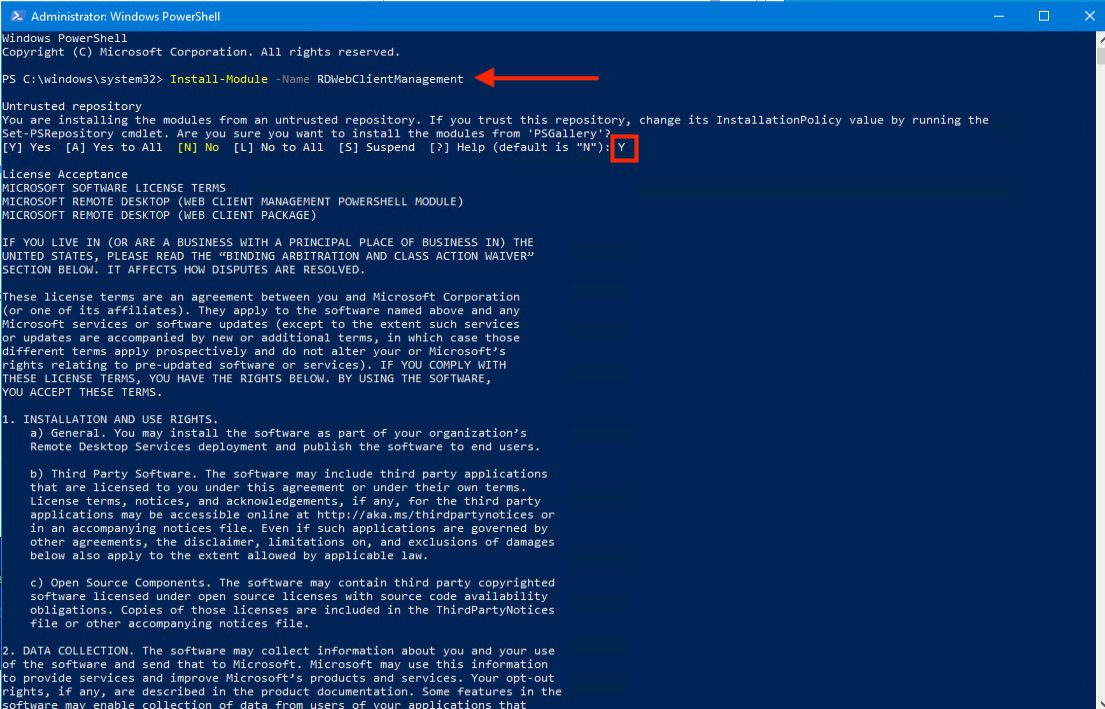
Enter Y for Yes or A for Yes to All so that the following Window below will not be prompted. But for me, I have entered A as I wish to show you all the needed steps.

Next, run the command below to download and install the latest version of the Remote Desktop Web Client. Please see RDS client access licenses: How to install a new Per User Remote Desktop Services license.

Next, run this cmdlet with the bracketed value replaced. Please use the path of the .cer file that you copied from the RD Broker.
Import-RDWebClientBrokerCert <.cer file path>Note: If you export a certificate using the Windows export wizard, the CER-formatted file is Base64 Encoded x. 509 and is the equivalent to PEM.The only time CRT and CER can safely be interchanged is when the encoding type can be identical. For example, PEM-encoded CRT is the same as PEM-encoded CER.
The PEM format is the most common format used for certificates. Extensions used for PEM certificates are cer, crt, and pem.

See how to Resolve Microsoft RDP Connection Black Screen. And RDP users are unable to change passwords on the first logon or after expiration: You must change your password before logging on the first time, please update your password.
Publish RDSWeb Client Package
Since the client has been installed in one of the above steps, run the cmdlets below to publish the client.
Publish-RDWebClientPackage -Type Production –Latest
As soon as all the steps above are complete. The HTML 5 Web Client is now accessible by using the URL below. Add User to Remote Desktop Users Group in AD. Please see how to allow RDP access for non-administrators on a Domain Controller. It’s important to use the server name that matches the RD Web Access public certificate in the URL.
https://<Your FQDN>/RDWeb/webclient/index.html
Note: When running the Publish-RDWebClientPackage cmdlet. You may see a warning that says per-device CALs are not supported, even if your deployment is configured for per-user CALs. If your deployment uses per-user CALs, you can ignore this warning. We display it to make sure you’re aware of the configuration limitation.
Please see How to add and remove RDS Collection, how to Remove Remote Desktop Services Role on Windows Server, and how to install a new Per User Remote Desktop Services license.
I hope you found this blog post helpful on how to Publish Remote Desktop Web Clients: Install HTML Web Client for Microsoft RDS. If you have any questions, please let me know in the comment session.