Skip to content

TechDirectArchive

Hands-on IT, Cloud, Security & DevOps Insights

  • Home
  • About
  • Advertise With US
  • Contact
  • Reviews
  • Toggle search form
Home » Windows » How to enable or disable a Remote WMI Connection in Windows
  • connect to RDP automatically
    RDP Configuration Settings: Connect automatically to RDP session Windows
  • SASS in VsCode
    How to Install SASS on VsCode Scripts
  • fallocate
    What the Fallocate command does Linux
  • Driver Automation Tool
    Windows Driver Management: Upgrade Driver Automation Tool Windows
  • Feature image LSA
    How to configure additional LSA Protection Security | Vulnerability Scans and Assessment
  • HyperV 2
    Fix no disks suitable for the cluster were found Windows Server
  • header picture
    Creating and Deploying Docker Registry Using Docker Image AWS/Azure/OpenShift
  • HyperV VM disk size increase
    How to Increase Disk Size in Hyper-V Virtualization

How to enable or disable a Remote WMI Connection in Windows

Posted on 21/05/202202/07/2025 Matthew By Matthew No Comments on How to enable or disable a Remote WMI Connection in Windows
Featured-Image_1

To enable or disable a Remote WMI Connection in Windows, employ Command Prompt. Manage multiple WMI rules swiftly, enhancing system control. Enabling these rules allows WMI to accept remote connections and asynchronous callbacks from Unsecapp.exe. This comprehensive guide outlines the process for managing WMI traffic directly from the command prompt, providing valuable insights into controlling remote access and thereby optimizing system management. Please see this detailed guide on: Windows Management Instrumentation: WMI Commands.

See How to Enable and Disable WMI Traffic through Windows CMD, and Remote WMI Connection: How to enable or disable WMI Traffic Using Firewall UI.

Configuring Network Access via Command Prompt Rule Group

Please see this detailed guide on Windows Management Instrumentation: WMI Commands.

Remote WMI Access

Enable WMI traffic through the firewall:

netsh advfirewall firewall set rule group="windows management instrumentation (wmi)" new enable=yes
WMI Connectivity

The “Remote WMI Connection” command activates 8 vital WMI rules, enhancing remote system management. This results in seamless control and comprehensive monitoring.

The Remote WMI Connection significantly empowers control by streamlining system management by integrating 8 essential Windows Management Instrumentation (WMI) rules.

These rules are essential, providing data collection, remote management, and performance monitoring, thus bolstering system security and stability.

Such automation significantly saves time and ensures the consistent application of essential settings, consequently contributing to a more robust and dependable IT infrastructure.

Here is Windows Management Instrumentation Commands, how to Get a list of installed programs locally or remotely in Windows, and “How to delete an Instance (AssignedAccess) when applied via MDM WMI bridge Provider“.

Steps to Turn Off

First, run the command prompt as administrator.

netsh advfirewall firewall set rule group="windows management instrumentation (wmi)" new enable=no
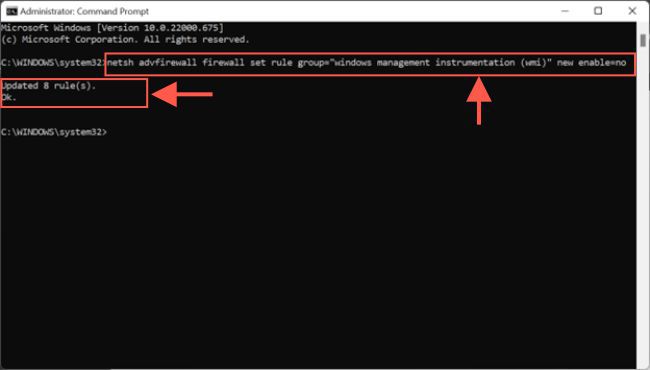
Remote System Management

The command removes 8 rules added to the WMI, streamlining the configuration and improving system management.

Please see see how to query a list of installed programs in Windows via Windows Settings, Control Panel, WMIC, PowerShell and Windows Registry, and How to setup and configure Remote Desktop Services via Standard Deployment on Windows Server.

If you’ve found this blog post on how to enable or disable a Remote WMI Connection in Windows helpful, please share your thoughts or questions in the comment section. Additionally, your feedback is greatly appreciated, and I’m here to assist with any inquiries.

5/5 - (1 vote)

Thank you for reading this post. Kindly share it with others.

  • Share on X (Opens in new window) X
  • Share on Reddit (Opens in new window) Reddit
  • Share on LinkedIn (Opens in new window) LinkedIn
  • Share on Facebook (Opens in new window) Facebook
  • Share on Pinterest (Opens in new window) Pinterest
  • Share on Tumblr (Opens in new window) Tumblr
  • Share on Telegram (Opens in new window) Telegram
  • Share on WhatsApp (Opens in new window) WhatsApp
  • Share on Pocket (Opens in new window) Pocket
  • Share on Mastodon (Opens in new window) Mastodon
  • Share on Bluesky (Opens in new window) Bluesky
  • Share on Threads (Opens in new window) Threads
  • Share on Nextdoor (Opens in new window) Nextdoor
Windows Tags:MDM Bridge WMI Provide, Remote Access, Remote Desktop, Remote Desktop Services, Remote Server Administration Tools, RemoteConnection

Post navigation

Previous Post: How to deactivate and reactivate a Slack user
Next Post: How to remove a user from a Slack Channel

Related Posts

  • Windows10
    Configure new GPO settings and Security baseline for Windows Windows
  • Feature image DEP
    Disable Data Execution Prevention and determine that hardware DEP is available and configured Security | Vulnerability Scans and Assessment
  • Disable BitLocker
    How to Disable BitLocker on Windows 10 Windows
  • Best Disk Partition Manager for Mac
    How to extend System Drive Partition on Windows Windows
  • TamperProtection
    Protect Microsoft Defender Settings with Tamper Protection Security | Vulnerability Scans and Assessment
  • WonderFox Video Watermark
    Install and use WonderFox Video Watermark Windows

More Related Articles

Windows10 Configure new GPO settings and Security baseline for Windows Windows
Feature image DEP Disable Data Execution Prevention and determine that hardware DEP is available and configured Security | Vulnerability Scans and Assessment
Disable BitLocker How to Disable BitLocker on Windows 10 Windows
Best Disk Partition Manager for Mac How to extend System Drive Partition on Windows Windows
TamperProtection Protect Microsoft Defender Settings with Tamper Protection Security | Vulnerability Scans and Assessment
WonderFox Video Watermark Install and use WonderFox Video Watermark Windows

Leave a Reply Cancel reply

You must be logged in to post a comment.

Microsoft MVP

VEEAMLEGEND

vexpert-badge-stars-5

Virtual Background

GoogleNews

Categories

veeaam100

sysadmin top30a

  • connect to RDP automatically
    RDP Configuration Settings: Connect automatically to RDP session Windows
  • SASS in VsCode
    How to Install SASS on VsCode Scripts
  • fallocate
    What the Fallocate command does Linux
  • Driver Automation Tool
    Windows Driver Management: Upgrade Driver Automation Tool Windows
  • Feature image LSA
    How to configure additional LSA Protection Security | Vulnerability Scans and Assessment
  • HyperV 2
    Fix no disks suitable for the cluster were found Windows Server
  • header picture
    Creating and Deploying Docker Registry Using Docker Image AWS/Azure/OpenShift
  • HyperV VM disk size increase
    How to Increase Disk Size in Hyper-V Virtualization

Subscribe to Blog via Email

Enter your email address to subscribe to this blog and receive notifications of new posts by email.

Join 1,834 other subscribers
  • RSS - Posts
  • RSS - Comments
  • About
  • Authors
  • Write for us
  • Advertise with us
  • General Terms and Conditions
  • Privacy policy
  • Feedly
  • Telegram
  • Youtube
  • Facebook
  • Instagram
  • LinkedIn
  • Tumblr
  • Pinterest
  • Twitter
  • mastodon

Tags

Active Directory AWS Azure Bitlocker Microsoft Windows PowerShell WDS Windows 10 Windows 11 Windows Server 2016

Copyright © 2025 TechDirectArchive


Loading Comments...
 

You must be logged in to post a comment.