Skip to content

TechDirectArchive

Hands-on IT, Cloud, Security & DevOps Insights

  • Home
  • About
  • Advertise With US
  • Reviews
  • Contact
  • Toggle search form
Home » Windows » Capture and Record your Screen in Windows 10 with Xbox Game Bar
  • WDSMDT
    What are the differences between MDT and WDS Windows Server
  • Ec2 Instance
    How to create an EC2 Instance AWS/Azure/OpenShift
  • How to download install and use Kitty SSH Client on Windows
    Video on how to Download and Use KiTTY SSH Client on Windows Network | Monitoring
  • scroll
    How to Take a Scrolling Screenshot on Windows 11 Windows
  • Featured image
    Tamper Protection for Microsoft Defender on Windows 10 [Part 1] Security | Vulnerability Scans and Assessment
  • FEATURE IMAGE
    SSH into a VM created using Azure CLI or GUI Linux
  • Disable Lock Screen on Windows
    How to disable Lock Screen on Windows 10 Windows
  • installer file too long fix
    Fix long path names to files on SQL Server installation media error Oracle/MSSQL/MySQL

Capture and Record your Screen in Windows 10 with Xbox Game Bar

Posted on 04/06/202221/11/2023 Temitope Odemo By Temitope Odemo No Comments on Capture and Record your Screen in Windows 10 with Xbox Game Bar
WIinG

Windows 10 come loaded with a screen recording utility called Xbox Game Bar. This recording utility can help you to record any actions taken place on your screen. Whether you are using an app you just installed on your Windows 10 or you are creating a tutorial video then this Xbox Game bar is the real deal for you. In this article, we shall discuss how to Capture and Record Screen in Windows 10 with Xbox Game Bar. Please see how to record the screen of macOS and how to make a screenshot of Windows 10 Screen / Login Screen.

This recording utility will help you capture the whole action without breaking. This screen recording utility tool is part of the Xbox app that comes pre-installed by default in Windows 10. Please see how to Capture and Record your Screen in Windows 10 with Xbox Game Bar. Below is a YouTube video on how to capture and record your screen in Windows 10 with Xbox Game Bar.

Recently there have been more updates to the Xbox Game Bar. Thereby making it more useful in terms of taking screenshots and even making memes. In this guide, I will be showing you how to use this guide to record your screen in Windows 10. If you need to read more on capturing screens then you can read this: Make Snapshot: 5 ways to take screenshots on Windows 11, and how to record your screen with PowerPoint and make slide shows

Capture and Record your Screen on Windows 10

Follow these few steps to capture your screen action. Open the app or the exact thing you want to record on your screen.

Note: This screen recorder tool does not have the ability to capture some programs like the File Manager, but can capture regular desktop apps.

Press the Windows key + G at the same time to open the Xbox Game Bar dialog. Or you can type Xbox in the search box and click the Xbox Game Bar
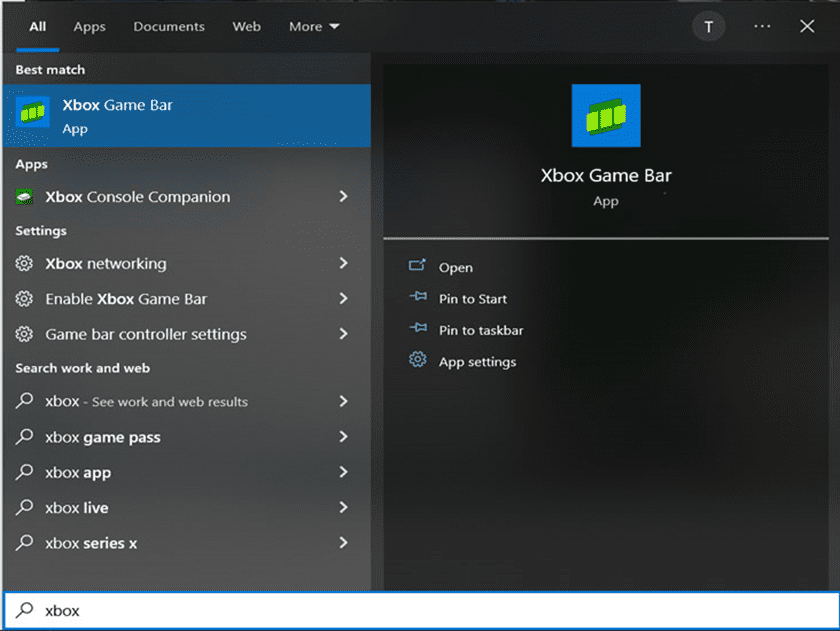
image
Xbox Game Bar Opening

The below shows the Xbox Game Bar

image-1
Xbox Game Bar

Please see how to Remove Xbox from automatic startup: How to enable and disable automatic startup in Windows 11, How to create a captured image on Windows Deployment Services, How to create a Windows Server reference image using WDS, and What are the differences between Capture image, Discover image, Install and Boot images (Windows PE).

Record on Windows with the Xbox Game Bar

3. Now click on the Start Recording button or use this key combination Win + Alt + R to begin capturing video.
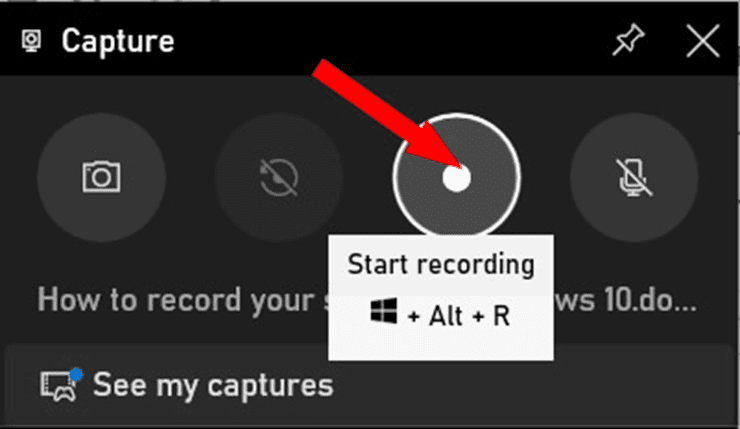
image-2
Start Recording

Immediately the recording button is clicked or the combination keys are pressed this time counter pops up. If you want to stop the recording click on the stop button and if you want to add voice click on the voice button.

image-3
Screen Recording

Please see how to make a screenshot of Windows 10 Screen / Login Screen, and how to Set up Veeam Backup for Microsoft Azure.

Where to find my recorded files?

The recording files get saved in MP4 format and can be found in the subfolder called Captures under the Videos folder. You can also use the See My Captures button to navigate to where the files are located.

You will also observe that the file is saved with the name of the file currently opened on the screen. For example, if you open a Word document and you recorded your screen the record file will be saved with the Word document name. See the image below:
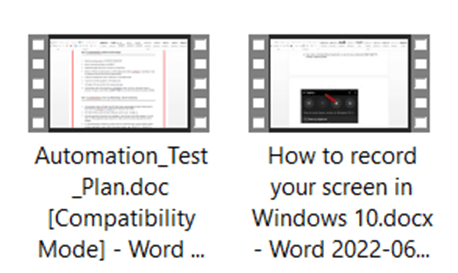
image-4
Saved Files

4. Another thing you can use in the Xbox Game Bar is to take a snapshot or to capture what is currently going on the screen. Click the camera icon or press the Win + Alt + Prtscrn.

The image below shows the button for taking a screenshot. Also, the button that navigates to where the screenshots taken are saved.

image-5
Taking Screenshot

5. You can also socialize with your friends online using the Xbox Social to play games and use free voice and chat with them.

image-6
Xbox Social

I hope you found this blog post on how to Capture and Record your Screen in Windows 10 with Xbox Game Bar interesting and helpful. In case you have any questions do not hesitate to ask in the comment section.

Rate this post

Thank you for reading this post. Kindly share it with others.

  • Share on X (Opens in new window) X
  • Share on Reddit (Opens in new window) Reddit
  • Share on LinkedIn (Opens in new window) LinkedIn
  • Share on Facebook (Opens in new window) Facebook
  • Share on Pinterest (Opens in new window) Pinterest
  • Share on Tumblr (Opens in new window) Tumblr
  • Share on Telegram (Opens in new window) Telegram
  • Share on WhatsApp (Opens in new window) WhatsApp
  • Share on Pocket (Opens in new window) Pocket
  • Share on Mastodon (Opens in new window) Mastodon
  • Share on Bluesky (Opens in new window) Bluesky
  • Share on Threads (Opens in new window) Threads
  • Share on Nextdoor (Opens in new window) Nextdoor
Windows Tags:Windows 10, Windows 11

Post navigation

Previous Post: Microsoft Phone Link: Connect Android to Windows 11
Next Post: How to implement Interactive Authentication using MSAL dotNET

Related Posts

  • Task Scheduler Greyed Out
    How to fix Task Scheduler Service Greyed Out in Service MMC Windows
  • spell
    Disable Cloud-Based Spell Checker in Microsoft Edge and Google Chrome Windows
  • Secure Web Server
    How to secure a Web Server on a Windows VM in Azure using TLS/SSL Certificates Saved in Azure Key Vault AWS/Azure/OpenShift
  • sd 1
    How to link your Android or iPhone to your Windows 10 PC Windows
  • Screenshot 2020 12 06 at 17.01.38
    Start Print Spooler Service: How to fix Print Spooler Service not running Windows
  • Windows10 11
    Block Upgrade to Windows 11 via Group Policy or Registry Windows

More Related Articles

Task Scheduler Greyed Out How to fix Task Scheduler Service Greyed Out in Service MMC Windows
spell Disable Cloud-Based Spell Checker in Microsoft Edge and Google Chrome Windows
Secure Web Server How to secure a Web Server on a Windows VM in Azure using TLS/SSL Certificates Saved in Azure Key Vault AWS/Azure/OpenShift
sd 1 How to link your Android or iPhone to your Windows 10 PC Windows
Screenshot 2020 12 06 at 17.01.38 Start Print Spooler Service: How to fix Print Spooler Service not running Windows
Windows10 11 Block Upgrade to Windows 11 via Group Policy or Registry Windows

Leave a Reply Cancel reply

You must be logged in to post a comment.

Microsoft MVP

VEEAMLEGEND

vexpert-badge-stars-5

Virtual Background

GoogleNews

Categories

veeaam100

sysadmin top30a

  • WDSMDT
    What are the differences between MDT and WDS Windows Server
  • Ec2 Instance
    How to create an EC2 Instance AWS/Azure/OpenShift
  • How to download install and use Kitty SSH Client on Windows
    Video on how to Download and Use KiTTY SSH Client on Windows Network | Monitoring
  • scroll
    How to Take a Scrolling Screenshot on Windows 11 Windows
  • Featured image
    Tamper Protection for Microsoft Defender on Windows 10 [Part 1] Security | Vulnerability Scans and Assessment
  • FEATURE IMAGE
    SSH into a VM created using Azure CLI or GUI Linux
  • Disable Lock Screen on Windows
    How to disable Lock Screen on Windows 10 Windows
  • installer file too long fix
    Fix long path names to files on SQL Server installation media error Oracle/MSSQL/MySQL

Subscribe to Blog via Email

Enter your email address to subscribe to this blog and receive notifications of new posts by email.

Join 1,836 other subscribers
  • RSS - Posts
  • RSS - Comments
  • About
  • Authors
  • Write for us
  • Advertise with us
  • General Terms and Conditions
  • Privacy policy
  • Feedly
  • Telegram
  • Youtube
  • Facebook
  • Instagram
  • LinkedIn
  • Tumblr
  • Pinterest
  • Twitter
  • mastodon

Tags

AWS Azure Bitlocker Microsoft Windows PowerShell WDS Windows 10 Windows 11 Windows Deployment Services Windows Server 2016

Copyright © 2025 TechDirectArchive


Loading Comments...
 

You must be logged in to post a comment.