Skip to content

TechDirectArchive

Hands-on IT, Cloud, Security & DevOps Insights

  • Home
  • About
  • Advertise With US
  • Reviews
  • Contact
  • Toggle search form
Home » Windows » Reveal Windows WiFi password of Network you are connected to
  • removeguesttrello
    Remove a member from Trello Workspace: How to add or remove a Board Guest to a Trello Board JIRA|Confluence|Apps
  • Simple Notification Service AWS SNS
    Create Simple Notification Service (SNS) Notification on AWS AWS/Azure/OpenShift
  • tuning tomcat
    How to upgrade Apache Tomcat from One Version to another Web Server
  • banner
    How to Edit Windows Hosts File via PowerToy Editor Utility Web Server
  • ssl 600x315 1 1
    Components needed to create a certificate signing request Windows Server
  • chocolatey
    Windows Package Manager: How to install, upgrade or uninstall Chocolatey Windows
  • RDP Certificate Issues
    Connecting to the RDP host: Fix the Certificate could not be verified back to the root certificate Mac
  • GoogleAppleCalendarSync
    Sync Google Calendar events to Apple Calendar JIRA|Confluence|Apps

Reveal Windows WiFi password of Network you are connected to

Posted on 17/08/202222/11/2025 Temitope Odemo By Temitope Odemo No Comments on Reveal Windows WiFi password of Network you are connected to
wifi

Every Wi-Fi feature on a Windows system is used to connect to a network system. This network could be a home network, office network, or a Wi-Fi hotspot in the public domain. Microsoft developed the Windows operating system to remember or save all Wi-Fi settings on your computer system. Which also includes the security keys to gain access to the Wi-Fi network. In this article, I will show you how to Reveal the WiFi password of the Network you are connected to in Windows. Please see how to create Profiles for your AWS Access Credentials for AWS Toolkit in Visual Studio, and How to Set Network Adapter Priority on Windows 11.

It may become challenging sometimes to remember passwords or security keys to this Wi-Fi network. You do not need to sweat over this because there are shortcuts to getting out the security keys previously saved on your computer. Below is a YouTube video showing how to disclose the WiFi password of the Network you are connected to on Windows

Play

Reveal the WiFi password of the Network

Follow the steps below to view your current Wi-Fi password. Please see these guides: “Authentication Protocol: 802 dot 1x and EAP types for Wired and Wireless Authentication“. Fix Unable to connect to Eduroam WLAN: WiFi Username remembered on MAC.

Launch the Windows Network Connections Tool

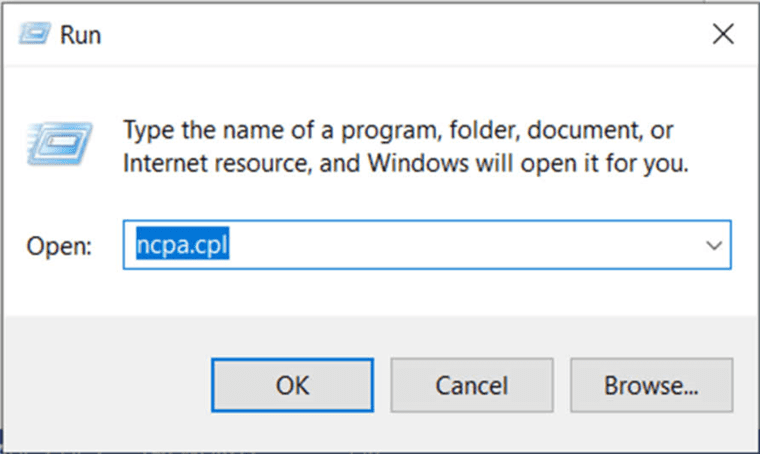
1: Open the Network Connections by running this ncpa.cpl in Run.
image
ncpa.cpl

2. Now right-click on the Wi-Fi adapter and click Status from the context menu.
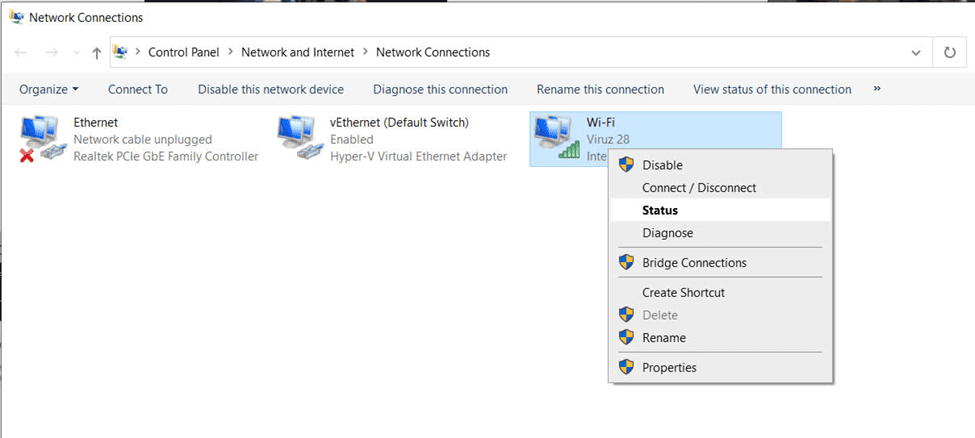
image-1
WiFi Network Adapter

Please see the following related guides: How to Transfer User Profile to another User in Windows, and Windows Profile: How to determine your Windows username. Also, see Windows 11 Hardware and Software Requirements: How to upgrade to Windows 11, and how to relate Due Diligence and Due Care to Veeam Backup and Replication.

Click on Wireless Properties

3. On the Wi-Fi Status page click Wireless Properties and this open the WiFi network properties.
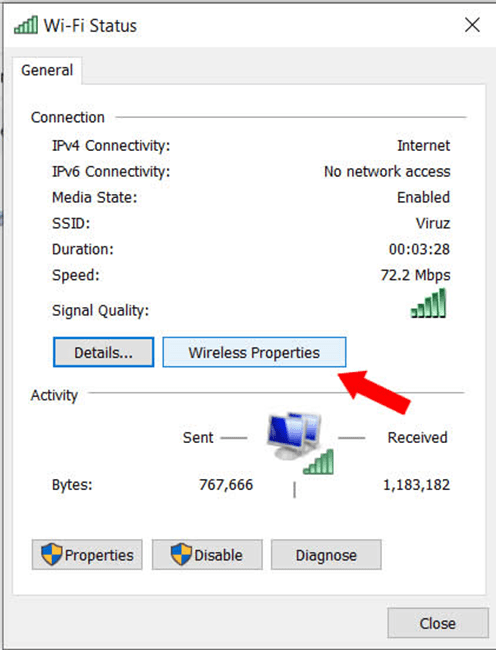
image-2
WiFi Status

4. Click on the Security tab and check the Show characters box. This will reveal the exact Network security key or Password.
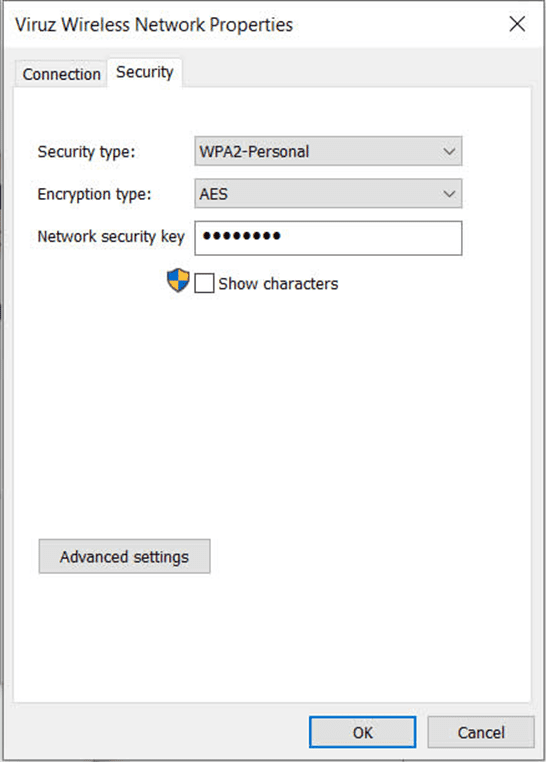
image-3
Wireless Network Properties
Note: if you are not connected to any Wi-Fi network you will not be able to see the network security key using this method.

If you want to read more on the wireless network you can read these. “How to disable Network (Wireless) UI from the Welcome screen See how to Set up and configure Cisco WAP 551 and WAP 561“.

See the WiFi password without any active connection

5. For you to see the Wi-Fi password without any active connection then you will need to open the Command Prompt as an Administrator and enter this command netsh wlan show profilesThis will reveal all the Wi-Fi Profiles on your Computer.
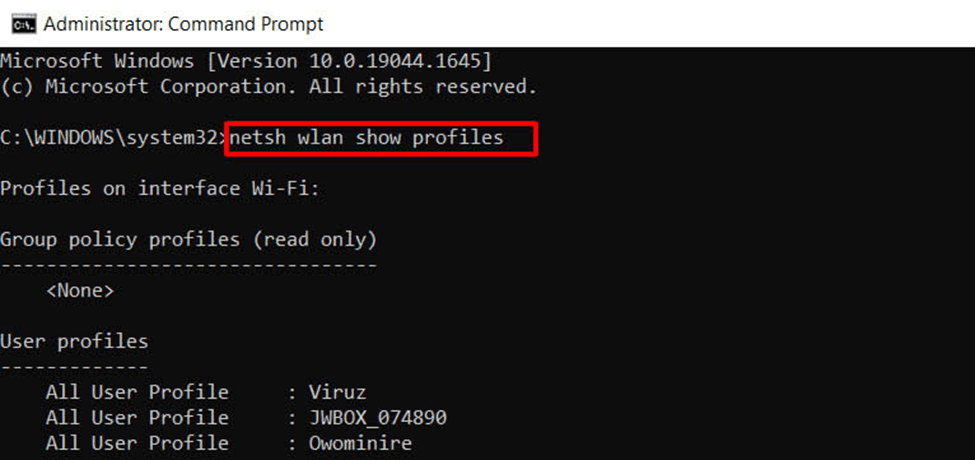
image-4
WiFi Profiles

Reveal the Wi-Fi password of a particular profile

6. But to reveal the Wi-Fi password of a particular profile then run this command: netsh wlan show profile name=WifiConnectionName SSID key=clear just replace WifiConnectionName with the Wifi SSID which is the User profile.
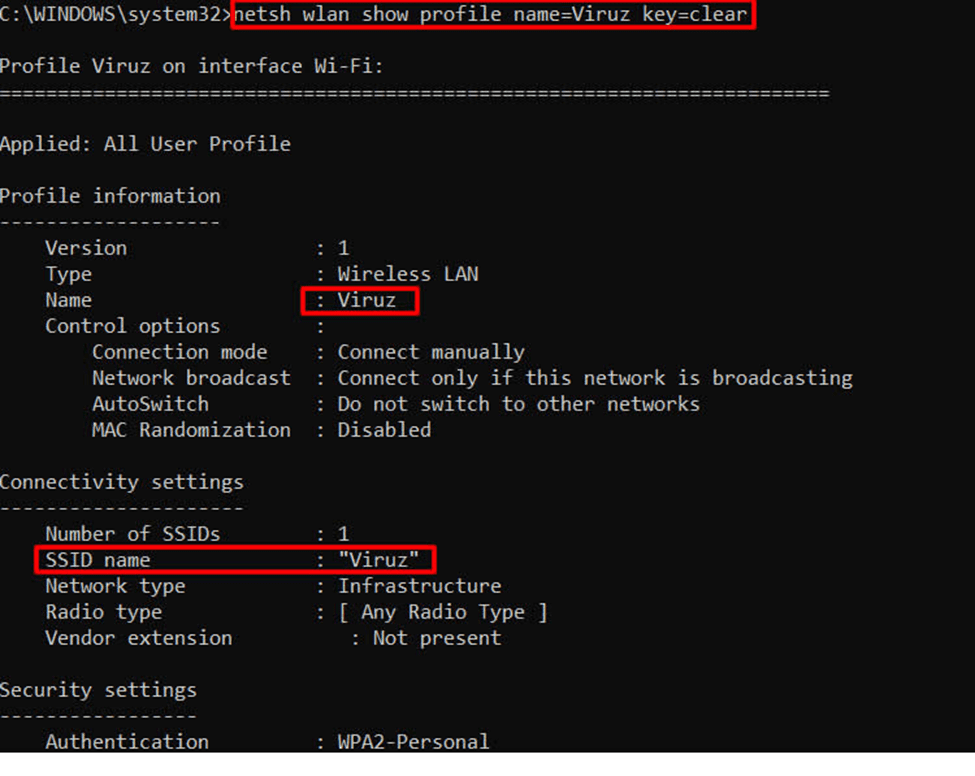
image-5
Connectivity settings

Under the Security settings, you will see the Key Content
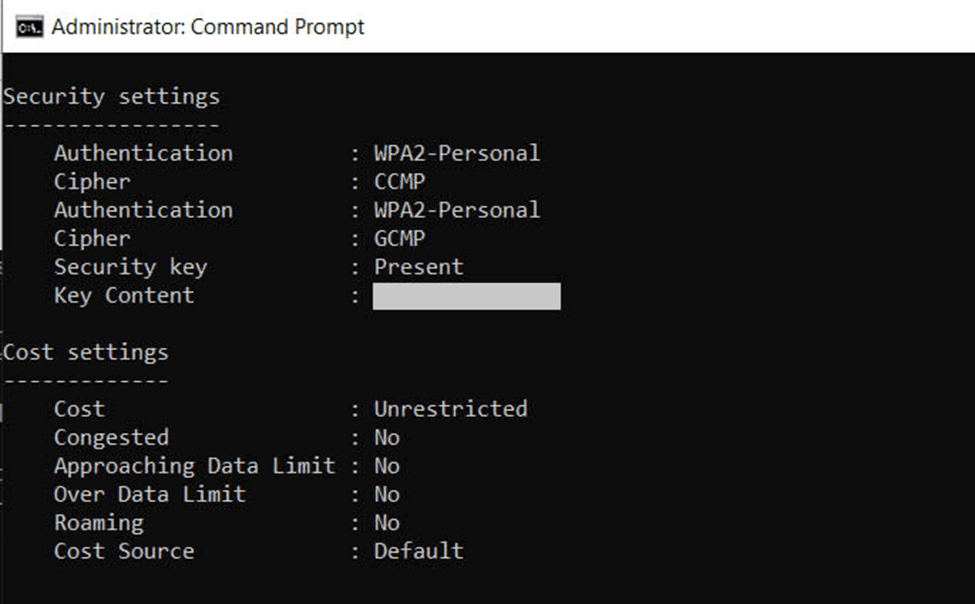
image-6
Security settings

Please see how to backup a Cisco IOS, and how to copy a backup from one Proxmox node to another. You may want to see how to reset an XTM Firebox device, and How to mount a USB drive on a Linux Machine.

I hope you found this blog post on how to reveal the WiFi password of the Network you are connected to in Windows interesting and helpful. In case you have any questions do not hesitate to ask in the comment section.

5/5 - (1 vote)

Thank you for reading this post. Kindly share it with others.

  • Click to share on X (Opens in new window) X
  • Click to share on Reddit (Opens in new window) Reddit
  • Click to share on LinkedIn (Opens in new window) LinkedIn
  • Click to share on Facebook (Opens in new window) Facebook
  • Click to share on Pinterest (Opens in new window) Pinterest
  • Click to share on Tumblr (Opens in new window) Tumblr
  • Click to share on Telegram (Opens in new window) Telegram
  • Click to share on WhatsApp (Opens in new window) WhatsApp
  • Click to share on Pocket (Opens in new window) Pocket
  • Click to share on Mastodon (Opens in new window) Mastodon
  • Click to share on Bluesky (Opens in new window) Bluesky
  • Click to share on Threads (Opens in new window) Threads
  • Click to share on Nextdoor (Opens in new window) Nextdoor
Windows Tags:Internet, Internet Connection, Microsoft Windows, Network Security, WiFi, Windows 10, Windows 11, Windows Server 2016

Post navigation

Previous Post: How to modify Windows 11 Taskbar via Intune and GPO
Next Post: How to remove third-party cookies from Microsoft Edge

Related Posts

  • How to Disable device encryption
    How to Disable device encryption on Windows Windows
  • How to Fix Scanning and Repairing Drive on Every Boot
    How to Fix Scanning and Repairing Drive on Every Boot Windows
  • Allow and Disallow Simultaneous Connection to Domain and Non Domain network
    Allow and Disallow Simultaneous Connection to Domain and Non-Domain network Network | Monitoring
  • maxresdefault
    How to fix Error reading setup initialization file Windows
  • Featured image widgets
    How to use the Widgets feature on Windows 11 Windows
  • reliablee
    How to use the Reliability Monitor in Windows Windows

More Related Articles

How to Disable device encryption How to Disable device encryption on Windows Windows
How to Fix Scanning and Repairing Drive on Every Boot How to Fix Scanning and Repairing Drive on Every Boot Windows
Allow and Disallow Simultaneous Connection to Domain and Non Domain network Allow and Disallow Simultaneous Connection to Domain and Non-Domain network Network | Monitoring
maxresdefault How to fix Error reading setup initialization file Windows
Featured image widgets How to use the Widgets feature on Windows 11 Windows
reliablee How to use the Reliability Monitor in Windows Windows

Leave a Reply Cancel reply

You must be logged in to post a comment.

VEEAMLEGEND

vexpert-badge-stars-5

Virtual Background

GoogleNews

Categories

veeaam100

Microsoft MVP

  • removeguesttrello
    Remove a member from Trello Workspace: How to add or remove a Board Guest to a Trello Board JIRA|Confluence|Apps
  • Simple Notification Service AWS SNS
    Create Simple Notification Service (SNS) Notification on AWS AWS/Azure/OpenShift
  • tuning tomcat
    How to upgrade Apache Tomcat from One Version to another Web Server
  • banner
    How to Edit Windows Hosts File via PowerToy Editor Utility Web Server
  • ssl 600x315 1 1
    Components needed to create a certificate signing request Windows Server
  • chocolatey
    Windows Package Manager: How to install, upgrade or uninstall Chocolatey Windows
  • RDP Certificate Issues
    Connecting to the RDP host: Fix the Certificate could not be verified back to the root certificate Mac
  • GoogleAppleCalendarSync
    Sync Google Calendar events to Apple Calendar JIRA|Confluence|Apps

Subscribe to Blog via Email

Enter your email address to subscribe to this blog and receive notifications of new posts by email.

Join 1,843 other subscribers
  • RSS - Posts
  • RSS - Comments
  • About
  • Authors
  • Write for us
  • Advertise with us
  • General Terms and Conditions
  • Privacy policy
  • Feedly
  • Telegram
  • Youtube
  • Facebook
  • Instagram
  • LinkedIn
  • Tumblr
  • Pinterest
  • Twitter
  • mastodon

Tags

AWS Azure Bitlocker Microsoft Windows PowerShell WDS Windows 10 Windows 11 Windows Deployment Services Windows Server 2016

Copyright © 2025 TechDirectArchive


Loading Comments...
 

You must be logged in to post a comment.