Skip to content

TechDirectArchive

Hands-on IT, Cloud, Security & DevOps Insights

  • Home
  • About
  • Advertise With US
  • Reviews
  • Contact
  • Toggle search form
Home » Windows » Fix Windows Admin Center cannot be reached
  • proxmox
    Clone a Proxmox Container: CT Restoration Guide Virtualization
  • Azure DevOps Server
    How to Install Azure DevOps Server 2022 Automation
  • windows 10 lock screen
    How to reset your lost or forgotten Windows 10 Password Windows
  • images 3 4
    Fix an appropriate resource file could not be found for the file for BitLocker Management Windows Server
  • Feature image msert tool
    How to remove malware using Microsoft Safety Scanner on Windows 10 and 11 Security | Vulnerability Scans and Assessment
  • sdfgh 1
    How to fix “Unable to Sign In: Domain Not Available” Windows Server
  • Screenshot 2021 09 02 at 20.08.14
    Service Principal Name: How to add or reset and delete SPNs Windows
  • adc
    How to add a second Domain Controller Windows Server

Fix Windows Admin Center cannot be reached

Posted on 02/01/202318/10/2025 Christian By Christian No Comments on Fix Windows Admin Center cannot be reached
wac

Windows Admin Center is a locally deployed browser-based app used for managing Windows servers, clusters, and hyper-converged infrastructure. This can be used to manage Windows 10 and Windows 11 devices as well. It is a free product and is ready to use in production. In this article, you will learn how to troubleshoot and Fix Windows Admin Center cannot be reached. Please see How to schedule and run Windows Update via Windows Admin Center, how to set up WAC on a Windows Server, and how to update install, update and uninstall extensions in Windows Admin Center.

Windows Admin Center complements other existing Windows management tools but does not replace existing Microsoft monitoring and management solutions such as Remote Server Administration Tools (RSAT), System Center, Intune, or Azure Stack.

In the past, I have discussed how to install WAC. Kindly take a look at some of these interesting guides: How to Install Windows Admin Center on Windows 10 and Windows 11, how to Manage Azure Virtual Machines with Windows Admin Center and Serial Console, and how to upgrade Windows Admin Center.

Reason for this error “Windows Admin Center cannot be reached”

Below is an error that will be prompted when you try to access

  • From an unsupported browser.
  • When WAC service isn’t running, or running WAC in an unsupported Windows version such as Win10 1703 or earlier.
  • WAC isn't supported on your version of Microsoft Edge. You should either upgrade to a recent version of Windows 10 or use Google Chrome or have firewall issues etc.

You may also have to configure TrustedHost depending on some requirements. If you wish to add servers to the Trusted Hosts.

WACcantbereached
You will need to troubleshoot (find out) why WAC can not be reached. 

As you can see, every issue mentioned above doesn’t apply to me.

In the next paragraph, I will be showing you how to resolve this issue. See this error and its resolutions: How to install Windows Admin Center (WAC) in an unattended mode using a self-signed certificate.

WACservicesisrunning

Resolve WAC can’t be reached

The process to resolve this issue is similar to how to upgrade Windows Admin Center, but not entirely.

In order to resolve this issue, kindly check if you have selected the right certificate during the upgrade, or re-installation of WAC. Also, check if you have recently requested and installed a new certificate. The latter was in my case.

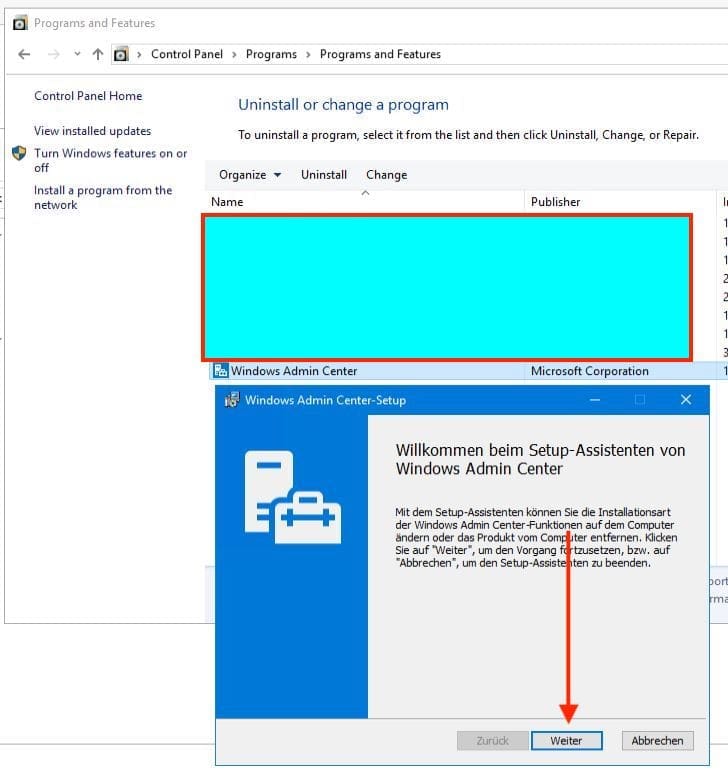
Launch the Windows Control Panel and navigate to Programs and Features as shown below. Right-click on WAC and select change or click on Windows Admin Center and Click on the Change menu above.

ChangeProgam
You will be greeted with the Windows Admin Center Setup-Assistant dialogue. 

Click on Continue to proceed. Please, see how to setup Windows Admin Center Modern Gateway for Single Sign-On in the following guide.
WACsetup

This will open up the Admin Center-Setup page. Unfortunately, you cannot repair it. Click on Change as shown below.

WACRepairnotpossible-1

This will open the Gateway endpoint configuration window. Ensure you enter the right certificate fingerprint. Shortly, I will be showing you how you can obtain the Thumbprints. You can uncheck the last option (it is just HTTP – HTTPS redirection).

WASThumbprint

Get the installed certificate Thumbprint

To get your installed certificate Thumbprint, head over to the MMC. Here are some related guides: How to import a certificate into the Trusted Root and Personal file certificate store, and how to request a certificate signing request in Windows using Microsoft Management Console.

Getcertiifcatethumbprint

After entering the right certificate fingerprints, click on continue.

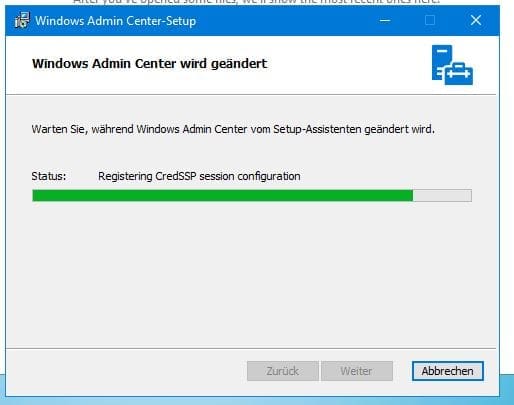
As you can see below, the WAC configuration will be changed.
Capture7

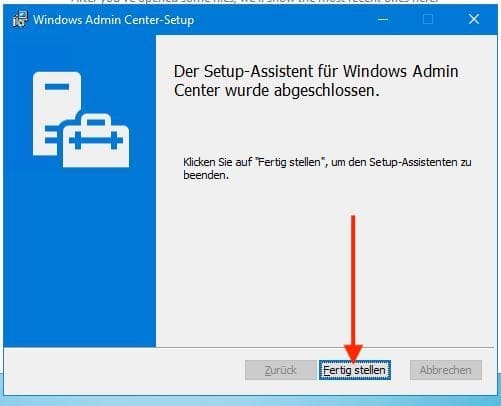
Click on Finish to complete the WAC setup as shown below.
WindowsAdminCenter

You should be able to reach the WAC once again.

AccessWAClocally

You can click on the following hyperlink from Microsoft to learn about the alternative steps on selecting the right certificate for WAC authentication

I hope you found this blog post helpful. You have learned how to troubleshoot and Fix Windows Admin Center cannot be reached. If you have any questions, please let me know in the comment session.

5/5 - (1 vote)

Thank you for reading this post. Kindly share it with others.

  • Click to share on X (Opens in new window) X
  • Click to share on Reddit (Opens in new window) Reddit
  • Click to share on LinkedIn (Opens in new window) LinkedIn
  • Click to share on Facebook (Opens in new window) Facebook
  • Click to share on Pinterest (Opens in new window) Pinterest
  • Click to share on Tumblr (Opens in new window) Tumblr
  • Click to share on Telegram (Opens in new window) Telegram
  • Click to share on WhatsApp (Opens in new window) WhatsApp
  • Click to share on Pocket (Opens in new window) Pocket
  • Click to share on Mastodon (Opens in new window) Mastodon
  • Click to share on Bluesky (Opens in new window) Bluesky
  • Click to share on Threads (Opens in new window) Threads
  • Click to share on Nextdoor (Opens in new window) Nextdoor
Windows, Windows Server Tags:Microsoft Windows, RSAT, WAC, Windows 10, Windows 11, Windows Admin Center, Windows Server 2016

Post navigation

Previous Post: Mount an ISO image in Windows 10 and 11
Next Post: Install and use Burp Suite for Web Application Security Testing

Related Posts

  • self signed sslcert
    Generate self-signed certificate and export in PFX format via PowerShell [Part 2] Windows
  • Capture 91
    How to install IIS Web Server on Windows Server Web Server
  • ADO Self hosted agent
    How to Create Self-Hosted Agent for Azure DevOps Pipelines Automation
  • How to Disable UAC with Group Policy and enable PIN in Windows Hello
    How to Disable UAC with Group Policy and enable PIN in Windows Hello Windows
  • wds and dns l
    What happens when WDS and DNS are installed on the same Windows Server? DNS issues with WDS Windows Server
  • rdp4
    How to change the default RDP port in Windows Network | Monitoring

More Related Articles

self signed sslcert Generate self-signed certificate and export in PFX format via PowerShell [Part 2] Windows
Capture 91 How to install IIS Web Server on Windows Server Web Server
ADO Self hosted agent How to Create Self-Hosted Agent for Azure DevOps Pipelines Automation
How to Disable UAC with Group Policy and enable PIN in Windows Hello How to Disable UAC with Group Policy and enable PIN in Windows Hello Windows
wds and dns l What happens when WDS and DNS are installed on the same Windows Server? DNS issues with WDS Windows Server
rdp4 How to change the default RDP port in Windows Network | Monitoring

Leave a Reply Cancel reply

You must be logged in to post a comment.

Microsoft MVP

VEEAMLEGEND

vexpert-badge-stars-5

Virtual Background

GoogleNews

Categories

veeaam100

sysadmin top30a

  • proxmox
    Clone a Proxmox Container: CT Restoration Guide Virtualization
  • Azure DevOps Server
    How to Install Azure DevOps Server 2022 Automation
  • windows 10 lock screen
    How to reset your lost or forgotten Windows 10 Password Windows
  • images 3 4
    Fix an appropriate resource file could not be found for the file for BitLocker Management Windows Server
  • Feature image msert tool
    How to remove malware using Microsoft Safety Scanner on Windows 10 and 11 Security | Vulnerability Scans and Assessment
  • sdfgh 1
    How to fix “Unable to Sign In: Domain Not Available” Windows Server
  • Screenshot 2021 09 02 at 20.08.14
    Service Principal Name: How to add or reset and delete SPNs Windows
  • adc
    How to add a second Domain Controller Windows Server

Subscribe to Blog via Email

Enter your email address to subscribe to this blog and receive notifications of new posts by email.

Join 1,841 other subscribers
  • RSS - Posts
  • RSS - Comments
  • About
  • Authors
  • Write for us
  • Advertise with us
  • General Terms and Conditions
  • Privacy policy
  • Feedly
  • Telegram
  • Youtube
  • Facebook
  • Instagram
  • LinkedIn
  • Tumblr
  • Pinterest
  • Twitter
  • mastodon

Tags

AWS Azure Bitlocker Microsoft Windows PowerShell WDS Windows 10 Windows 11 Windows Deployment Services Windows Server 2016

Copyright © 2025 TechDirectArchive


Loading Comments...
 

You must be logged in to post a comment.