Skip to content

TechDirectArchive

Hands-on IT, Cloud, Security & DevOps Insights

  • Home
  • About
  • Advertise With US
  • Contact
  • Reviews
  • Toggle search form
Home » Windows » How to fix Windows Task Scheduler 0x2 Error
  • image 63
    Protect Remote Desktop credentials with Windows Defender Remote Credential Guard or Restricted Admin Mode Windows
  • group policy 1280x720 1
    Error: The processing of Group Policy failed because of lack of network connectivity to a DC. This may be a transient condition. A success message would be generated once the machine gets connected Windows Server
  • Screenshot 2020 05 14 at 19.43.13
    Repo: How to setup Chef Repository Configuration Management Tool
  • linux tux minimalism 4k 42 2560x1700 1 1
    Warning useradd: the home directory already exists. Not copying any file from skel director into it Linux
  • elastic ip association error screen
    Fix Elastic IP Address Could not be Associated AWS/Azure/OpenShift
  • Docker Guide
    Pull and Deploy Nginx Container Images from Docker Hub AWS/Azure/OpenShift
  • Domain
    Connectivity to a writable domain controller from a node could not be determined because of an error Virtualization
  • Screenshot 2021 01 22 at 23.27.30
    How does Bitlocker Network Unlock work? Windows Server

How to fix Windows Task Scheduler 0x2 Error

Posted on 18/04/202312/10/2024 Christian By Christian No Comments on How to fix Windows Task Scheduler 0x2 Error
Task-Scheduler-Error-0x2-1

Windows Task Scheduler allows you to create routine tasks in Windows. Task Scheduler does this by the criteria you have chosen. This is referred to as “triggers” and then executing the tasks when those criteria are met. In this article, you will learn how to fix Windows Task Scheduler 0x2 Error. Please refer to these related articles: How to use Systemd Timers on Linux, how to Run or Edit and Delete Tasks via Windows Task Scheduler, and How to determine the execution policy configured on Windows PC.

Tasks can be scheduled to execute in response to these events, or triggers. If you wish to have your script run at a specified period of time or a specific number of times in Windows, you will have to create a scheduled task.

Note: The Task Scheduler Error 0x1 does not have anything to do with the following rights configured “Run with highest privileges”. This can be completely ignored in this case. The script (File not found) is a very explicit kind of error.

Please see how to fix “DISM failed with error 0x800f081f: The source file could not be found, no operation was performed“.

Why was the 0x2 Error Prompted?

As you can see in the image below, the last run resulted in the error code “0x2”. This is because there was an error in the absolute path to the Python script argument field. See how to Fix Windows Task Scheduler Error 0x1.

0x2-when-running-a-scheduled-task

Therefore, when you are faced with this error, it means the System cannot find the file specified. To fix this issue, double-check that there are no spaces/errors in the file path.

Please see also how to create an Advanced Windows Scheduled Task, and Microsoft Management Console: How to fix Windows Task Scheduler Service Greyed Out in Services MMC.

The solution to fixing 0x2 Error

As mentioned above, the error 0x2 is usually associated with “file not found”. With this in mind, please verify that the path to the Python script is correct. In my case, I moved the script to a different folder and there was a typo which resulted in this error.

I will not be showing you the steps to launch the Windows Task Scheduler. Here is an article on it: Run Python Script via Windows Task Scheduler.

I highly recommend you see Task Scheduler Errors and Success Codes: What does the Error Code 0x41301 Mean?

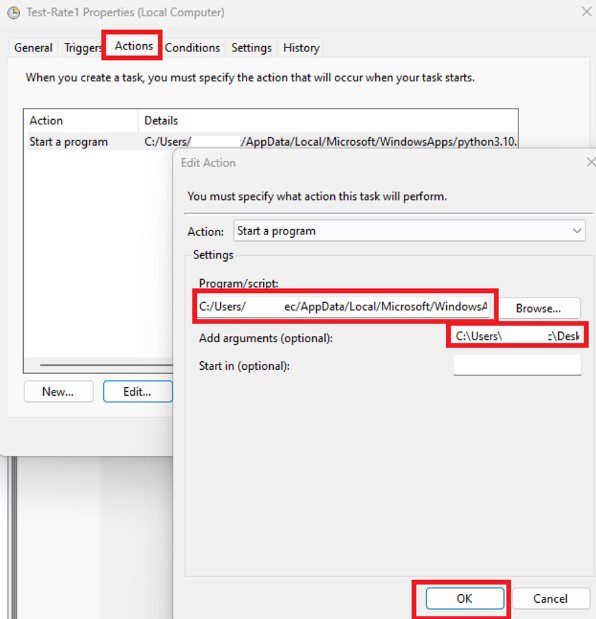
On the Action Pane,  ensure the program/script path is correct, and also the "add Argument (optional)" field as shown below.
Fix-0x2-task-scheduler-error

When this is done, run the code again. The error will no longer be present and it will end with the success code 0x0.

In other words, the operation was completed successfully. Please see this exciting article: How to monitor Windows server backup via PowerShell script. And how to fix the operator or administrator has refused the request (Error 0x800710E0)

I hope you found this blog post helpful on how to fix Windows Task Scheduler 0x2 Error. If you have any questions, please let me know in the comment section.

5/5 - (1 vote)

Thank you for reading this post. Kindly share it with others.

  • Click to share on X (Opens in new window) X
  • Click to share on Reddit (Opens in new window) Reddit
  • Click to share on LinkedIn (Opens in new window) LinkedIn
  • Click to share on Facebook (Opens in new window) Facebook
  • Click to share on Pinterest (Opens in new window) Pinterest
  • Click to share on Tumblr (Opens in new window) Tumblr
  • Click to share on Telegram (Opens in new window) Telegram
  • Click to share on WhatsApp (Opens in new window) WhatsApp
  • Click to share on Pocket (Opens in new window) Pocket
  • Click to share on Mastodon (Opens in new window) Mastodon
  • Click to share on Bluesky (Opens in new window) Bluesky
  • Click to share on Threads (Opens in new window) Threads
  • Click to share on Nextdoor (Opens in new window) Nextdoor
Windows, Windows Server Tags:Microsoft Windows, Task Scheduler, TaskScheduler, Windows 10, Windows 11, Windows Server 2016

Post navigation

Previous Post: DNS uses TCP and UDP
Next Post: How to Use Wiki from Linux Terminal

Related Posts

  • microsoft edge
    How to configure static page in Microsoft Edge browser via Local Group Policy on Windows Windows
  • Change BitLocker Password in Windows
    How to Change BitLocker Password in Windows Security | Vulnerability Scans and Assessment
  • ETWindows
    An Overview of Event Tracing for Windows Windows
  • How to Disable the Password Manager of Google Chrome
    How to Disable the Password Manager of Google Chrome Password Manager
  • HyperV VM disk size increase
    How to Increase Disk Size in Hyper-V Virtualization
  • wacxx
    Install Windows Admin Center in an unattended mode using a self-signed certificate Windows

More Related Articles

microsoft edge How to configure static page in Microsoft Edge browser via Local Group Policy on Windows Windows
Change BitLocker Password in Windows How to Change BitLocker Password in Windows Security | Vulnerability Scans and Assessment
ETWindows An Overview of Event Tracing for Windows Windows
How to Disable the Password Manager of Google Chrome How to Disable the Password Manager of Google Chrome Password Manager
HyperV VM disk size increase How to Increase Disk Size in Hyper-V Virtualization
wacxx Install Windows Admin Center in an unattended mode using a self-signed certificate Windows

Leave a Reply Cancel reply

You must be logged in to post a comment.

Microsoft MVP

VEEAMLEGEND

vexpert-badge-stars-5

Virtual Background

GoogleNews

Categories

veeaam100

sysadmin top30a
 
  • image 63
    Protect Remote Desktop credentials with Windows Defender Remote Credential Guard or Restricted Admin Mode Windows
  • group policy 1280x720 1
    Error: The processing of Group Policy failed because of lack of network connectivity to a DC. This may be a transient condition. A success message would be generated once the machine gets connected Windows Server
  • Screenshot 2020 05 14 at 19.43.13
    Repo: How to setup Chef Repository Configuration Management Tool
  • linux tux minimalism 4k 42 2560x1700 1 1
    Warning useradd: the home directory already exists. Not copying any file from skel director into it Linux
  • elastic ip association error screen
    Fix Elastic IP Address Could not be Associated AWS/Azure/OpenShift
  • Docker Guide
    Pull and Deploy Nginx Container Images from Docker Hub AWS/Azure/OpenShift
  • Domain
    Connectivity to a writable domain controller from a node could not be determined because of an error Virtualization
  • Screenshot 2021 01 22 at 23.27.30
    How does Bitlocker Network Unlock work? Windows Server

Subscribe to Blog via Email

Enter your email address to subscribe to this blog and receive notifications of new posts by email.

Join 1,841 other subscribers
  • RSS - Posts
  • RSS - Comments
  • About
  • Authors
  • Write for us
  • Advertise with us
  • General Terms and Conditions
  • Privacy policy
  • Feedly
  • Telegram
  • Youtube
  • Facebook
  • Instagram
  • LinkedIn
  • Tumblr
  • Pinterest
  • Twitter
  • mastodon

Tags

AWS Azure Bitlocker Microsoft Windows PowerShell WDS Windows 10 Windows 11 Windows Deployment Services Windows Server 2016

Copyright © 2025 TechDirectArchive


Loading Comments...
 

You must be logged in to post a comment.