Skip to content

TechDirectArchive

Hands-on IT, Cloud, Security & DevOps Insights

  • Home
  • About
  • Advertise With US
  • Reviews
  • Contact
  • Toggle search form
Home » Windows » How To Add Google Drive To File Explorer in Windows

How To Add Google Drive To File Explorer in Windows

Posted on 30/09/202328/08/2024 Temitope Odemo By Temitope Odemo No Comments on How To Add Google Drive To File Explorer in Windows
banner

It is very possible to have your Google Drive configured to your Windows system just like how we have OneDrive coming with Windows system as a default Cloud drive from Microsoft. Both Google and OneDrive are among the best Cloud solutions we have online and you can try many features that come with the free or personal plan of Google Drive before going for the enterprise version which comes at a cost. In this guide, I will be showing you How to Add Google Drive to File Explorer in Windows. Please see how to integrate TestRail with Jira

After adding your Google Drive to your system you will be able to see it under devices and drives. See the YouTube video for similar steps.

The below image shows how the file explorer looks before adding the Google Drive

How-To-Add-Google-Drive-To-File-Explorer-in-Windows-Gdrive

You can further read more on Uninstalling the OneDrive App and How to remove Quick Access from Google Drive Online (Web), How To Install Google Cloud SDK on a Linux System, This is the Best Way to Backup Dropbox to Box in 2022.

Integrate Google Drive with Windows

Follow these steps to Add Google Drive to File Explorer on Windows.

1. First you will need to Download Google Drive for your desktop. Browse the website and download the Google Drive desktop version

How-To-Add-Google-Drive-To-File-Explorer-in-Windows-download

Here are some exciting articles Process Explorer: Replace built-in Task Manager, and How to make Cortana use your default web browser such as Google Chrome.

2. Download to your computer and install

The installation file size is usually above 100MB. Launch the installation and wait briefly to complete the installation.

How-To-Add-Google-Drive-To-File-Explorer-in-Windows-downloading

3. After Installation

Once the installation is completed successfully click on Launch and click on Get Started.
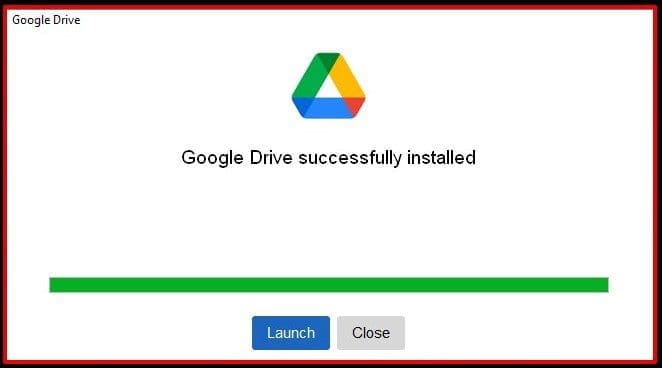
How-To-Add-Google-Drive-To-File-Explorer-in-Windows-installed

4. Sign in or Create a new Gmail account

If you already have an account on Gmail you can sign in with your credentials but if you don’t have an account you will need to create a new account and you can sign in after.

How-To-Add-Google-Drive-To-File-Explorer-in-Windows-sign-in

5. Authentication Process

During authentication, you will be asked for your 2FA authentication details if you previously configured it. After that you will receive the below message. Click Sign in to continue.

How-To-Add-Google-Drive-To-File-Explorer-in-Windows-app-from-google

The next message you will see is Success Message.

How-To-Add-Google-Drive-To-File-Explorer-in-Windows-success

6. Configure you Google Drive Settings

You can start configuring you Google Drive settings Safely store your files in the Drive and open it from your computer

How-To-Add-Google-Drive-To-File-Explorer-in-Windows-welcome

7. You can search for Google Drive on your Search bar to open it.

Immediately you search and click on it, you will see the Google Drive icon in the File Explorer. Please note that you can also remove Google Drive from File Explorer by signing out of the app or exiting the app. The amount of storage space used and left will be displayed.

How-To-Add-Google-Drive-To-File-Explorer-in-Windows-open

You may want to see how to set Google as default: How to set a browser as default in Windows 10, How to install Googler on a Linux System, and How to use the Process Explorer from SysInternals Tools.

FAQs on Google Drive and File Explorer

How do I add Google Drive to my file explorer?

Download and Install the Google Drive app. After installation, the Google Drive will appear in the File Explorer like a separate hard drive. You can also remove Google Drive from File Explorer by signing out of the app.

Can I use Google Drive in Windows File Explorer?

You can use Google Drive desktop to sync your files and back up some of your photos and videos.

I hope you found this blog post on How To Add Google Drive To File Explorer in Windows. Interesting and helpful. In case you have any questions do not hesitate to ask in the comment section.

5/5 - (1 vote)

Thank you for reading this post. Kindly share it with others.

  • Share on X (Opens in new window) X
  • Share on Reddit (Opens in new window) Reddit
  • Share on LinkedIn (Opens in new window) LinkedIn
  • Share on Facebook (Opens in new window) Facebook
  • Share on Pinterest (Opens in new window) Pinterest
  • Share on Tumblr (Opens in new window) Tumblr
  • Share on Telegram (Opens in new window) Telegram
  • Share on WhatsApp (Opens in new window) WhatsApp
  • Share on Mastodon (Opens in new window) Mastodon
  • Share on Bluesky (Opens in new window) Bluesky
  • Share on Threads (Opens in new window) Threads
  • Share on Nextdoor (Opens in new window) Nextdoor
Windows Tags:drive, Google, Microsoft Windows, Windows 10, Windows 11, Windows Server 2016

Post navigation

Previous Post: How to Fix Python was not found run without arguments to install from the Microsoft Store
Next Post: How to Integrate TestRail with Cypress

Related Posts

  • ADDS vs AD LDS
    Differences between AD LDS and AD DS Windows
  • Featured image Clearing cache
    How to clear cache in Windows 11 Windows
  • Missing ADML File
    Fix an appropriate resource file could not be found for LAPS Windows
  • screenshot 2020 03 13 at 20.24.17
    How to view installed packages in Cygwin on Windows Windows
  • windowsztrf
    Microsoft Desktop Optimization Pack [MDOP] at a glance Windows
  • fghjk
    Map a Network Drive: How to mount a Network Drive Windows

More Related Articles

ADDS vs AD LDS Differences between AD LDS and AD DS Windows
Featured image Clearing cache How to clear cache in Windows 11 Windows
Missing ADML File Fix an appropriate resource file could not be found for LAPS Windows
screenshot 2020 03 13 at 20.24.17 How to view installed packages in Cygwin on Windows Windows
windowsztrf Microsoft Desktop Optimization Pack [MDOP] at a glance Windows
fghjk Map a Network Drive: How to mount a Network Drive Windows

Leave a Reply Cancel reply

You must be logged in to post a comment.

Microsoft MVP

VEEAMLEGEND

vexpert-badge-stars-5

Virtual Background

GoogleNews

Categories

veeaam100

Veeam Vanguard

  • SCVMM Setup Fails Because It Cannot Find The Specific Windows ADK Deployment Tools Files
    SCVMM setup Fails: Fix Missing Windows ADK Deployment Files Windows Server
  • Screenshot 2020 12 29 at 04.08.43
    Enable or disable BitLocker Drive Encryption on Windows Security | Vulnerability Scans and Assessment
  • Featured image 8
    How to restore quarantined files in Microsoft Defender Antivirus Security | Vulnerability Scans and Assessment
  • maxresdefault 1
    How to locate and edit the host file on macOS Mac
  • Screenshot 2022 04 26 at 12.04.14
    Differences between Directory Services and Databases Windows
  • Screenshot 2020 12 30 at 01.03.14
    Device cannot use a Trusted Platform Module: Allow BitLocker without a compatible TPM Windows
  • powershell01
    How to create a KDS root key using PowerShell Scripts
  • Screenshot 2020 08 28 at 12.51.10
    The service could not be started either because it is disabled or because it has no enabled devices associated with it Windows Server

Subscribe to Blog via Email

Enter your email address to subscribe to this blog and receive notifications of new posts by email.

Join 1,821 other subscribers
  • RSS - Posts
  • RSS - Comments
  • About
  • Authors
  • Write for us
  • Advertise with us
  • General Terms and Conditions
  • Privacy policy
  • Feedly
  • Telegram
  • Youtube
  • Facebook
  • Instagram
  • LinkedIn
  • Tumblr
  • Pinterest
  • Twitter
  • mastodon

Tags

Active Directory Azure Bitlocker Microsoft Windows PowerShell WDS Windows 10 Windows 11 Windows Deployment Services Windows Server 2016

Copyright © 2025 TechDirectArchive


Loading Comments...
 

You must be logged in to post a comment.