Fix Microsoft Office Showing “Upgrade Required” in AutoUpdate


In this article, I will discuss the workaround to Fix Microsoft Office Showing “Upgrade Required” in AutoUpdate. Recently, the support for Office 2019 for Mac ended on October 10, 2023. Yes, the Office 2019 apps were all working correctly and no data lost. Even with this assurance, you could expose yourself to serious and potentially security risks if you do not upgrade to Office 2021. Also, see how to perform Microsoft Account Password Reset via Web and Windows, and how to Enable Automatic Logon on Windows 10.
Note: If your warning message is “Mac OS upgrade required“, then kindly pay attention to these details below.
Starting with the October 2023 update (16.78) macOS Monterey or later is required to receive updates to Word, Excel, PowerPoint, Outlook and OneNote. If you continue with an older version of macOS, your Office apps will still work, but you’ll no longer receive any updates including security updates.
Upgrading your operating system to macOS Monterey or later will allow Office updates to be delivered for your apps. Note that new installs of Office 2021 for Mac also requires macOS Monterey or later.
Why was this error prompted?
Note: This error is as a result of a bug in Microsoft AutoUpdate 4.67. I was able to determine this by downgrading Microsoft AutoUpdate to v4.60 and it allowed me to run all of the updates.


Note: As reported by some users, after downgrading, the issue was fixed. They updated to 4.67 the issue persisted.
According to Microsoft, here is a link to fixing “Microsoft AutoUpdate in Microsoft 365 and Office 2021 for Mac”. They recommend you download the installer for the latest version of AutoUpdate, but the issues still persist as I tested with Office 2021.
See how to downgrade VMware Workstation: Fix the Processor does not support xsave on VMware Workstation, and Remove All Microsoft Office Apps from Mac.
Why you should not downgrade Microsoft AutoUpdate?
Office for Mac comes is updated on a regular basis to provide new features, security updates, and non-security updates. As mentioned earlier, some users want to ensure they do not have these errors. Therefre, you can follow the work around below.
Note: Downgrading Microsoft AutoUpdate is not recommended and comes with the below risks:
- Security Risks: Lower versions may lack essential security updates thereby exposing your system to potential vulnerabilities.
- Feature Loss: Older versions may lack the latest features, improvements, and bug fixes. This limits the functionality and performance of Microsoft AutoUpdate.
- Compatibility Issues: Downgrading may lead to compatibility issues with newer Microsoft products and services, hindering seamless integration and interoperability.
- Support Limitations: Microsoft provides support and assistance for the latest versions. Using an outdated version may result in limited or no support, making problem resolution more challenging.
- User Experience: Newer versions often come with user interface enhancements and better user experiences. Downgrading may mean missing out on these improvements.
- Regulatory Compliance: Using outdated software may violate security and compliance standards, leading to legal and regulatory consequences.
Workaround: Delete Microsoft AutoUpdate Tool 4.67
Having read about the security risks above, and you still want to ensure you are running an outdated Microsoft AutoUpdate Tool, below are the steps to follow.
Note: Office and other apps installed from Microsoft account need this tool to get the latest version. So, it is not a recommended to delete AutoUpdate when you have Microsoft apps on your Mac. We will delete and reinstall a lower version.
Right Click on the Finder App and select Go to Folder. Alternatively, use the “Shift + Command + G” shortcut in Finder.

Type “/Library/Application Support/Microsoft/” and press enter to open that location.

Select the MAU2.0 folder which is the Microsoft AutoUpdate related folder. Delete the Microsoft AutoUpdate app from the folder.

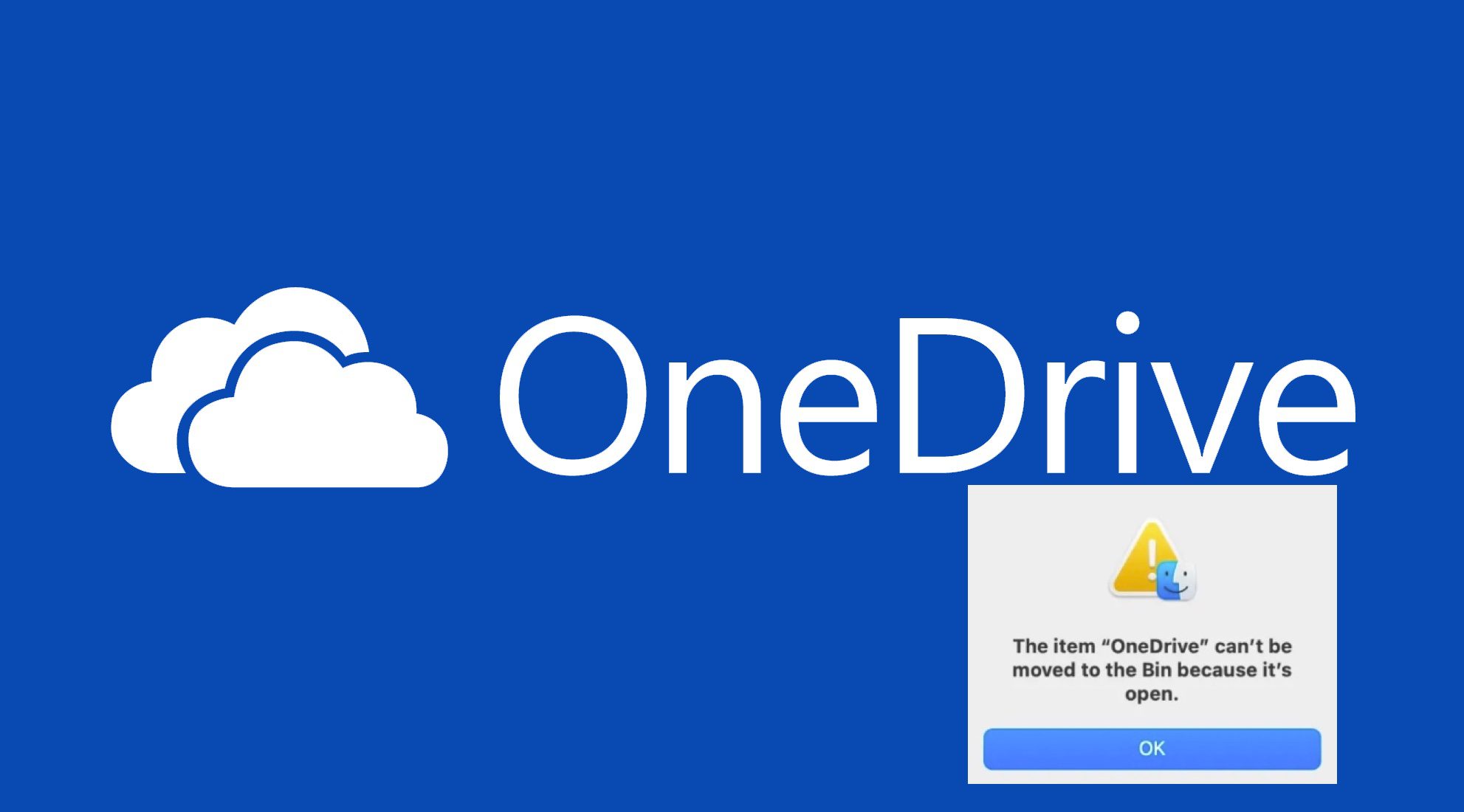
You will be required to enter your password to move it to the Bin.

As you can see, this has been deleted.

Also, navigate to “/Library/LaunchAgents/” folder and delete “com.microsoft.update.agent.plist” file.

Navigate to “/Library/LaunchDaemons/” folder and delete “com.microsoft.autoupdate.helper.plist” file.

When the above steps are followed. Proceed to the next steps to install a lower version of Microsoft Auto Update.
Solution Install v4.60
Search and Download Microsoft AutoUpdate 4.60 Package. This will download the installer package in your “Downloads” folder.

Double click to open it and install the tool. Click continue

Click on Next to continue with the installation

Hit the install button to Install Microsoft AutoUpdate 4.60

Enter password to install autoupdate

As you can see below, the installation is successful.

Office Apps are now up to date except for Microsoft AutoUpdate.
Note: When you update the Microsoft AutoUpdate, you will be in the same issue you were. You can chose to leave it this way until you learn the bug has been fixed.

Note: When you update this version, the issue will reoccur if you update to v4.67. This is a bug as mentioned earlier. Microsoft will fix it.

Here is How to upgrade and downgrade PIP on Windows, How to change or cancel your Trello plan, and how to “Remove Office license file: How do you change the account that Office says it belongs to on a Mac“.
Disable Microsoft Automatic Update
Note: It is not recommended not to do this. But to save the above issues, follow the steps if you wish.
Note: I did not disable mine and I will update the Microsft AutoUpdate as I am fine with the issue.

Click on Turn off to Turn off automatic updates.

I hope you found this article useful on “Fix Microsoft Office Showing “Upgrade Required” in AutoUpdate”. Please feel free to leave a comment below.