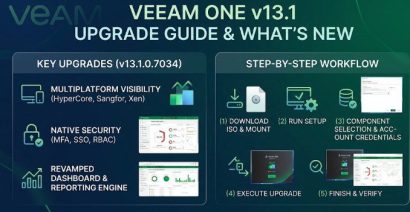
With the General Availability (GA) of Veeam Data Platform 13.1, Veeam delivers one of its most critical releases to date. In this guide, we shall discuss the “Strategic breakdown and step by step guide to upgrading to VBR 13.1 on a Windows-based deployment”, and explore why upgrading to version 13.1 is essential for your infrastructure”. Please see Veeam ONE 13.1.0.7034 Upgrade: Complete Pre-flight and Step-by-Step Guide, and Upgrading Veeam Backup Enterprise Manager to v13.1 and Applying System Updates.
This release introduces fundamental enhancements to modern hypervisors, storage appliance integrations, zero-trust security, and unstructured data handling.
Note: With Veeam v13, you can choose to deploy your core Veeam Backup & Replication (VBR) server using either the new Linux-based Veeam Software Appliance (VSA) or a traditional self-managed Windows-based deployment. Both share the exact same core product code. While the VSA eliminates manual OS patching and Windows licensing overhead for the VBR server and VBEM.
Also, see how to perform In-place upgrade of Veeam Recovery Orchestrator to version 13.1, How to build and deploy a Docker Image with Kubernetes Cluster, and Veeam Oracle RMAN Troubleshooting: Connection Timeout, Broken Pipe and a Stuck RMANPluginManager.
What’s new in Veeam Data Platform 13.1?
Therefore, before you upgrade, please refer to the Veeam Backup & Replication 13.1 Release Notes, and the company press release. This way, I do not have to repeat everything already discussed. Modern data protection is no longer just about recovering a virtual machine after a hardware failure.
Today’s enterprises face ransomware, identity attacks, cloud complexity, compliance requirements, and rapidly growing data volumes. Veeam Data Platform 13.1 addresses these challenges through:
- Offering extended hypervisor support several new virtualization platforms while enhancing existing support for VMware, Nutanix, Proxmox, and other environments (simplified cross-hypervisor restoration and direct cloud recovery workflows).
- Enhanced security and immutability, that is, deployment simplicity with built-in immutability out-of-the-box via the Veeam Software Appliance (VSA).
- Active Directory Forest Recovery
- Expanded Microsoft Entra ID protection
- Improved storage integrations with native snapshot orchestration and deep API alignment with enterprise primary and deduplicating storage systems.
- Better backup economics for NAS and unstructured data with intelligent tiering to cloud object storage and primary storage space reclamation.
- Additional malware detection capabilities
- Expanded web-based management experiences
Please see How to build and deploy a Docker Image with Kubernetes Cluster, Synology Surveillance365: Cloud-Based Camera Management Without an On-Premises Surveillance Server, Fix INACCESSIBLE_BOOT_DEVICE in Windows and Windows Server, and How to fix Windows Boot Error 0xc0000098 (winload.efi).
Why you as a Customers should Upgrade to Veeam Data Platform 13.1 Now?
Backup infrastructure must evolve at the same speed as the platforms it protects. Organizations are diversifying their hypervisor estates, moving data to cloud and archive tiers, and treating identity systems as a primary recovery dependency.
That said, a backup product that protects only yesterday’s infrastructure creates a protection gap for tomorrow’s projects. In a nutshell, upgrading to Veeam 13.1 (Build 13.1.1.18) ensures your data management platform remains fast, secure, resilient, and fully prepared for any operational disruption
Veeam Data Platform 13.1 addresses that gap with more than 70 new features and enhancements. Not every feature applies to every organization, but the release has clear practical value for environments that use multiple hypervisors, need stronger ransomware recovery, protect Active Directory, or retain large NAS datasets for long periods.
It also delivers built-in security patch management via the Veeam Updater service guarantees your backup server remains protected against emerging exploit vectors without manual maintenance overhead.
The release also moves Veeam toward a more unified operational model. The DataAI Resilience Module is designed to provide hybrid SaaS management and centralized visibility while allowing existing customer-controlled environments to remain in place. The objective is not to force a rip-and-replace migration, but to improve visibility across the Veeam estate.
Veeam Intelligence and the Backup Admin Agent extend this direction into daily administration. Potential use cases include analyzing failed job sessions, correlating recurring problems with known fixes, and providing capacity recommendations based on repository growth.
AI should not replace administrator judgment. It should reduce the time spent searching logs and assembling context so that engineers can focus on validating the diagnosis and applying a controlled change.
The most important upgrade question is not simply, “What is new?” It is, “Which risks and operational problems can this release remove from my environment?”
Please see Veeam Agent for Windows deployment failing with Access Denied, Restoring a Physical Ubuntu Server to VMware using Veeam Agent and Export as Virtual Disks, and Action required: Update Devolutions Remote Desktop Manager Before July 21.
Prerequisites and Pre-Upgrade Checklist
Before proceeding to perform the upgrade, kindly verify that the Backup installation is running the supported build of Veeam Backup & Replication 13.0. This guide here will be very useful in determining the Upgrade Path and In-Place Upgrade for VBR v13.
Ensure you pull a more recent “Configuration Backup”. Yoou will have to run and save a manual configuration backup. Also, ensure no backup jobs are running. You cab disable or pause all active backup, replication, and backup copy jobs.
Lastly, ensure the OS drive on the backup server has at least 15 GB to 20 GB of free space for package extraction, temp files, and the new Veeam Updater cache. Else you will run into issues as we will see very shortly.
Please see Upgrade VBR to 12.3.1: Setup detected inconsistent configuration, how to upgrade PostgreSQL Engine used by VBR, and how to fix Vulnerable Veeam Backup and Replication 13.0.1.2067 and Earlier.
Download and mount the ISO
Download the Veeam Backup and Replication 13.1 ISO from the official Veeam Downloads page as shown below.

Next, mount the ISO file

Launch the installer.

Select Upgrade on the Veeam Backup & Replication splash screen.

The installer detects required dependencies (such as Microsoft .NET 10.0.10 Windows Server Hosting). Click OK to let the installer automatically download and apply the missing prerequisites


When prompted with the window below, please select “upgrade Veeam BAckup and Replication”.

Read and accept the Veeam License Agreement and 3rd party component terms, then click I Accept.

The installer will automatically detects your existing NFR, VUL, or Enterprise license. Verify the details and click Next

Please see How to upgrade Veeam Backup and Replication 12.3, how to Upgrade Veeam Backup and Replication v12.3 to v13 on Windows, and Veeam Host Components: Unable to reinstall Deploy Service SSH.
System Configuration Check
The installer will perform a system configuration check to verify hardware requirements and detect potential compatibility issues.

Identfied missing features are being enabled.

The current configuration is being checked for possible compatibility issues as shown below.

As you can see, the installer has flagged an issue and as such the upgrade cannot proceed. I will go ahead and free some diskpace and anaylze what could possibly be taking up my storage using SizeTrend: A Fast Windows Disk Space Analyzer for Storage Analysis.

Having resolved the disk space issue reported. I rerun the setup and started creating new images for the blog post from hwere Is topped.
Note: These warnings are not show stoppers and as such I will proceed with the installation.

Please review the summary of components queued for upgrade and click on upgrade as shown below.

Please see Update Veeam Backup & Replication to Build 13.0.1.2067, how to fix Failed to Upgrade VIHR Component: Failed to open deployer Service Management Port, and how to Upgrade Veeam Backup and Replication v12.3.x to 12.3.2.
Upgrade Progress
The wizard executes seven sequential upgrade steps (Server, Console, Explorers, Agents, Plug-ins, Updates, and Service Initialization). In this step 1 of 7, the Veeam Backup and Replication Server is being upgraded.

The Veeam BAckup and Replication Console is being upgraded at this stage

This step upgrades the Veeam Explorers

The Veeam Agents Redistributables are being upgraded at this step

Upgrading the Plug-ins for Veeam BAckup and Replication.

Here, the latest updates are bing applied.

The installation is being finalized and services are being started.

Please for the sake of God, haha! If any sevices fails. Kindly hit the retry button to ensure it starts naturally instead of clicking on cancel. Else, with your Configuration ABckup pulled earlier on, you might end up perfoming VBR rescue (recovery) as discussed here “[World Backup Day] V13 Upgrade Failure: Veeam Configuration Backup Saved the Day“.

As you can see, the upgrade to 13.1 has completed successfully. Now you can click on FINISH as shown below.

Please see Migrate Veeam One Database from SQL Server 2017 to 2025, A-Z on Veeam Data Cloud: Workload Enrollment and Onboarding, and how to Back Up and Restore Microsoft Entra ID with Veeam Backup & Replication v13.
System Reboot and Post-Install Service Verification
Upon clicking Finish, the installer prompts “You must restart your system for the configuration changes made to Veeam Backup & Replication to take effect.” Click Yes to reboot the backup server immediately.

Resolving HTTP 502 Console Connection Errors
After logging back into Windows post-reboot, opening the Veeam Backup & Replication Console displayed the following error in my case “Failed to connect to the backup server: the HTTP status code of the response was not expected (502). Status: 502”.

To fix this, open Windows Services Manager (services.msc). Check the Veeam Backup Server RESTful API Service and ensure you restart it.

Also, check on the Veeam Web Service. If either is stuck in Starting or Stopped, manually right-click and select Start. Once running, reconnect the console

Please see Veeam Oracle RMAN Troubleshooting: Connection Timeout, Broken Pipe and a Stuck RMANPluginManager, how to upgrade PostgreSQL Engine used by VBR, and Google Drive Broken on Windows: Fix and Prevent it from happening again.
Remote Infrastructure Components Update
Upon opening the console, the Components Update wizard automatically launches for managed server. As you can see from the status “Installing mandatory and security updates on remote server (vbr01.techdc01.techdirectarchive.com).

Once packages are pushed, the wizard updates the status “The host will be restarted to apply the installed updates”. Click Finish to conclude the component updates and allow managed host restarts.

Launch the Veeam Console, click the top-left menu, and select Help > About. Now we have to verify that the build details match the updated target version.

Please see Install Veeam ONE and Add VBR: Fix failed to connect to VBR, how to protect Microsoft 365 beyond native limits with VDC [Part 1], and how to fix Failed to connect to Deployer Service Error.
Summary
Customers should upgrade to Veeam Data Platform 13.1 now because it significantly enhances data resilience, security, and operational efficiency. This release introduces powerful new recovery capabilities, including Active Directory Forest Recovery and expanded Microsoft Entra ID protection, helping organizations recover faster from cyberattacks and identity-based incidents as discussed above.
Veeam 13.1 also expands support for modern virtualization platforms such as Proxmox VE, Nutanix AHV, Citrix XenServer, XCP-ng, Sangfor aSV, Platform9, and VergeOS, giving customers greater infrastructure flexibility while maintaining centralized protection and recovery.
For organizations dealing with rapid data growth, Veeam 13.1 delivers enhanced protection for unstructured data and NAS workloads, along with better storage optimization and archival capabilities that help control long-term retention costs.
With more than 70 new features and enhancements, Veeam Data Platform 13.1 represents one of the most comprehensive and valuable upgrades in recent years, providing stronger security, broader workload coverage, improved recovery confidence, and better overall data protection outcomes.
I hope you found this guide on “Strategic breakdown and step by step guide to upgrading to VBR 13.1” very useful. Please feel free to leave a comment below.