Skip to content

TechDirectArchive

Hands-on IT, Cloud, Security & DevOps Insights

  • Home
  • About
  • Advertise With US
  • Reviews
  • Contact
  • Toggle search form
Home » Windows » The action cannot be completed because the folder or file is open in another program: Determine where a file is open in Windows
  • Defender Antivirus
    Windows Defender Antivirus Management with Intune Anti-Virus Solution
  • article 1280x720.192a2586 1
    How to apply Windows Updates from WSUS to AWS Instances AWS/Azure/OpenShift
  • maxresdefault 2 8
    Configure Windows Server using EC2 Launch AWS/Azure/OpenShift
  • FEATUREDC
    How to create Confidential VMs in Azure AWS/Azure/OpenShift
  • windows admin center banner 825x400 1
    How to install or update and uninstall extensions in Windows Admin Center Windows Server
  • skype
    Stop Apps from running automatically on MAC Mac
  • WindowsUpdatesDISM 1
    Determine Apps UWP and remove pre-provisioned Appx in Windows Windows Server
  • windows admin center banner 825x400 1
    Fix failed to create new Scheduled Task RemoteException Windows Server

The action cannot be completed because the folder or file is open in another program: Determine where a file is open in Windows

Posted on 24/10/202017/10/2023 Christian By Christian No Comments on The action cannot be completed because the folder or file is open in another program: Determine where a file is open in Windows
File in use

You may get a prompt with the following error below when you attempt to delete a folder in Windows 10 or Windows Server. I ran into this issue when I wanted to delete some residues left from the Windows File System (unmounted Windows 10 image (install.wim) file). Read on to discover how to determine where a file is open in Windows. In this article, we shall discuss how to fix “the action cannot be completed because the folder or file is open in another program: Determine where a file is open in Windows”. Please see how to Hide the Action Center Taskbar Icon In Windows 10, and how to determine the last boot time of a Windows Server.

The “File Is Open in Another Program” error can be frustrating to solve. Fortunately, there are a number of ways to tackle this issue.
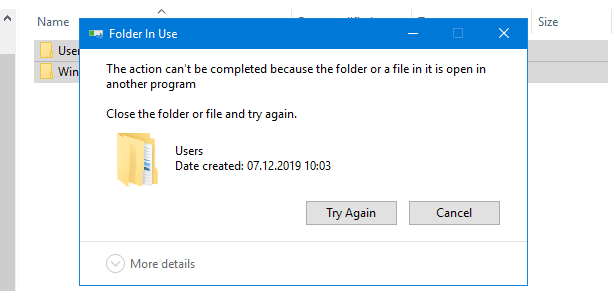
Windows file open

Here are some possible other errors you can encounter relating to WDS. Error 0xc1570103: The license file was not found in the specified path, how to fix error 0xc1510114: The wim file needs to be remounted, ensure the image is mounted. Also see this article on how to mount an image, and how to remove packages from the Windows image.

Reason for the error “The action cannot be completed because the folder or file is open in another program”

There is not a single fix for this issue as shown below. Hence, please follow the steps described below to resolve this issue.

Note: This error is not a permission issue, and as such do not consider checking that.

In order to resolve this issue before employing the hard way to reboot your server which can possibly fix this issue. This is also not recommended because, if the server is a production server, you cannot just reboot it as it is a critical system and must not be interrupted.

Steps to Determine Where a File is Open in Windows

Step 1: Open the program path via Windows 10 Task Manager. This step is relatively straightforward. Open the Task Manager by right-clicking on your Windows Taskbar or use the keyboard shortcut [CTRL+ Shift + Esc] to start the Windows 10 Task Manager.

In the Task Manager click More Details and then, select the Tab “Processes”. As we can see below, there is currently no process using the files.

Unable to complete action

Step 2: Sing the “Resource Monitor“

To determine where a file is open in Windows, you can use the Resource Monitor which is an inbuilt tool for Windows devices to find which handle or DLL is using it.

Open Resource Monitor, There are a couple of ways of doing this. So, from the Task Manager, Under the Performance Tab, click on the Resource Monitor as shown below.

Alternatively, you can search for the “Resource Monitor or resmon.exe” in the start menu.

Identify open file location

Click on the CPU tab. As you can see, there is no associated handler as well. However, if there are associated handles, use the search field in the Associated Handles. With this handle, you can identify the process by looking at the Image or PID column and then kill it.

Also, see “how to allow only admin users (administrators) to shut down and reboot Server 2012“, How to uninstall Git from MacOS, and “how to fix Error 1064: An exception occurred in the service when handling the control request“.

Step 3: Process Explorer from Sysinternals

This is similar to the method described in Step 2 above. But it depends on the tool you love most.

For more information on the Sysinternals tool and how it can help you determine where a file is open in Windows, see the following article. For more information on SysInternal Tools and how some of the SysInternals tools are used locally on your device. Alternatively, see how to use the SysInternal suit online tool.

Step 4: Reboot the Server

This is usually the last resort but also did not fix my issue.

Unfortunately, none of these steps worked, not even a Server reboot.


Note: MDT was closed, and the “install.wim” unmounted (discarded) and the install.wim file properly cleaned as shown below. See the following guide on how to unmount a Windows Image File (WIM), see the following link.
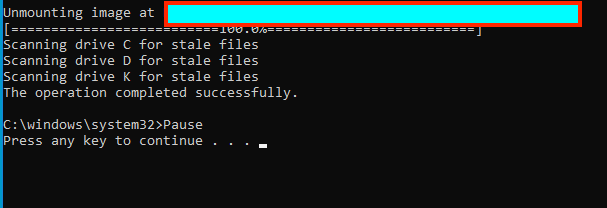
My solution: I ended up logging on using the local Administrator account and was able to delete the folder! 

This was not an issue with permission. For issues relating to permission, see the following articles, Folder Access Denied, you require permission from SYSTEM: Unable to delete old Windows folder, Error: 0xc1510111 You do not have permissions to mount and modify this image and You require permission from trustedinstaller: How to delete or rename files protected by Trusted Installer.

I hope you found this blog post on how to determine where a file is open in Windows helpful. Please let me know in the comment session if you have any questions.

Rate this post

Thank you for reading this post. Kindly share it with others.

  • Click to share on X (Opens in new window) X
  • Click to share on Reddit (Opens in new window) Reddit
  • Click to share on LinkedIn (Opens in new window) LinkedIn
  • Click to share on Facebook (Opens in new window) Facebook
  • Click to share on Pinterest (Opens in new window) Pinterest
  • Click to share on Tumblr (Opens in new window) Tumblr
  • Click to share on Telegram (Opens in new window) Telegram
  • Click to share on WhatsApp (Opens in new window) WhatsApp
  • Click to share on Pocket (Opens in new window) Pocket
  • Click to share on Mastodon (Opens in new window) Mastodon
  • Click to share on Bluesky (Opens in new window) Bluesky
  • Click to share on Threads (Opens in new window) Threads
  • Click to share on Nextdoor (Opens in new window) Nextdoor
Windows Tags:Windows 10, Windows Server 2016

Post navigation

Previous Post: Open the location of a Program: How to search in Windows 10 to find a file, folder, or program in File Explorer
Next Post: Error 0x800f0830: Discard the modified Image and start again, no operation was performed

Related Posts

  • image 16
    How to Fix Windows Error 0x80070057 Windows
  • configure kerberos
    Configure Kerberos Delegation in Windows Windows
  • screenshot 2020 03 15 at 00.43.16
    How to permit and run only certain apps in windows Windows
  • screenshot 2020 05 05 at 10.26.12
    How to enable or disable User Account Control Windows
  • ghm
    Single App Kiosk Mode Configuration using MDM Bridge WMI Provider Windows
  • edge7
    How to enable Adblocker on Microsoft Edge Windows

More Related Articles

image 16 How to Fix Windows Error 0x80070057 Windows
configure kerberos Configure Kerberos Delegation in Windows Windows
screenshot 2020 03 15 at 00.43.16 How to permit and run only certain apps in windows Windows
screenshot 2020 05 05 at 10.26.12 How to enable or disable User Account Control Windows
ghm Single App Kiosk Mode Configuration using MDM Bridge WMI Provider Windows
edge7 How to enable Adblocker on Microsoft Edge Windows

Leave a Reply Cancel reply

You must be logged in to post a comment.

Microsoft MVP

VEEAMLEGEND

vexpert-badge-stars-5

Virtual Background

GoogleNews

Categories

veeaam100

sysadmin top30a

  • Defender Antivirus
    Windows Defender Antivirus Management with Intune Anti-Virus Solution
  • article 1280x720.192a2586 1
    How to apply Windows Updates from WSUS to AWS Instances AWS/Azure/OpenShift
  • maxresdefault 2 8
    Configure Windows Server using EC2 Launch AWS/Azure/OpenShift
  • FEATUREDC
    How to create Confidential VMs in Azure AWS/Azure/OpenShift
  • windows admin center banner 825x400 1
    How to install or update and uninstall extensions in Windows Admin Center Windows Server
  • skype
    Stop Apps from running automatically on MAC Mac
  • WindowsUpdatesDISM 1
    Determine Apps UWP and remove pre-provisioned Appx in Windows Windows Server
  • windows admin center banner 825x400 1
    Fix failed to create new Scheduled Task RemoteException Windows Server

Subscribe to Blog via Email

Enter your email address to subscribe to this blog and receive notifications of new posts by email.

Join 1,841 other subscribers
  • RSS - Posts
  • RSS - Comments
  • About
  • Authors
  • Write for us
  • Advertise with us
  • General Terms and Conditions
  • Privacy policy
  • Feedly
  • Telegram
  • Youtube
  • Facebook
  • Instagram
  • LinkedIn
  • Tumblr
  • Pinterest
  • Twitter
  • mastodon

Tags

AWS Azure Bitlocker Microsoft Windows PowerShell WDS Windows 10 Windows 11 Windows Deployment Services Windows Server 2016

Copyright © 2025 TechDirectArchive


Loading Comments...
 

You must be logged in to post a comment.
