Skip to content

TechDirectArchive

Hands-on IT, Cloud, Security & DevOps Insights

  • Home
  • About
  • Advertise With US
  • Reviews
  • Contact
  • Toggle search form
Home » Virtualization » Enable the Virtual Machine Platform Windows Feature and ensure Virtualization is enabled in the BIOS
  • create a new Azure SQL Database
    How to create a new Azure SQL Database [PaaS] AWS/Azure/OpenShift
  • template 1
    Install Group Policy Templates for Microsoft Edge and Google Chrome browsers on Windows Windows
  • iso10
    Mount an ISO image in Windows 10 and 11 Windows
  • HyperV and vSwitch creation
    Install HyperV and Configure vSwitch on Windows Server with PowerShell Virtualization
  • Cluster
    Install and configure Hyper-V Cluster On Windows Server Virtualization
  • sshkey
    How to perform SSH key-based authentication in Linux Linux
  • How to Make the Taskbar Transparent in Windows 11
    How to Make Your Taskbar Completely Transparent on Windows 11 Windows
  • How to fix BitLocker always prompting for Recovery Key
    How to fix BitLocker always prompting for Recovery Key Windows

Enable the Virtual Machine Platform Windows Feature and ensure Virtualization is enabled in the BIOS

Posted on 17/10/202116/03/2024 Christian By Christian No Comments on Enable the Virtual Machine Platform Windows Feature and ensure Virtualization is enabled in the BIOS
Virtual Machine Platform

In this article, we will discuss how to fix “Virtual Machine Platform Windows Feature and enable virtualization”. Azure DevOps and GitHub integration for Docker and Kubernetes deployment, how to create a static pod in Kubernetes, and how to install, register and start GitLab Runner on Windows. Docker is an open-source containerization platform that enables developers to package apps into containers and standardized executable components combining application source code with the operating system (OS) libraries and dependencies required to run that code in any environment.

You need Docker in order to work with Windows Containers. Docker consists of the Docker Engine (dockerd.exe), and the Docker client (docker.exe).

Kindly refer to these related guides: How to create and deploy a local Registry Server with Docker Image, and how to Pull your first Nginx Container Image from Docker Hub and deploy it to your local machine.

Why was the error “Virtual Machine Platform Windows Feature and enable virtualization in the BIOS” prompted?

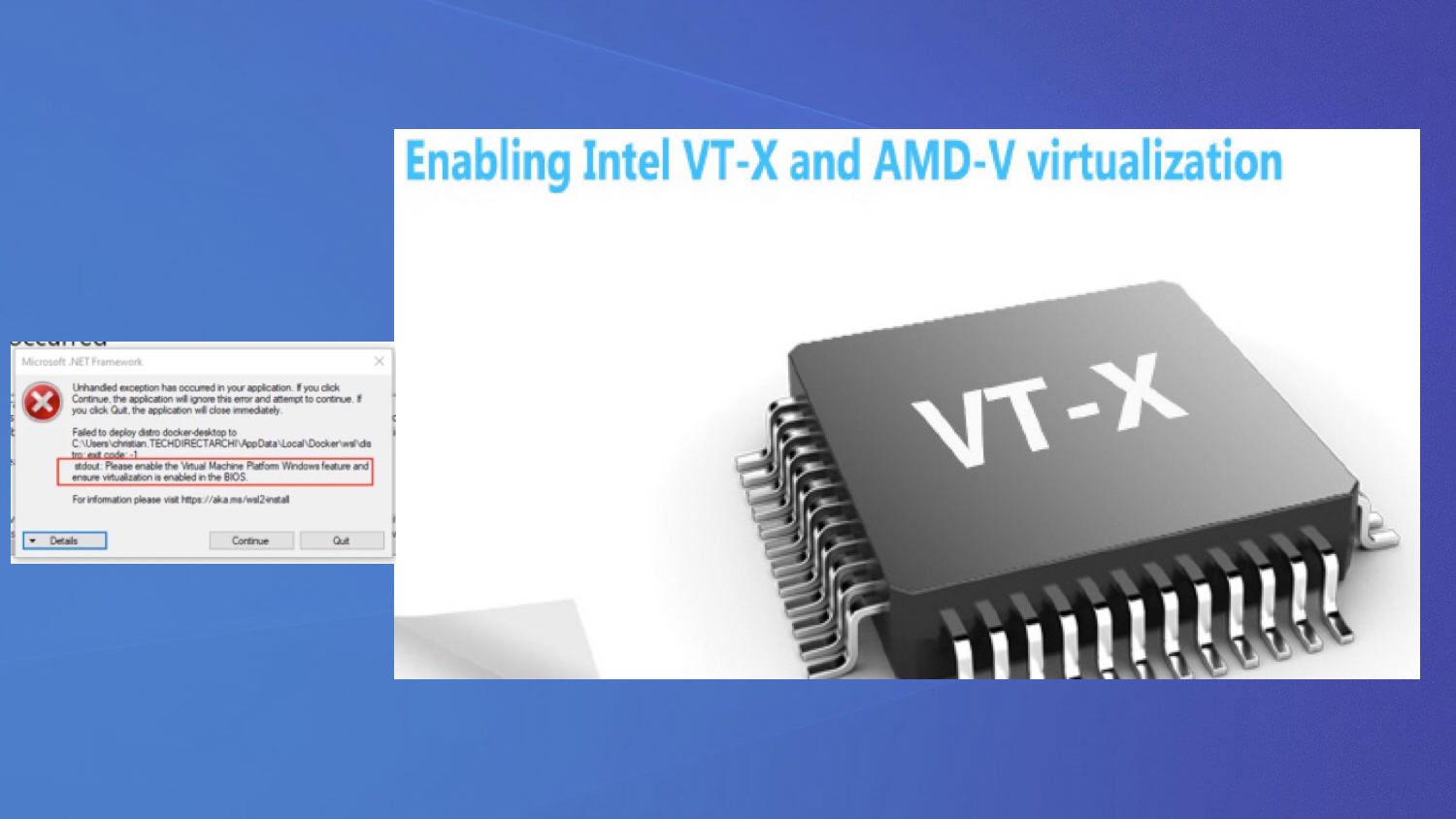
The following errors below will be prompted because the prerequisite for installing Docker Desktop on a VM wasn’t met.

One of the requirements is to enable “BIOS-level hardware virtualization support must be enabled in the BIOS settings“. This was omitted and therefore the below error was prompted.

Please see the how to install and uninstall Docker Desktop on Windows 10 and Windows Server.

Virtualization
Windows Feature

Note: Even when you reset the factory default, this has its implications and will not resolve the issue.

Restoring to factory defaults reset and destroys all Docker containers and images local to the machine, and restores the application to its original state, as when it was first installed.

Here is a similar error “ESXi VMB 411 Halting: Virtualbox Nested VT-X/AMD-V greyed out“.

Solution: Enable the Virtualization Engine (VT-x/EPT or V/RVI)

In order to have the same physical CPU prerequisites as you did in the past to run “Nested Virtualization“. We will be enabling the following features below.

  • Intel VT-x or AMD-V is required for running “Nested Virtualization” which supports nested 32-bit VMs
  • Intel EPT or AMD RVI is required for running nested 64-bit VMs.

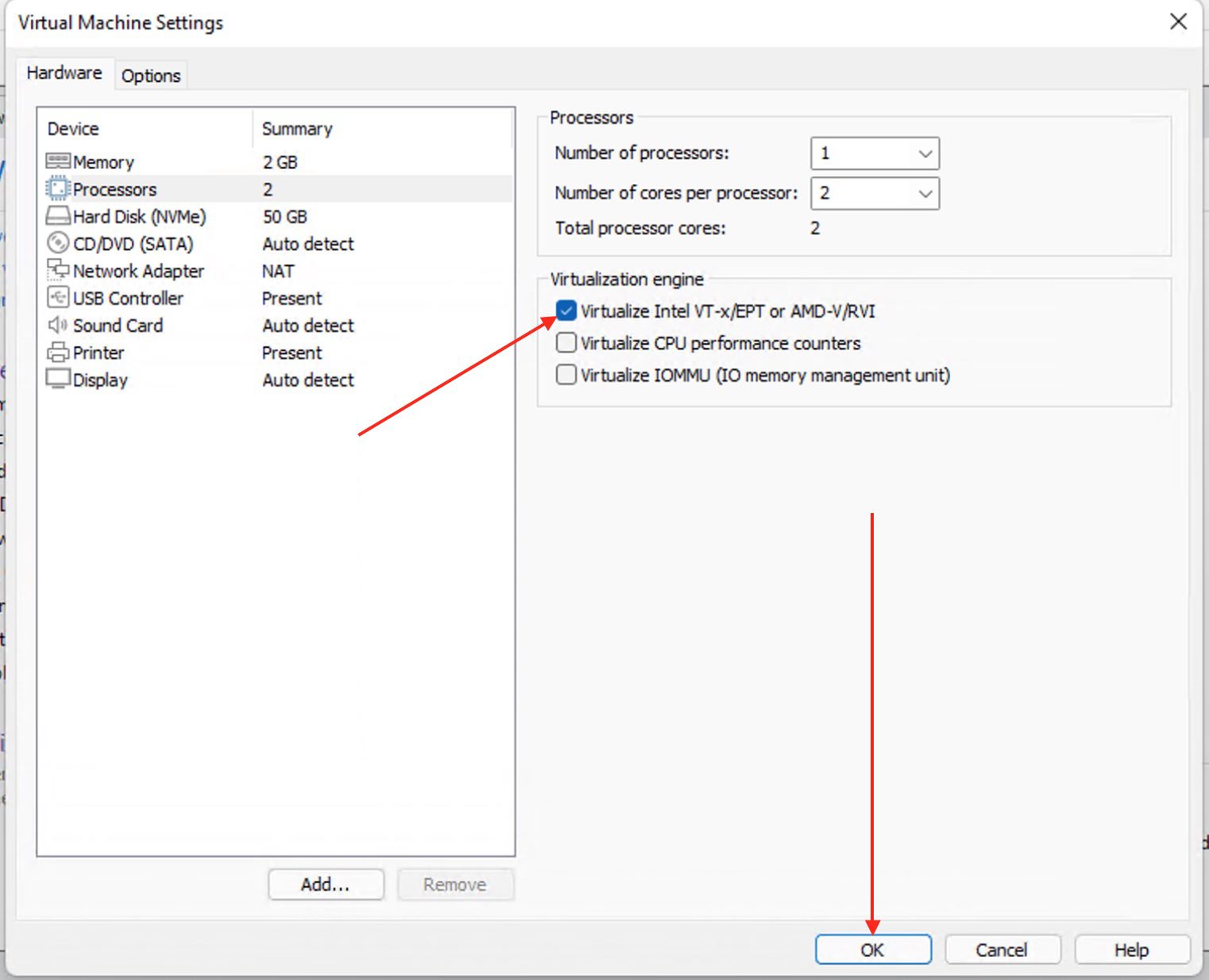
To enable Virtualization on a VM, you will need to shut down the Virtual machine (VM). Right-click on the VM and select “Settings”.

Alternatively, if you’re working with the Virtual Machine Platform Windows Feature, you can click on the VM, and the VM details will be displayed. Simply select “Edit virtual machine settings” to proceed with necessary adjustments.

BIOS

Enable Virtualise intel and AMD

Accessing the Virtual Machine Settings window is crucial regardless of your chosen steps.

This window encompasses vital configurations, including the Virtual Machine Platform Windows Feature, enhancing your virtualization experience.

Check (tick) the option to enable VT-x/EPT or V/RVI to have it enabled and click on OK to complete the process.
Virtual Machine Platform
You do not need to edit the machines .vmx file after performing the opertions above. This is sufficient!

Feel free to start utilizing your Virtual Machine Platform Windows Feature by powering it on. Simply double-click the Docker Desktop to initiate the launch.

After a brief moment, you’ll be greeted with the window displayed below. Click on Start to continue using Docker Desktop.

Screenshot-2021-10-17-at-17.32.43

Upon clicking the Start button, you’ll encounter an instructional window. In my case, tasks like repository cloning aren’t of interest.

Consequently, I’ll proceed to bypass the tutorial, as illustrated below. If you encounter any issues during this process, consider enabling the Virtual Machine Platform Windows Feature to enhance functionality.

Screenshot-2021-10-17-at-17.33.06

From now henceforth, you should be able to perform any docker-related operation without issues. Here is a guide on how to update Fujitsu server BIOS

Screenshot-2021-10-17-at-17.33.41

I hope you’ve benefited from this blog post on how to “Virtual Machine Platform Windows Feature and enable virtualization”. For queries or guidance regarding the Virtual Machine Platform Windows Feature, please ask in the comments.

Rate this post

Thank you for reading this post. Kindly share it with others.

  • Share on X (Opens in new window) X
  • Share on Reddit (Opens in new window) Reddit
  • Share on LinkedIn (Opens in new window) LinkedIn
  • Share on Facebook (Opens in new window) Facebook
  • Share on Pinterest (Opens in new window) Pinterest
  • Share on Tumblr (Opens in new window) Tumblr
  • Share on Telegram (Opens in new window) Telegram
  • Share on WhatsApp (Opens in new window) WhatsApp
  • Share on Pocket (Opens in new window) Pocket
  • Share on Mastodon (Opens in new window) Mastodon
  • Share on Bluesky (Opens in new window) Bluesky
  • Share on Threads (Opens in new window) Threads
  • Share on Nextdoor (Opens in new window) Nextdoor
Virtualization Tags:docker, Docker Desktop, docker hub, docker image, docker registry, Microsoft Windows, Windows 10, Windows Server 2016

Post navigation

Previous Post: How To Configure VM Update Management on Azure Stack Hub
Next Post: How to manually update Docker desktop

Related Posts

  • Cluster
    Install and configure Hyper-V Cluster On Windows Server Virtualization
  • copy and paste between host machines and VirtualBox VM
    How to copy and paste between host machines and VirtualBox VM Virtualization
  • screenshot 2020 04 06 at 04.12.00
    How to install and Configure Pleasant Reset Password Virtualization
  • VMware vSphere
    Differences between vSphere and ESXi and vCenter Virtualization
  • Enable Hyper V on Windows 11 Create a VM with PowerShell
    Run Hyper-V on Windows 11: Convert Physical PC to Hyper-V VM Virtualization
  • Snapshot VMware vSphere
    How to Create a Snapshot on vSphere Web Client Virtualization

More Related Articles

Cluster Install and configure Hyper-V Cluster On Windows Server Virtualization
copy and paste between host machines and VirtualBox VM How to copy and paste between host machines and VirtualBox VM Virtualization
screenshot 2020 04 06 at 04.12.00 How to install and Configure Pleasant Reset Password Virtualization
VMware vSphere Differences between vSphere and ESXi and vCenter Virtualization
Enable Hyper V on Windows 11 Create a VM with PowerShell Run Hyper-V on Windows 11: Convert Physical PC to Hyper-V VM Virtualization
Snapshot VMware vSphere How to Create a Snapshot on vSphere Web Client Virtualization

Leave a Reply Cancel reply

You must be logged in to post a comment.

Microsoft MVP

VEEAMLEGEND

vexpert-badge-stars-5

Virtual Background

GoogleNews

Categories

veeaam100

sysadmin top30a

  • create a new Azure SQL Database
    How to create a new Azure SQL Database [PaaS] AWS/Azure/OpenShift
  • template 1
    Install Group Policy Templates for Microsoft Edge and Google Chrome browsers on Windows Windows
  • iso10
    Mount an ISO image in Windows 10 and 11 Windows
  • HyperV and vSwitch creation
    Install HyperV and Configure vSwitch on Windows Server with PowerShell Virtualization
  • Cluster
    Install and configure Hyper-V Cluster On Windows Server Virtualization
  • sshkey
    How to perform SSH key-based authentication in Linux Linux
  • How to Make the Taskbar Transparent in Windows 11
    How to Make Your Taskbar Completely Transparent on Windows 11 Windows
  • How to fix BitLocker always prompting for Recovery Key
    How to fix BitLocker always prompting for Recovery Key Windows

Subscribe to Blog via Email

Enter your email address to subscribe to this blog and receive notifications of new posts by email.

Join 1,831 other subscribers
  • RSS - Posts
  • RSS - Comments
  • About
  • Authors
  • Write for us
  • Advertise with us
  • General Terms and Conditions
  • Privacy policy
  • Feedly
  • Telegram
  • Youtube
  • Facebook
  • Instagram
  • LinkedIn
  • Tumblr
  • Pinterest
  • Twitter
  • mastodon

Tags

AWS Azure Bitlocker Microsoft Windows PowerShell WDS Windows 10 Windows 11 Windows Deployment Services Windows Server 2016

Copyright © 2025 TechDirectArchive


Loading Comments...
 

You must be logged in to post a comment.