How to complete Microsoft Office 365 Family Subscription


Microsoft 365 Family proffers Word, Excel, Powerpoint and Outlook in one license. Some of the features you enjoy in Office 20xx are also available in it. With Microsoft 365, you also get storage for Onedrive so you can safely take your files with you wherever you go. You get an annual subscription, which also includes the right to upgrade to the latest version. This means, that each user is allowed 5 installations, so you have 6×5 = 30 installations available under this license. Kindly refer to some of these related guides: Remove Office license file: How do you change the account that Office says it belongs to on a Mac, Uninstall Office: How to remove Microsoft Outlook, Teams, Words PowerPoint, and Excel apps from Mac, and Cannot uninstall the OneDrive App: The item “OneDrive” can’t be moved to the Bin because it’s open on Mac.
But what would you like to do, buy a one-time license, use the subscription model or an alternative product?
Office 2021 is sold as a one-time purchase, which means you pay a single, up-front cost to get Office apps for one computer. One-time purchases are available for both PCs and Macs. However, there are no upgrade options, which means if you plan to upgrade to the next major release, you’ll have to buy it at full price.
Microsoft 365 is a subscription that includes the most collaborative, up-to-date features in one seamless, integrated experience. Microsoft 365 includes the robust Office desktop apps that you’re familiar with, like Word, PowerPoint, and Excel. You also get extra online storage and cloud-connected features that let you collaborate on files in real-time. With a subscription, you’ll always have the latest features, fixes, and security updates along with ongoing tech support at no extra cost. Subscribing to Microsoft Office 365 Family lets you share your subscription with your family for up to 6 people, and use your apps on multiple PCs, Macs, tablets, and phones.
How to get Microsoft 365 Family
Opting for the subscription mode to purchase Microsoft 365 Family ensures you a comprehensive Microsoft 365 package. This license is billed annually and allows for up to 6 users. Each user can activate up to 5 devices at a time for the subscription. This licence is only suitable for home users including students, families and consumers. For business use, there are variety of plans to best meet the needs of your organization.
Note: There is a one month free trial. If you wish to try it, kindly click to on the Microsoft 365 Family web page. This product is available to Windows PC, Mac, iOS, and Android users. Upon purchase or test, you will have access to all advanced security for all your devices, and to 1 TB of cloud storage per individual (That is about 6TB of cloud storage) for everyone!
What you get with Microsoft 365 Family
Kindly let me know in the comment section. With Microsoft 365 Family, you and the people you share with can:
- Access smart assistance features, plus hundreds of premium templates, photos, icons, and fonts in Word, Excel, and PowerPoint
- Save and share files and photos across devices with OneDrive
- Experience advanced security protection in OneDrive and Outlook
- Set location alerts in the Microsoft Family Safety mobile app*
- Each person can use the subscription on up to 5 devices at the same time
- Contact support via chat or phone at no extra cost throughout your subscription
In this guide, I will be showing you how to quickly Subscribe to Microsoft office365 Family and complete the purchase. Navigate to the following page. Click on “Try it free for one month”. You can choose to pay for your subscription on a monthly or yearly basis as shown below.

Continue with the subscription steps and click on Next. Note: I am using a trial version…

Select a payment method. This time, I will be selecting PayPal.
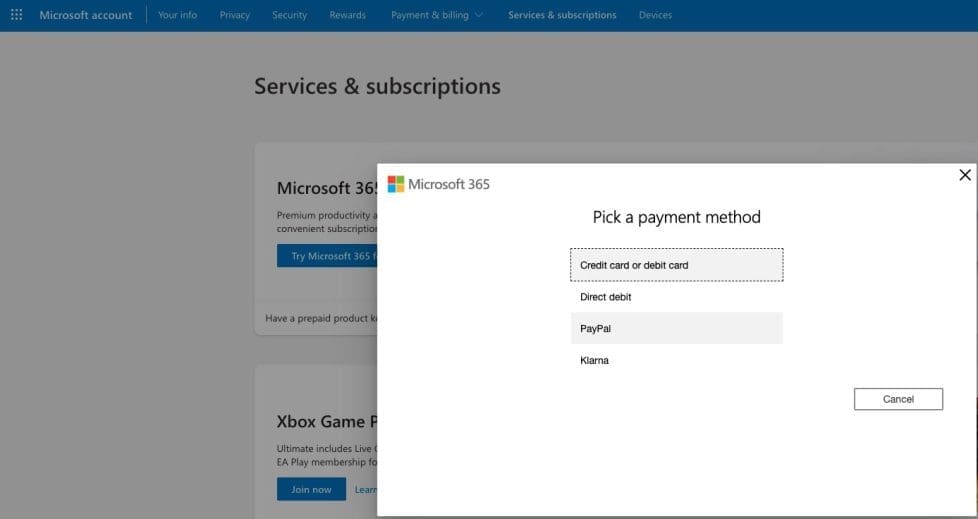
You will be redirected to provide your PayPal details for purchase confirmation.

You will not be billed for the first month, but you will be charged for subsequent months. Kindly click on “Yes, let’s wrap things up” to complete this purchase.

On the subscribe to complete your purchase, click on “Start trail, pay later”.

To complete the purchase, proceed to the Microsoft page (you might be redirected). The setup of Microsoft Office 365 is currently in progress for you.

Congratulations! You have successfully subscribed to Microsoft Office 365.

You can now download Office to your device. To do this, click on install as shown below.

Share your Microsoft 365 subscription
Note: You can share with up to five others. When you share your subscription, each person gets their own premium Office apps, 1 TB of OneDrive cloud storage, advanced security, and more.
I hope you found this blog post on Microsoft Office 365 Family Subscription helpful. Please let me know in the comment session if you have any questions.