Skip to content

TechDirectArchive

Hands-on IT, Cloud, Security & DevOps Insights

  • Home
  • About
  • Advertise With US
  • Contact
  • Reviews
  • Toggle search form
Home » Windows Server » MBAM Policy was detected: Verify the OU used for pre-deployment does not apply MBAM policy

MBAM Policy was detected: Verify the OU used for pre-deployment does not apply MBAM policy

Posted on 03/02/202321/12/2023 Christian By Christian No Comments on MBAM Policy was detected: Verify the OU used for pre-deployment does not apply MBAM policy
Resolvederror-MBAM

The Microsoft BitLocker Administration and Monitoring (MBAM) client enables administrators to enforce and monitor BitLocker drive encryption on computers in the enterprise. In this guide, you will learn how to fix the following error “MBAM Policy was detected: Verify the OU used for pre-deployment does not apply MBAM policy”. Please see the effects of renaming an MBAM or BitLocker-protected Computer. Also, see how to deploy Microsoft BitLocker Administration and Monitoring Tool.

The BitLocker client can also be distributed through an electronic software distribution system. Such as Active Directory Domain Services or Microsoft System Center Configuration Manager or as part of the imaging process for a new deployment.

Here are some interesting guides: BitLocker Recovery Mode prompted? Unable to find my BitLocker Recovery Key. Please see how to fix the MBAM Client Deployment is only supported on MBAM 2.5 SP1.

By the way, what is an OU?

Organizational units (OUs) in an Active Directory Domain Services (AD DS) managed domain enables you to logically group objects such as user accounts, service accounts, computer accounts etc. It enables you to apply group policy to enforce targeted configuration settings. Here is a comprehensive guide on how to deploy an MBAM Client as part of a Windows Deployment.

Reason for the error

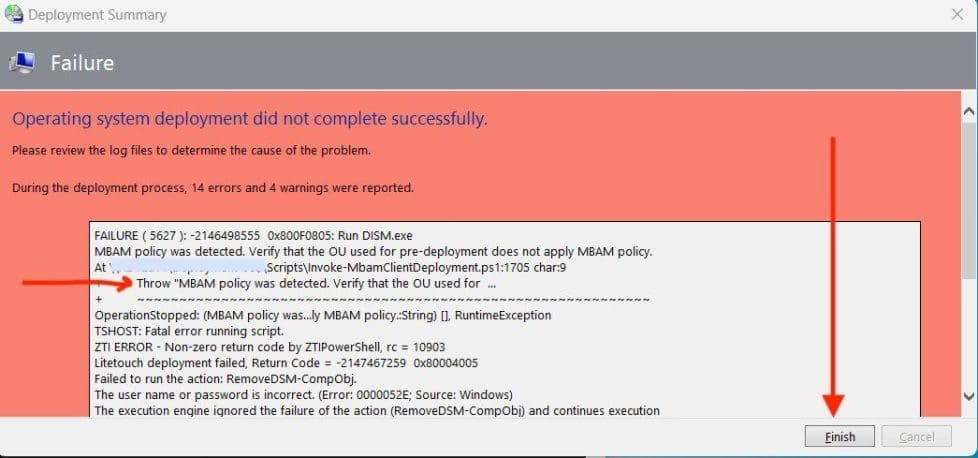
It is a very straightforward error. As we can see from the deployment summary below.

An OU linking this device had BitLocker/MBAM policies applied and when the device was joined to the AD and the policies were applied. This policy was detected during the installation of MBAM.
MBAMClientDeploymentError

Resolution to MBAM Policy was detected

To resolve this issue, you will need to move the device out of this OU having BitLocker and MBAM policies linked to it. Move it to an OU that does not have this policy linked.

When this is done, start the deployment process again and it should succeed witouth errors as shown below.

Note: As you can see from the image below, the encryption is in progress wbven when the deployment has completed (succeeded).
desiredbehaviour

As you can see the Computer Compliance Report below shows the encryption status for this device.

compliant

When the encryption is complete, you can now move the device to the right OU.

Note: I would recommend actually having the automatic MBAM client deployment managed by a software deployment system when the device is connected to the domain. 

I hope you found this blog post on “MBAM Policy was detected: Verify the OU used for pre-deployment does not apply MBAM policy” helpful. Please let me know in the comment session if you have any questions.

Rate this post

Thank you for reading this post. Kindly share it with others.

  • Share on X (Opens in new window) X
  • Share on Reddit (Opens in new window) Reddit
  • Share on LinkedIn (Opens in new window) LinkedIn
  • Share on Facebook (Opens in new window) Facebook
  • Share on Pinterest (Opens in new window) Pinterest
  • Share on Tumblr (Opens in new window) Tumblr
  • Share on Telegram (Opens in new window) Telegram
  • Share on WhatsApp (Opens in new window) WhatsApp
  • Share on Mastodon (Opens in new window) Mastodon
  • Share on Bluesky (Opens in new window) Bluesky
  • Share on Threads (Opens in new window) Threads
  • Share on Nextdoor (Opens in new window) Nextdoor
Windows Server Tags:Bitlocker, BitLocker Recovery Keys, BitLocker Status, deployment, MBAM, MBAM Reports, Microsoft Deployment Tool kit, Microsoft Windows, WDS Deployment, Windows 10, Windows 11, Windows Deployment Services

Post navigation

Previous Post: How to uninstall, reinstall, and update Zoom on Mac
Next Post: WinRM cannot complete the operation, verify that the specified computer name is valid

Related Posts

  • How To Upgrade Windows 11 Pro to Enterprise
    Upgrade Windows 11 Pro to Enterprise and vice Versa Windows
  • HighA
    Virtual Machine Scale Set: Demonstrating High Availability in Azure AWS/Azure/OpenShift
  • featured 2 2
    Clone a repository and install software from GitHub on Windows Windows Server
  • Interactive logon Message for Users via Windows Registry
    Display logon banners for Windows PCs via Windows Registry Windows
  • DNS
    Domain Name System: How to create a DNS record Windows Server
  • enable WinRM
    WSManFault Message 2144108526 0x80338012: Fix the client cannot connect to the destination specified in the request Windows Server

More Related Articles

How To Upgrade Windows 11 Pro to Enterprise Upgrade Windows 11 Pro to Enterprise and vice Versa Windows
HighA Virtual Machine Scale Set: Demonstrating High Availability in Azure AWS/Azure/OpenShift
featured 2 2 Clone a repository and install software from GitHub on Windows Windows Server
Interactive logon Message for Users via Windows Registry Display logon banners for Windows PCs via Windows Registry Windows
DNS Domain Name System: How to create a DNS record Windows Server
enable WinRM WSManFault Message 2144108526 0x80338012: Fix the client cannot connect to the destination specified in the request Windows Server

Leave a Reply Cancel reply

You must be logged in to post a comment.

Microsoft MVP

VEEAMLEGEND

vexpert-badge-stars-5

Virtual Background

GoogleNews

Categories

veeaam100

Veeam Vanguard

  • Feautured image DualBoot
    How to create a dual-boot setup on Windows 11 Windows
  • unnamed
    How to run the Cisco ASDM launcher Network | Monitoring
  • wds and dns l
    What happens when WDS and DNS are installed on the same Windows Server? DNS issues with WDS Windows Server
  • how to Configure Autologin for a VM in VMware Workstation
    Configure Autologin for a VM in VMware Workstation Virtualization
  • 7164 1024x575 1
    How to install MDT PowerShell module on Windows Scripts
  • Create your own Network on AWS from Scratch
    VPC, Subnet, NACL, Security Group: Create your own Network on AWS from Scratch [Part 2] AWS/Azure/OpenShift
  • Slide1
    Read-only Files: Saving Files in VIM Editor on Linux/Unix-like OS Linux
  • How to Install SonarQube on Ubuntu LTS
    How to Install SonarQube on Ubuntu 20.04 LTS Network | Monitoring

Subscribe to Blog via Email

Enter your email address to subscribe to this blog and receive notifications of new posts by email.

Join 1,817 other subscribers
  • RSS - Posts
  • RSS - Comments
  • About
  • Authors
  • Write for us
  • Advertise with us
  • General Terms and Conditions
  • Privacy policy
  • Feedly
  • Telegram
  • Youtube
  • Facebook
  • Instagram
  • LinkedIn
  • Tumblr
  • Pinterest
  • Twitter
  • mastodon

Tags

Active Directory Azure Bitlocker Microsoft Windows PowerShell WDS Windows 10 Windows 11 Windows Deployment Services Windows Server 2016

Copyright © 2025 TechDirectArchive


Loading Comments...
 

You must be logged in to post a comment.