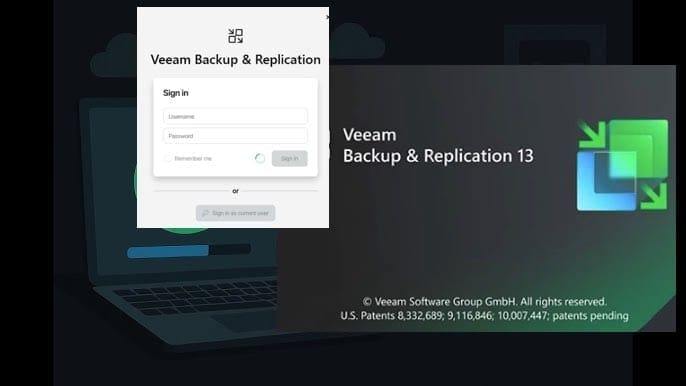
Backup Mac with Veeam Agent for Mac to Synology DS923+ NAS


Veeam Veeam for Mac is a data protection and disaster recovery solution for your endpoints and virtual machines running macOS. In this article, we shall discuss how to Backup Mac with Veeam Agent for Mac to Synology DS923+ NAS. Also, other backup destination will be discussed. Please see Create New Users and Join Synology NAS to Active Directory, DSM Security: How to Protect Synology DS923+ NAS, and Set up Veeam Backup for Microsoft Azure.
Note: Veeam Agent offers diverse features to protect your data. With Veeam Backup for Mac, you can back up all user profiles data or individual files and folders. When disaster strikes, you can restore individual files and folders from backups to their original location or a new location
Also, backups can be stored on a local hard drive, on an external hard drive, in a network shared folder such s Synology DS923+ NAS etc. or in an object storage repository, in a Veeam backup repository, or Veeam Cloud Connect repository.
Benefits of using Veeam Agent for Mac
Using Veeam Agent for Mac and not the default “Time machine” offer numerous benefits as mentioned above. But, let us look critically into some of the core benefits. Here is how to Backup MacOS to Synology NAS via Time Machine.
As we already know, Veeam Agent for Mac provides comprehensive backup and recovery capabilities for Mac endpoints thereby ensuring that important data is protected against loss, corruption, or accidental deletion. Below are some other reasons for leverage Veeam Agent for Mac to protect your data.
- Veeam Agent for Mac supports various backup destinations, including local storage, network shares, and cloud storage, providing users with the flexibility to choose the most suitable option based on their needs to adhere to the 3-2-1 Rule.
- You can easily install agents through a universal package that is centrally managed within the same solution as all of your other workloads.
- Continue an interrupted backup session from where it stopped, whether that’s due to a network outage or someone closing your laptop while your backup job was still running
- Veeam Agent for Mac offers encryption options to secure your backups, ensuring that your data remains safe from unauthorized access.
- Veeam Agent for Mac integrates with Veeam Backup & Replication. This enables you to manage and monitor your Mac backups alongside your Windows or Linux backups from a centralized console making it easier for IT administrators to monitor and manage backups across multiple Mac endpoints.
- Users can schedule automated backups to run at convenient times. This ensures that backups are performed regularly without manual intervention.
- In the event of data loss or system failure, Veeam Agent for Mac enables quick and efficient recovery of files, folders, or entire systems, minimizing downtime and productivity loss.
With the built-in encryption capabilities, Veeam Agent for Mac helps ensure that backup data remains secure and protected from unauthorized access.
Overall, Veeam Agent for Mac is a valuable tool for individuals and organizations seeking robust data protection and recovery solutions for their Mac endpoints.
Download Veeam Agent for Mac
As already mentioned, we shall be deploying Veeam Agent for Mac in a “Standalone Mode”. In this mode, you will have to download the agent and install it directly unto your Macbook you want to protect.
You can just navigate to the official Veeam website and download the installer for Veeam Agent for Mac.

As you can see below, the download is in progress.

Once the download is complete, you can find the installer file and double-click on it. Upon installation, Veeam Agent will deploy the following components. Please take a look at the User guide for more information.

Now that we know what components will be installed unto our device. Let us proceed with the installation. You will mainly interact with the Veeam Agent for Mac GUI Application. This is a component responsible for the Veeam Agent control panel, status bar and tray menus, as well as Backup Job and Import wizards.
Install Veeam Agent for Mac
Note: To install the Veeam Agent package, you must use the Administrator account on the computer where you plan to install the product.
Double-click the downloaded setup archive as shown in the image below. Next, you will have to double-click on the .pkg setup file in the open archive to launch the installation wizard. When prompted as shown below, click on Allow.

Click Next on the introduction page

Read the Software License Agreement

To accept the End User License Agreement, click on “Agree”.

Also, read the 3rd Party Components License Agreement as displayed below.

Accept the 3rd party agreement as well.

I am fine with the default installation. Click Next to continue.

Choose Installation Type, click Install.

You will be prompted to enter your password in order to install the agent.

As you can see, the installation of Veeam Agent for Mac is successful.

Note: Once the installation is complete, you may be prompted to restart your Mac.
Launch Veeam Agent For Mac
To do this, double click on the Agent as shown below.

You will be prompted to enable Full Disk Access for the Veeam Agent. Click on “Open System Preferences” as shown below. This will open the System Preference pane.

In System Preferences, click Security & Privacy

Select the Privacy tab. From the list of services, select Full Disk Access. In the bottom-left corner, click the lock icon

Enter the Administrator password to unlock. This and allows preference editing.

In the list of apps, select the check box next to Veeam Agent for Mac.
If for any reason the Veeam Agent for Mac check box is not available. Click the plus button, and find and add Veeam Agent for Mac to the list of applications.


When done, you can close the Window on the fly or click on the Lock icon once again to prevent further changes.

Enable Veeam Agent Notification
In this step, we will demonstrate how to configure Veeam Agent to send notifications through the Mac Notification Center for every successful and failed backup etc.
To do this, select the Veeam Agent for Mac and toggle the switch to “Allow Notification” as shown below. Conversely, if these alerts are annoying, you can disable Veeam Agent notifications in the System Preferences by toggling the switch off.

Note: When you launch Veeam Agent for Mac for the first time after installation, Veeam Agent will offer to configure Veeam Agent notifications.

Configure Backup Jobs using Network Share
There are numerous steps to configure the backup job. To do this, launch the Veeam Agent for Mac and configure backup jobs to start protecting your data by following the steps below.
In the Veeam Agent for Mac application menu, select Backup and then click “Add New Job”.

Enter the backup job name and click on Next

You can define the backup scope as shown below. Here, you have to define what folders with files you want to include in the backup.
According to the Veeam User Guide, You can include all or either of the following data in the backup:
- Individual folders on your computer
- Data on USB drives: Data that resides on the USB devices attached to your PC.
- Personal files: Data related to user profiles. With this option enabled, Veeam Agent will back up data related to all user profiles on the Veeam Agent computer.
Note: You can specify what personal data to include in the backup and choose whether to exclude network accounts from the backup. To include personal data in the backup, select the Personal files option

Note: When you select to back up personal data, by default Veeam Agent backs up all data stored in the Users folder on the system volume excluding application data and data related to network accounts. If you store personal folders of user profiles in custom locations, Veeam Agent backs them up too.


Alternatively, starting from Veeam Agent version 2.1.2. You can select the folders you want to backup from the file system objects section by using the “Add” button. Just select the check box next to each folder that you want to back up.


Backup Destination
At the Destination step of the wizard, select a target location for the created backup

Note: You cannot save the backup of the entire computer on the local computer disk. Use an external hard drive or USB drive, network shared folder or backup repository as a target location.
Create a Shared Folder on Synology
It is expected to have a shared folder created before hand. You can learn the steps to create a shared folder on Synology “Step-by-step guide on how to set up the Synology DS923+ NAS, Setup DS923+ Synology NAS as a Backup Repository for VBR, How to create and configure a Shared Folder on Windows Server, and How to Create Shared Folder in Windows Sandbox.

Confirm shared folder creation.

As you can see, we have created our shared folder.

Populate the Veeam Agent for Mac with the shared folder information.

You can also define some advanced settings as shared below.

Define the backup schedule based on your need and decide if you wish to run the backup automatically without manual intervention.

Please review the Backup Settings as shown below and decide if you wish to run the job when you click the “Finish” button.

If you used the 3rd option, you will have the result below.

As you can see below, the backup job is running. You can also view the logs at this point.

Veeam Backup Repository as Backup Destination for Veeam Agent for Mac
Please choose this option if you want to save the backup on a backup repository managed by the Veeam backup server and click on Next.

Enter the Backup Server Name or IP Address, and do not forget to speciify the name and password for your VBR as well.

The Agent is currently establishing connection to the Backup Server

From the available repositories, select your desired repository to store your backup.
Note: I do have other repositories currently not available this time. This is because, the list of backup repositories displays only those backup repositories on which you have permissions to store data. So I will be using the default Repo at this time for the creation of this guide only.

Please select your schedule and specify to run the job automatically.

Kindly review the Backup Settings as shown below.

When the backup job is started, you can already view the logs as shown below or discussed above already.


Note: When you select the Veeam Backup Repository as a backup destination, you will have other Backup Destinations available as shown below when you edit your job.

Agent Restore
In this section, we will be showing you the steps to perform individual or user profile data restoration. Select the Restore tab as shown below. From the available restore points, select a restore point and click Restore Users Data.

Importing Backup
Note: If the backup file from which you need to restore data is not available in Veeam Agent on your PC. You can import the necessary backup file created by Veeam Agent for Mac into the Veeam Agent database. You can use the command-line or the Veeam agent status bar menu to achieve this.
To perform the backup import, launch the Veeam Agent for Mac application menu. Select Backup and then Import Backup and select the “Restore Type”.

Select the backup location repository for the backup you want to restore users and continue with the prompts.

Log Export
When you run into diverse issues and ant to troubleshoot the root cause or get external support from the Veeam Support Team. You would likely perform this operation.
Click on the Help Menu and select “Export Log”. In the next guide, I will be demonstrating how to using the managed mode and then you will have more options to perform perform log export.

Alternatively, you could click on the Veeam Agent for Mac icon and select “Export Logs” as shown below.

As you can see below, the logs are being exported.

Logs exported correctly.

As you can see in the image below, we have our logs available to us for further troubleshooting.

Uninstall Veeam Agent for Mac
For some reason you may want to uninstall Veeam Agent for Mac which I advise against except for troubleshooting and reinstallation. To do this, launch the Finder, then click Applications in the sidebar of the Finder window.
Select the Veeam folder, and double-click the Uninstall Agent for Mac application. On the prompt, click Uninstall.

Enter your password to proceed with the uninstallation.

Shortly, the Veeam Agent for Mac and Uninstall Agent for Mac applications will be removed from your device.

I hope you found this guide useful on how to Backup Mac with Veeam Agent for Mac to Synology DS923+ NAS. Please feel free to leave a comment below.