Windows Local Account Authorization and Access Control


We will start off by discussing the Local User Accounts (LUA), and they are local to the server or PC only. This means, that they are not centrally stored, but stored locally on the server. Local Accounts can be assigned rights and permissions on a specific server. Therefore, Local user accounts are security principles that are used to secure and manage access to the resources on a standalone or member server for services or users. In this article, you will learn about Windows Local Account Authorization and Access Control. Please see Best Way to Backup Dropbox to Box in 2022, how to Find User SID in Windows, and How to Find Security Identifiers on Windows.
What are Security Principals?
Since we have referred to the security principles, it is worth discussing. A security principal is any entity that can be authenticated by the operating system, such as a user account, a computer account, or a thread or process that runs in the security context of a user or computer account, or the security groups for these accounts.
Security Principals have long been a foundation for controlling access to securable resources on Windows computers. Each security principal is represented in the operating system by a unique security identifier (SID).
Each security principal is assigned a unique identifier, which it retains for its entire lifetime. Local user accounts and security groups are created on a local computer, and they can be used to manage access to resources on that computer. Local user accounts and security groups are managed by the Security Accounts Manager (SAM) on the local computer.
Here is how to Remove a Device from your Microsoft Account, and how o add a Device to your Microsoft account
Authorization and access control components of a Security Principal
The following diagram depicts the Windows authorization and access control process. the subject (a process that’s initiated by a user) attempts to access an object, such as a shared folder. The information in the user’s access token is compared to the access control entries (ACEs) in the object’s security descriptor, and the access decision is made. The SIDs of security principals are used in the user’s access token and in the ACEs in the object’s security descriptor.

Kindly refer to some related guides: Concept of Active Directory Computer Account. the Local Administrators Account lockout is now available, how to Change Account Lockout Threshold for Local Accounts in Windows 10 and Windows 11, how to Change User Account Type in Windows 10, Windows sign-in options and account protection on Windows 11, and how to set an account expiration date in Active Directory.
Security identifiers
A Security identifier (SIDs) is a value of variable length that’s used to uniquely identify a security principal that represents any entity that can be authenticated by the system. These entities include a user account, a computer account, or a thread or process that runs in the security context of a user or computer account. Each security principal is automatically assigned a SID when it’s created. The SID is stored in a secure database.
When a SID is used as the unique identifier for a user or group, it can never be used to identify another user or group. This helps protect access to network resources and provides a more secure computing environment. They are the core fundamental building block of the Windows security model.
Each time a user signs in, the system creates an access token for that user. The access token contains the user’s SID, user rights, and the SIDs for groups that the user belongs to. This token provides the security context for whatever actions the user performs on that computer.
In addition to the uniquely created, domain-specific SIDs that are assigned to specific users and groups, there are well-known SIDs that identify generic groups and generic users. For example, the Everyone and World SIDs identify groups that include all users. Well-known SIDs have values that remain constant across all operating systems.You may wish to learn more about Well-Known SIDs, here is a link for you.
Here are some related guides: Sysprep (Generalize) a Windows installation: How to perform Sysprep in Windows, and how to Clone and Sysprep (generalize ) a Windows Server running on VMware Workstation.
Access tokens
This is a protected object that contains information about the identity and user associated with a user account. When a user signs in interactively or tries to make a network connection to a computer running Windows, the sign-in process authenticates the user’s credentials.
If succeeds, the process returns a SID for the user and a list of SIDs for the user security groups. The Local Security Authority (LSA) on the computer uses this information to create an access token (primary access token in this situation). This includes the SIDs that are returned by the sign-in process and a list of user rights that are assigned by the local security policy to the user and to the user security groups.
After the LSA creates the primary access token, a copy of the access token is attached to every thread and process that executes on the user’s behalf. Whenever a thread or process interacts with a securable object or tries to perform a system task that requires user rights, the operating system checks the access token that’s associated with the thread to determine the level of authorization.
There are two kinds of access tokens, primary and impersonation. Every process has a primary token that describes the security context of the user account that’s associated with the process. A primary access token is usually assigned to a process to represent the default security information for that process.
Impersonation tokens, on the other hand, are used for client and server scenarios. Impersonation tokens enable a thread to run in a security context that differs from the security context of the process that owns the thread.
Various Local Account Types
Now that we know what a security principal is, the authorization and access control components of a security principal, etc., we will not proceed in discussing the various local Account types.
1: Default local Account: These are default built-in accounts and they are created automatically upon Windows installation. It is worth mentioning that the default user account does not provide access to the network resources. To access the default administrator account, launch the Computer Manager Microsoft Management Console (MMC).
After Windows is installed, the default local user accounts can’t be removed or deleted. The local user accounts that you create are located in the Users folder.
Please see ADK|WinPE|MDT: Deploy Windows with WDS, How to fix the external display not working on Windows 11, MDT Invalid credentials: The network was not found, How to check your current Runlevel in Linux, and how to install and uninstall SYSTRAN 6 translator on Windows
How to enforce local account restrictions for remote access
The User Account Control (UAC) is a security feature in Windows that has been in use in Windows Server 2008 and in Windows Vista, and the operating systems to which the Applies To list refers. UAC enables you to stay in control of your computer by informing you when a program makes a change that requires administrator-level permission.
UAC works by adjusting the permission level of your user account. By default, UAC is set to notify you when applications try to make changes to your computer, but you can change how often UAC notifies you. Here are some related guides: How to Change User Account Type in Windows 10, and User Account Control: How to turn UAC on or off in Windows.
UAC makes it possible for an account with administrative rights to be treated as a standard user non-administrator account until full rights, also called elevation, are requested and approved. For example, UAC lets an administrator enter credentials during a non-administrator user session to perform occasional administrative tasks without having to switch users, sign out, or use the Run as command.
In addition, UAC can require administrators to specifically approve applications that make system-wide changes before those applications are granted permission to run, even in the administrator’s user session.
2: Administrator Account
The default local Administrator account is a user account for the system administrator. Every computer has an Administrator account (SID S-1-5-domain-500, display name Administrator). The Administrator account is the first account that is created during the Windows installation.
Even when the Administrator account has been disabled, it can still be used to gain access to a computer by using safe mode. In the Recovery Console or in safe mode, the Administrator account is automatically enabled. When normal operations are resumed, it is disabled.
The default Administrator account can’t be deleted or locked out, but it can be renamed or disabled. From Windows 10, Windows 11, and Windows Server 2016, Windows setup disables the built-in Administrator account and creates another local account that is a member of the Administrators group. Members of the Administrator groups can run apps with elevated permissions without using the Run as Administrator option.

Introduction of Local Administrator Lookout
Recently, Microsoft has made the Local Administrator Account lookout possible. This introduction will help prevent Brute force attacks which are the top three ways Windows devices are attacked. This creates scenarios in which, without the proper network segmentation or the presence of an intrusion detection service, the built-in local Administrator account can be subjected to unlimited brute-force attacks to try to determine the password.
Note: Simply renaming the account does not prevent brute force because of the unique SID of the account. a renamed Administrator account continues to use the same automatically assigned security identifier (SID), which can be discovered by malicious users.

Here are some guides on Domain Join hardening: An account with the same name exists in Active Directory, and re-using the account was blocked by a security policy, and how to restore deleted user accounts in Active Directory with Microsoft LDP and PowerShell.
Protecting the Local Administrator account
How then do we protect the Local Administrator account? Because the Administrator account is known to exist on many versions of the Windows operating system, it’s a best practice to disable the Administrator account when possible to make it more difficult for malicious users to gain access to the server or client computer.
As a security best practice, use your local (non-Administrator) account to sign in and then use Run as administrator to accomplish tasks that require a higher level of rights than a standard user account. Don’t use the Administrator account to sign in to your computer unless it’s entirely necessary. To run a program with administrative credentials.
In Windows Explorer, or on the Start menu, right-click the program executable file (or icon) that you want to open, and then click Run as Administrator
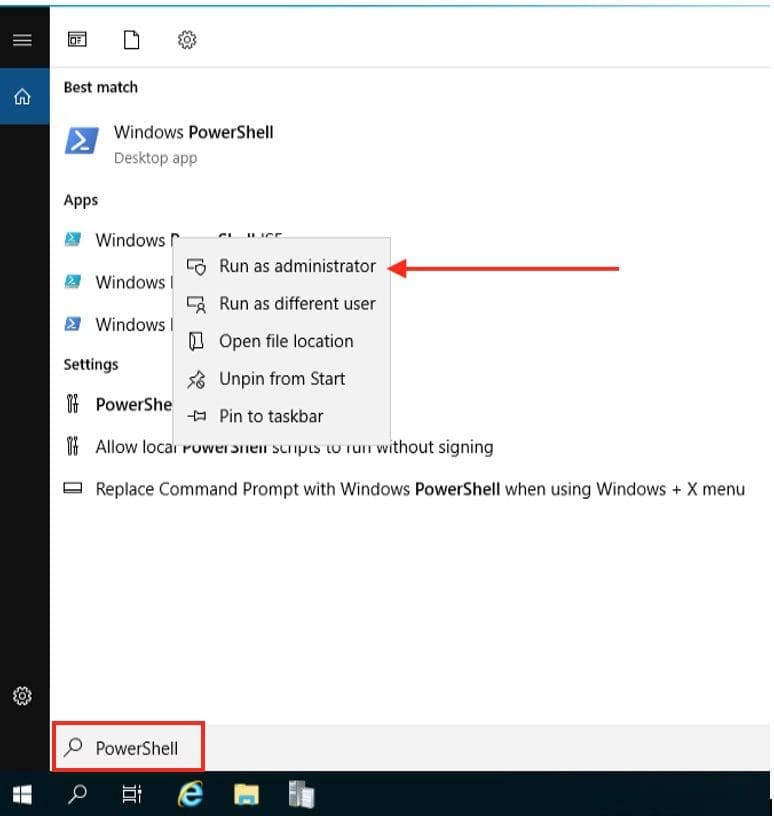
You could run the program as an administrator or even a different user. It is interesting to note that, the use of Run as Administrator is not limited to administrator accounts. You can use Run as Administrator to start a program in the context of an administrator account.
The administrator context is used only for that specific program, and it is available only until that program is closed. Some programs do not support Run as Administrator. If Run as Administrator fails, the Application Information service may not be running.
Furthermore, a user with a local user account that has Administrator rights is considered the system administrator of the client computer. The first local user account that is created during installation is placed in the local Administrators group. However, when multiple users run as local administrators, the IT staff has no control over these users or their client computers.In this case, Group Policy can be used to enable secure settings that can control the use of the local Administrators group automatically on every server or client computer
Guest Account
By default, all guest account is disabled on installation. The Guest account lets occasional or one-time users, who don’t have an account on the computer, temporarily sign in to the local server or client computer with limited user rights.
By default, the Guest account has a blank password. Because the Guest account can provide anonymous access, it’s a security risk. For this reason, it’s a best practice to leave the Guest account disabled, unless its use is entirely necessary

By default, the Guest account is the only member of the default Guests group (SID S-1-5-32-546). Which lets a user sign in to a server.
On occasion, an administrator who is a member of the Administrators group can set up a user with a Guest account on one or more computers. Here is how to add a guest account from the command line. To begin, find “Command Prompt” in the Start Menu and right-click to run it as an administrator.

This command and hit Enter:
net user Guest /add /active:yes
In place of Guest, kindly enter any name of your choice. To view the guest user created, kinldly run the command below from the command line
Net userYou can also see the account listed under
Settings > Accounts > Family & Other Users > Other Users.Note: When enabling the Guest account, only grant limited rights and permissions. For security reasons, the Guest account shouldn’t be used over the network and made accessible to other computers
HelpAssistant account
The HelpAssistant account is a default local account that is enabled when a Remote Assistance session is run. This account is automatically disabled when no Remote Assistance requests are pending.
HelpAssistant is the primary account that is used to establish a Remote Assistance session. The Remote Assistance session is used to connect to another computer running the Windows operating system, and it’s initiated by invitation.
For solicited remote assistance, a user sends an invitation from their computer, through e-mail or as a file, to a person who can provide assistance. After the user’s invitation for a Remote Assistance session is accepted, the default HelpAssistant account is automatically created to give the person who provides assistance limited access to the computer. The HelpAssistant account is managed by the Remote Desktop Help Session Manager service.
DefaultAccount
The DefaultAccount, also known as the Default System Managed Account (DSMA), is a built-in account introduced in Windows 10 version 1607 and Windows Server 2016. The DSMA is a well-known user account type. It’s a user-neutral account that can be used to run processes that are either multi-user aware or user-agnostic. The DSMA is disabled by default on the desktop SKUs (full windows SKUs) and WS 2016 with the Desktop.
The DSMA has a well-known RID of 503. The security identifier (SID) of the DSMA will thus have a well-known SID in the following format: S-1-5-21-<ComputerIdentifier>-503
The DSMA is a member of the well-known group System Managed Accounts Group, which has a well-known SID of S-1-5-32-581.
The DSMA alias can be granted access to resources during offline staging even before the account itself has been created. The account and the group are created during first boot of the machine within the Security Accounts Manager (SAM).
How Windows uses the DefaultAccount
From a permission perspective, the DefaultAccount is a standard user account. The default account is needed to run multi-user-manifested apps (MUMA apps). MUMA apps run all the time and react to users signing in and signing out of the devices. Unlike Windows Desktop where apps run in the context of the user and get terminated when the user signs off. MUMA apps run by using the DSMA.
MUMA apps are functional in shared session SKUs such as Xbox. For example, Xbox shell is a MUMA app. Today, Xbox automatically signs in as a Guest account and all apps run in this context. All the apps are multi-user-aware and respond to events fired by the user manager. The apps run as the Guest account.
How does the DefaultAccount gets created on domain controllers?
If the domain was created with domain controllers running Windows Server 2016. The DefaultAccount will exist on all domain controllers in the domain. If the domain was created with domain controllers running an earlier version of Windows Server.
The DefaultAccount will be created after the PDC Emulator role is transferred to a domain controller that runs Windows Server 2016. The DefaultAccount will then be replicated to all other domain controllers in the domain.
Microsoft doesn’t recommend changing the default configuration, where the account is disabled. There’s no security risk with having the account in the disabled state. Changing the default configuration could hinder future scenarios that rely on this account.
Here are some related guides: How to Run a Program in Windows as the SYSTEM (LocalSystem) Account. And Is my AD user account or service account password correct? How to run an App as a different User and switch Users in Windows.
SYSTEM
The SYSTEM account is used by the operating system and by services running under Windows. There are many services and processes in the Windows operating system that need the capability to sign in internally. Such as during a Windows installation.
The SYSTEM account was designed for that purpose, and Windows manages the SYSTEM account’s user rights. It’s an internal account that doesn’t show up in User Manager, and it can’t be added to any groups.
On the other hand, the SYSTEM account does appear on an NTFS file system volume in File Manager in the Permissions portion of the Security menu. By default, the SYSTEM account is granted Full Control permissions to all files on an NTFS volume. Here the SYSTEM account has the same functional rights and permissions as the Administrator account.
Note: Microsoft does not recommend removing the SYSTEM account’s permissions despite it can be removed!
NETWORK SERVICE
The NETWORK SERVICE account is a predefined local account used by the service control manager (SCM). A service that runs in the context of the NETWORK SERVICE account presents the computer’s credentials to remote servers. This account is not recognized by the security subsystem. So you cannot specify its name in a call to the LookupAccountName function.
This account can be specified in a call to the CreateService and ChangeServiceConfig functions. Note that this account does not have a password. So any password information that you provide in this call is ignored. While the security subsystem localizes this account name, the SCM does not support localized names.
Therefore, you will receive a localized name for this account from the LookupAccountSid function. But the name of the account must be NT AUTHORITY\NetworkService when you call CreateService or ChangeServiceConfig. Regardless of the locale, or unexpected results can occur.
A service that runs in the context of the NetworkService account presents the computer’s credentials to remote servers. By default, the remote token contains SIDs for the Everyone and Authenticated Users groups. The user SID is created from the SECURITY_NETWORK_SERVICE_RID value.
The NetworkService account has its own subkey under the HKEY_USERS registry key. Therefore, the HKEY_CURRENT_USER registry key is associated with the NetworkService account.
LOCAL SERVICE
The LOCAL SERVICE account is a predefined local account used by the service control manager. It has minimum privileges on the local computer and presents anonymous credentials on the network.
This account can be specified in a call to the CreateService and ChangeServiceConfig functions. Note that this account does not have a password. So any password information that you provide in this call is ignored. While the security subsystem localizes this account name, the SCM does not support localized names.
Therefore, you will receive a localized name for this account from the LookupAccountSid function. But the name of the account must be NT AUTHORITY\LocalService when you call CreateService or ChangeServiceConfig. Regardless of the locale, or unexpected results can occur.
The user SID is created from the SECURITY_LOCAL_SERVICE_RID value. The LocalService account has its own subkey under the HKEY_USERS registry key. Therefore, the HKEY_CURRENT_USER registry key is associated with the LocalService account.
You will find these guides useful: How to add an account to the local IIS_IUSRS group. How to create Organisation Units, Service Accounts, and Active Directory Security Groups. And how to add and remove Remote Desktop Users.
How to manage local user accounts
The default local user accounts, and the local user accounts you create, are located in the Users folder. The Users folder is located in Local Users and Groups. To access the default administrator account, launch the Computer Manager Microsoft Management Console (MMC).
I hope you found this blog post helpful on “Windows Local Account Authorization and Access Control”. Please let me know in the comment session if you have any questions.


