Skip to content

TechDirectArchive

Hands-on IT, Cloud, Security & DevOps Insights

  • Home
  • About
  • Advertise With US
  • Reviews
  • Contact
  • Toggle search form
Home » Linux » Set up OpenShift Cluster using Red Hat CodeReady Containers
  • Preventing Attacks on Cisco Switches Blog Header
    How to enable ssh via ASDM on Cisco ASA Network | Monitoring
  • mfa
    Microsoft Azure Multi-Factor Authentication (MFA) AWS/Azure/OpenShift
  • wine 2 1
    How to install and uninstall WineHQ on Linux Linux
  • screenshot 2017 06 07 11.30.45
    How to Enable or Disable Touch Screen in Windows 10 Windows
  • Print Spooler
    Mitigate Windows Print Spooler Remote Code Execution Vulnerability Security | Vulnerability Scans and Assessment
  • Embed Microsoft Forms into Your Website Page
    How to Embed Microsoft Forms into Your Website Page Microsoft Exchange/Office/365
  • Banner
    How to Stop OneDrive from Starting Up Automatically on Windows 11 Windows
  • SCSI Controoler HyperV issue failed to start VM
    Failed to Power on with Error ‘A virtual machine disk support provider for the specified file was not found Virtualization

Set up OpenShift Cluster using Red Hat CodeReady Containers

Posted on 09/10/202110/04/2023 Christian By Christian No Comments on Set up OpenShift Cluster using Red Hat CodeReady Containers
openshift

Red Hat OpenShift is the leading enterprise Kubernetes platform, built for an open hybrid cloud strategy. It is available as a fully managed cloud service on leading public clouds or as a self-managed software offering for organizations requiring more customization. OpenShift is the industry-leading hybrid cloud PaaS hosted by RedHat. It allows developers to quickly build, test, deploy and scale container-based applications consistently anywhere across on-premise, public clouds, and edge environments. Kindly refer to some of my related guides: Openstack Deployment with Devstack, Deploying a load balancer from scratch and adding backend servers, how to monitor services using Zabbix, and how to set-up PowerShell on a Linux server. In this article, you will learn how to set up OpenShift Cluster using Red Hat CodeReady Containers.

Red Hat OpenShift includes an enterprise-grade Linux operating system, container runtime, networking, monitoring, registry, and authentication and authorization solutions. Automate life-cycle management to get increased security, tailored operations solutions, easy-to-manage cluster operations, and application portability.

Installation using CodeReady Container

CodeReady Containers is one of the easiest ways for developers to run a minimal OpenShift cluster on a local laptop or desktop for free at no cost. It is designed to run a single Openshift node as a virtual machine.

Here are some related guides: How to install a Windows server container host. Learn about OpenShift common Commands, how to fix failover Cluster Manager failed while managing one or more clusters, DNS Bad key 9017: The Cluster Name registration failed of one or more associated DNS names, and how to install and uninstall Docker Desktop on Windows.

System Requirements

CodeReady Containers can run on Windows 10, Mac OS 10.14 Mojave or a newer version, and on Linux. It supports RHEL/CentOS 7.5 or a newer version, Ubuntu 18.04 or a newer version etc.

It requires the following minimum hardware and operating system resources:

  • 4 virtual CPUs (vCPUs)
  • 8 GB of memory
  • 35 GB of storage space

Installation of OpenShift 4 Cluster using Red Hat CodeReady Containers

The following steps assume you are running on an RHEL machine and you would require the following packages.
NetworkManager
Libvirt

Step 1: Install the required software packages

$ su -c 'yum install NetworkManager'
image-65
image-66

Step 2: Install the CodeReady container by Downloading the latest binary file for CRC using the URL below. And also copy your image secret with the “Copy Pull Secret” link from the page. it would be needed later

$ wget https://mirror.openshift.com/pub/openshift-v4/clients/crc/latest/crc-linux-amd64.tar.xz
image-67

Extract the downloaded CodeReady Containers archive.

tar xvf crc-linux-amd64.tar.xz
image-68

create the ~/bin directory and copy the crc executable to it

 mkdir -p ~/bin
image-69
cp ~/Downloads/crc-linux-*-amd64/crc ~/bin
image-70

add the ~/bin directory to your PATH:

$ export PATH=$PATH:$HOME/bin
image-71
echo 'export PATH=$PATH:$HOME/bin' >> ~/.bashrc
image-72

Step 3:Deploy CodeReady Containers virtual machine

$ crc setup

Use this command to set up your host operating system for the CodeReady Containers virtual machine.

image-73
image-74

This would initiate a series of checks by the installer. And once its done you can finally start the openshift cluster on your local machine

crc start
image-75

Copy and paste the pull secret after a few moments. You should be given the login credentials and URL for the cluster and a message stating that CodeReady Containers is running.

image-76

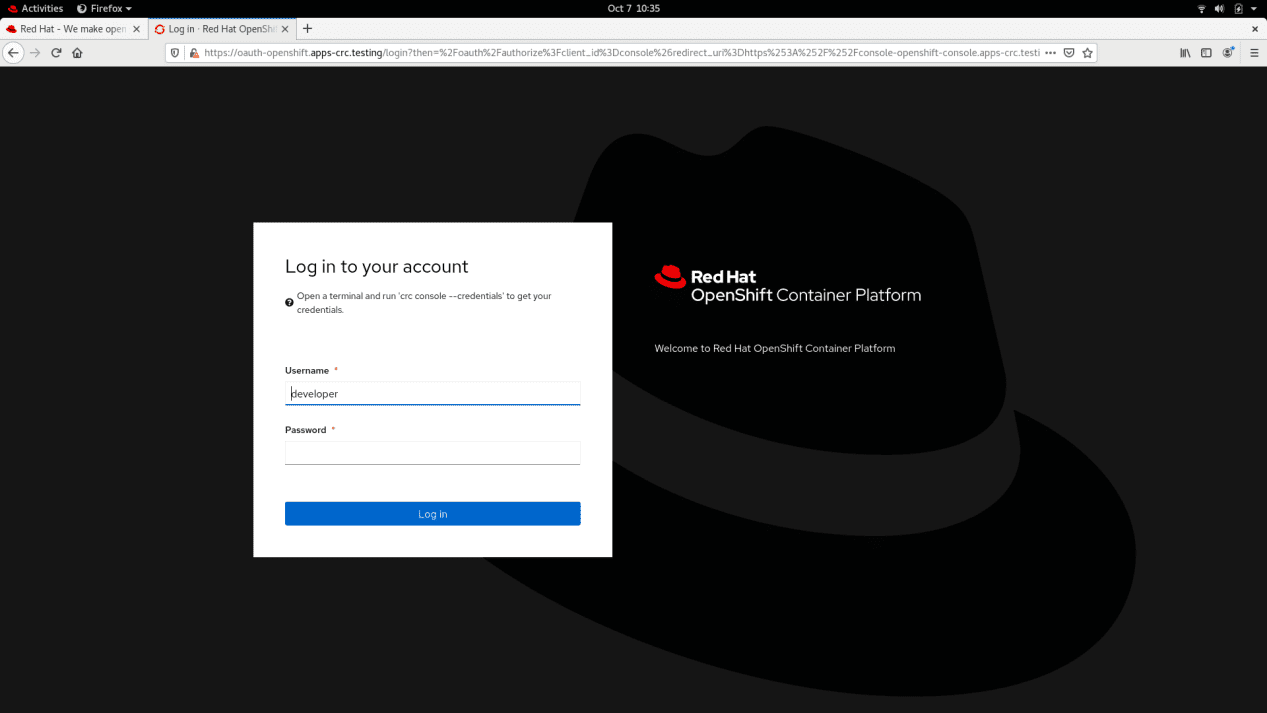
Step 4:Access OpenShift cluster. After deploying your OpenShift cluster locally. You can access it from the CLI or by opening the OpenShift console on your web browser with the URL provided.

openshift

Here are some related guides: How To Deploy Azure VMware Solution Private Cloud, Boot failure: How to fix EFI network timeout on VMware Workstation, and How to solve VMware workstation .lck error.

I hope you found this blog post helpful on how to Set up OpenShift Cluster using Red Hat CodeReady Containers. If you have any questions, please let me know in the comment session.

Rate this post

Thank you for reading this post. Kindly share it with others.

  • Click to share on X (Opens in new window) X
  • Click to share on Reddit (Opens in new window) Reddit
  • Click to share on LinkedIn (Opens in new window) LinkedIn
  • Click to share on Facebook (Opens in new window) Facebook
  • Click to share on Pinterest (Opens in new window) Pinterest
  • Click to share on Tumblr (Opens in new window) Tumblr
  • Click to share on Telegram (Opens in new window) Telegram
  • Click to share on WhatsApp (Opens in new window) WhatsApp
  • Click to share on Pocket (Opens in new window) Pocket
  • Click to share on Mastodon (Opens in new window) Mastodon
  • Click to share on Bluesky (Opens in new window) Bluesky
  • Click to share on Threads (Opens in new window) Threads
  • Click to share on Nextdoor (Opens in new window) Nextdoor
Linux

Post navigation

Previous Post: How to Install and Setup WordPress into a cPanel and Configure Your First WordPress Theme
Next Post: Deploy MVC Application to AWS EC2 Using RDP and Web Deploy

Related Posts

  • SUID GUID Sticky Bit 1
    Set Special File Permissions with SUID or GUID and Sticky Bit Linux
  • Slide4
    How to install Let’s Encrypt on Apache Web Server Linux
  • openstack ola
    Openstack Deployment with Devstack Linux
  • posfix as an smtp server
    How to Install and Configure Postfix as a Send-Only SMTP Server Linux
  • nextcloudfeature 1
    How To Install Nextcloud on a Linux system Backup
  • Add User to Sudoers
    Add a User to the Sudoers List in Linux Linux

More Related Articles

SUID GUID Sticky Bit 1 Set Special File Permissions with SUID or GUID and Sticky Bit Linux
Slide4 How to install Let’s Encrypt on Apache Web Server Linux
openstack ola Openstack Deployment with Devstack Linux
posfix as an smtp server How to Install and Configure Postfix as a Send-Only SMTP Server Linux
nextcloudfeature 1 How To Install Nextcloud on a Linux system Backup
Add User to Sudoers Add a User to the Sudoers List in Linux Linux

Leave a Reply Cancel reply

You must be logged in to post a comment.

Microsoft MVP

VEEAMLEGEND

vexpert-badge-stars-5

Virtual Background

GoogleNews

Categories

veeaam100

sysadmin top30a
 
  • Preventing Attacks on Cisco Switches Blog Header
    How to enable ssh via ASDM on Cisco ASA Network | Monitoring
  • mfa
    Microsoft Azure Multi-Factor Authentication (MFA) AWS/Azure/OpenShift
  • wine 2 1
    How to install and uninstall WineHQ on Linux Linux
  • screenshot 2017 06 07 11.30.45
    How to Enable or Disable Touch Screen in Windows 10 Windows
  • Print Spooler
    Mitigate Windows Print Spooler Remote Code Execution Vulnerability Security | Vulnerability Scans and Assessment
  • Embed Microsoft Forms into Your Website Page
    How to Embed Microsoft Forms into Your Website Page Microsoft Exchange/Office/365
  • Banner
    How to Stop OneDrive from Starting Up Automatically on Windows 11 Windows
  • SCSI Controoler HyperV issue failed to start VM
    Failed to Power on with Error ‘A virtual machine disk support provider for the specified file was not found Virtualization

Subscribe to Blog via Email

Enter your email address to subscribe to this blog and receive notifications of new posts by email.

Join 1,841 other subscribers
  • RSS - Posts
  • RSS - Comments
  • About
  • Authors
  • Write for us
  • Advertise with us
  • General Terms and Conditions
  • Privacy policy
  • Feedly
  • Telegram
  • Youtube
  • Facebook
  • Instagram
  • LinkedIn
  • Tumblr
  • Pinterest
  • Twitter
  • mastodon

Tags

AWS Azure Bitlocker Microsoft Windows PowerShell WDS Windows 10 Windows 11 Windows Deployment Services Windows Server 2016

Copyright © 2025 TechDirectArchive


Loading Comments...
 

You must be logged in to post a comment.