Skip to content

TechDirectArchive

Hands-on IT, Cloud, Security & DevOps Insights

  • Home
  • About
  • Advertise With US
  • Reviews
  • Contact
  • Toggle search form
Home » Windows Server » How to reinstall Server Manager and disable Server Manager at startup for all users and login users
  • VMware
    How to install Windows Server 2022 on VMware Workstation Virtualization
  • Manage Log Files via Logrotate
    How To Use Logrotate For Managing Log Files In Ubuntu Linux Linux
  • Standby Mode
    Disable modern standby on Windows 10 and 11 Windows
  • banner
    How To Add Google Drive To File Explorer in Windows Windows
  • ghm
    MDT Driver injection: How to import drivers in .exe format into Microsoft Deployment Toolkit Windows Server
  • How To Remove Takeprize50.life Redirect From Mac unboxhow
    Remove unwanted site redirects or pop-ups from Google Chrome Mac
  • How to pause updates and why
    How to Pause Windows Update via Windows Settings Windows
  • Feature Image
    How to Enable and Disable WMI Traffic through Windows CMD Windows

How to reinstall Server Manager and disable Server Manager at startup for all users and login users

Posted on 25/04/202109/10/2025 Christian By Christian 4 Comments on How to reinstall Server Manager and disable Server Manager at startup for all users and login users
Server-Manager

n this article, you will learn how to reinstall Server Manager and disable Server Manager at startup for all users and login users. Server Manager is a management console in Windows Server that helps IT professionals provision and manage both local and remote Windows-based servers from their desktops. Please see How to reset and reinstall Windows 10 from the cloud and how to recover your Windows 10 when you cannot boot to Windows, and how to reset and reinstall Windows 10 locally.

Server Manager is installed by default with all editions of Windows Server and can be used to manage server core options.

You may also want to see how to enable and disable automatic login on Ubuntu Linux via the GUI and CLI, and how to launch an application automatically during startup on Windows.

What is “Server Manager”?

The Server Manager was first introduced with Windows Server 2008 and it gave administrators the ability to install, configure and manage server roles and features and since then, it has become the central control point for the administration of Windows Server.

You might have intentionally or unintentionally uninstalled .NET Framework from your server, thus resulting in a broken Server Manager. This might also result in PowerShell not launching correctly on your device.

This error is also common when you performed an in-place upgrade of Server 2019 (Desktop Experience). The following executables will be missing “ServerManager.exe & ServerManagerLauncher.exe”. See the following guide on how to enable Bitlocker via the Local Group Policy Editor and the Group Policy Management Console.

To reinstall .NET Framework, please follow the steps in this guide. “How to enable or disable DotNet Framework (NetFx3) via PowerShell, Control Panel, and DISM in Windows“. In this case, I will recommend using the CLI described in step 1.

Part 1 – Reinstall Server Manager

You will have to launch PowerShell as an Administrator as shown below.

Screenshot-2021-04-26-at-00.06.08

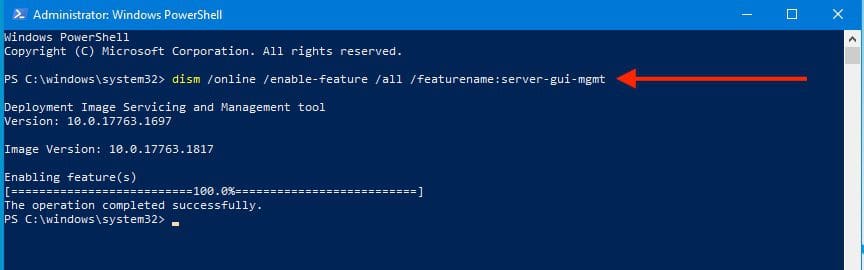
Then run the following DISM command below to have Server Manager re-installed on your system.

dism /online /enable-feature /all /featurename:server-gui-mgmt
ServerManager

As you can see below, the server manager is now re-installed and can be used to install, configure and manage server roles and features.

Screenshot-2021-04-26-at-00.05.04

For more information on DISM, please see the following posts: Remove Windows 10 Apps with DISM:How to remove pre-provisioned apps from Windows Image, how to resolve DISM unspecified error when removing preinstalled packages, and how to add languages to Windows image using DISM and PowerShell.

Part 2 – Disable Automatic Startup for Server Manager

Launch the Server Manager and Click on Manage. And select “Server Manager Properties”

Screenshot-2021-04-26-at-00.22.57

Check the Don’t start Server Manager automatically at logon and click on OK.#

Screenshot-2021-04-26-at-00.24.36

You may want to see some related guides: Windows Admin Center:How to set up WAC, how to Test Network Connection to the Windows Admin Center (WAC) Gateway, setup System Insights on Windows Admin Center (WAC), and how to upgrade Windows Admin Center.

Part 3 – Disable Server Manager at startup for all users

To do this, launch the Group Policy Management as shown below

Screenshot-2021-04-26-at-00.27.04

You may create a new policy. Since I have an existing Domain Policy, I will modify this by editing it as shown below.

Screenshot-2021-04-26-at-00.31.09

Expand the Computer Configuration\Administrative Templates\System\Server Manager. On the right side of the window, select “Don’t display Server Manager automatically at Logon“.

Screenshot-2021-04-26-at-00.36.49

Please, see how to fix Logon Failure: User has not been granted the requested logon type, and the Server Certificate could not be updated: Private key does not match.

Enable the Policy

Then select Enable and click on OK.

Screenshot-2021-04-26-at-00.38.22

As you can see, the policy has been enabled.

Screenshot-2021-04-26-at-00.40.36

Note: If you created a new policy, you will have to link the Group Policy in the right OU with the Servers that you want to Apply or use the Security Filtering to Filter the Servers that you want to apply. See the hyperlink for the difference between GPUpdate and GPUpdate /force, and for some group policy implementations.

You may want to see the following articles as well. Why use RSAT? How to Install RSAT on Windows 10, Remote Server Administration Tools: To install RSAT on Windows Server, and what is Group Policy Object and how can it be launched in Windows.

I hope you found this blog post helpful on how to reinstall Server Manager and disable Server Manager at startup for all users and login users. If you have any questions, please let me know in the comment session.

5/5 - (1 vote)

Thank you for reading this post. Kindly share it with others.

  • Click to share on X (Opens in new window) X
  • Click to share on Reddit (Opens in new window) Reddit
  • Click to share on LinkedIn (Opens in new window) LinkedIn
  • Click to share on Facebook (Opens in new window) Facebook
  • Click to share on Pinterest (Opens in new window) Pinterest
  • Click to share on Tumblr (Opens in new window) Tumblr
  • Click to share on Telegram (Opens in new window) Telegram
  • Click to share on WhatsApp (Opens in new window) WhatsApp
  • Click to share on Pocket (Opens in new window) Pocket
  • Click to share on Mastodon (Opens in new window) Mastodon
  • Click to share on Bluesky (Opens in new window) Bluesky
  • Click to share on Threads (Opens in new window) Threads
  • Click to share on Nextdoor (Opens in new window) Nextdoor
Windows Server Tags:Microsoft Windows, RSAT, startup, Windows 10, Windows Server 2016

Post navigation

Previous Post: Configure VPN on Windows Server: How to allow remote VPN Access for Domain or Local Users
Next Post: How to install Zoom on macOS

Related Posts

  • disable automatic updates in Windows
    How to disable automatic Windows updates via Windows Settings Windows
  • WindowsServer2022
    Windows Server 2022 Capabilities: Register Windows Admin Center with Azure Windows Server
  • WinPE
    How to uninstall and upgrade ADK, WinPE, and MDT Windows Server
  • add or remove features on the specified server failed
    Error 0x80073701: The request to add or remove features on the specified server failed Windows Server
  • original
    Error 0x800710E0: Operator or Administrator has refused request Windows Server
  • install ssl certificate
    Configure SSL connection for WSUS Upstream and Downstream Servers Windows Server

More Related Articles

disable automatic updates in Windows How to disable automatic Windows updates via Windows Settings Windows
WindowsServer2022 Windows Server 2022 Capabilities: Register Windows Admin Center with Azure Windows Server
WinPE How to uninstall and upgrade ADK, WinPE, and MDT Windows Server
add or remove features on the specified server failed Error 0x80073701: The request to add or remove features on the specified server failed Windows Server
original Error 0x800710E0: Operator or Administrator has refused request Windows Server
install ssl certificate Configure SSL connection for WSUS Upstream and Downstream Servers Windows Server

Comments (4) on “How to reinstall Server Manager and disable Server Manager at startup for all users and login users”

  1. Avatar photo firstlast says:
    19/10/2022 at 7:40 PM

    Thank you! It was useful.

    Log in to Reply
    1. chris Christian says:
      19/10/2022 at 7:47 PM

      I am glad you found this useful. Thank you for your kind words…

      Log in to Reply
  2. Avatar photo Binju says:
    06/07/2023 at 10:11 AM

    life saver

    Log in to Reply
    1. chris Christian says:
      25/03/2024 at 1:22 PM

      I am glad you found this useful

      Log in to Reply

Leave a Reply Cancel reply

You must be logged in to post a comment.

Microsoft MVP

VEEAMLEGEND

vexpert-badge-stars-5

Virtual Background

GoogleNews

Categories

veeaam100

sysadmin top30a

  • VMware
    How to install Windows Server 2022 on VMware Workstation Virtualization
  • Manage Log Files via Logrotate
    How To Use Logrotate For Managing Log Files In Ubuntu Linux Linux
  • Standby Mode
    Disable modern standby on Windows 10 and 11 Windows
  • banner
    How To Add Google Drive To File Explorer in Windows Windows
  • ghm
    MDT Driver injection: How to import drivers in .exe format into Microsoft Deployment Toolkit Windows Server
  • How To Remove Takeprize50.life Redirect From Mac unboxhow
    Remove unwanted site redirects or pop-ups from Google Chrome Mac
  • How to pause updates and why
    How to Pause Windows Update via Windows Settings Windows
  • Feature Image
    How to Enable and Disable WMI Traffic through Windows CMD Windows

Subscribe to Blog via Email

Enter your email address to subscribe to this blog and receive notifications of new posts by email.

Join 1,836 other subscribers
  • RSS - Posts
  • RSS - Comments
  • About
  • Authors
  • Write for us
  • Advertise with us
  • General Terms and Conditions
  • Privacy policy
  • Feedly
  • Telegram
  • Youtube
  • Facebook
  • Instagram
  • LinkedIn
  • Tumblr
  • Pinterest
  • Twitter
  • mastodon

Tags

Active Directory AWS Azure Bitlocker Microsoft Windows PowerShell WDS Windows 10 Windows 11 Windows Server 2016

Copyright © 2025 TechDirectArchive


Loading Comments...
 

You must be logged in to post a comment.